Understand the tech you use daily.

Components worth knowing

These are the parts and terms you will see most often when looking at a computer, phone, tablet, or smart TV.

Close-up of a computer processor chip

Processor or chip The brain

Think of it as the brain. It handles the work and affects how quickly everything responds.

Chip names, decoded: Intel chips say i3, i5, or i7 — the bigger the number, the faster. AMD chips say Ryzen 3, 5, or 7 — same idea. Apple chips say M1, M2, M3, or M4 — a higher number means newer and faster. For everyday use (email, photos, video calls, browsing), an i5, a Ryzen 5, or any Apple M chip is plenty.

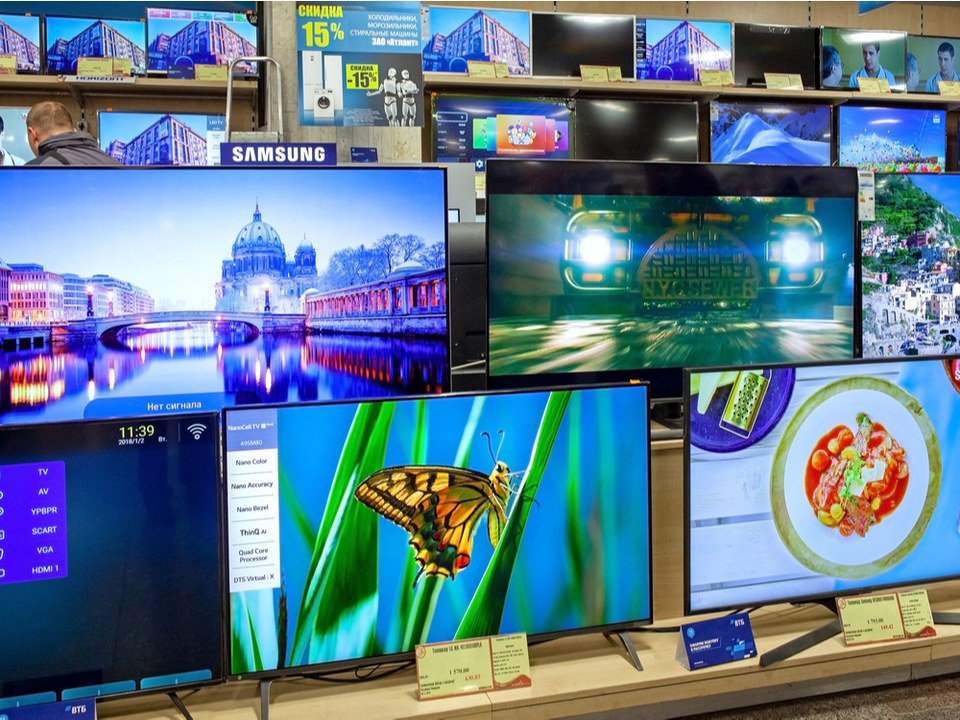
Wall of television screens showing vivid pictures

Screens TVs and monitors

Think about size and sharpness. Size tells you how large the picture is. A sharper screen makes words, faces, and details easier on your eyes.

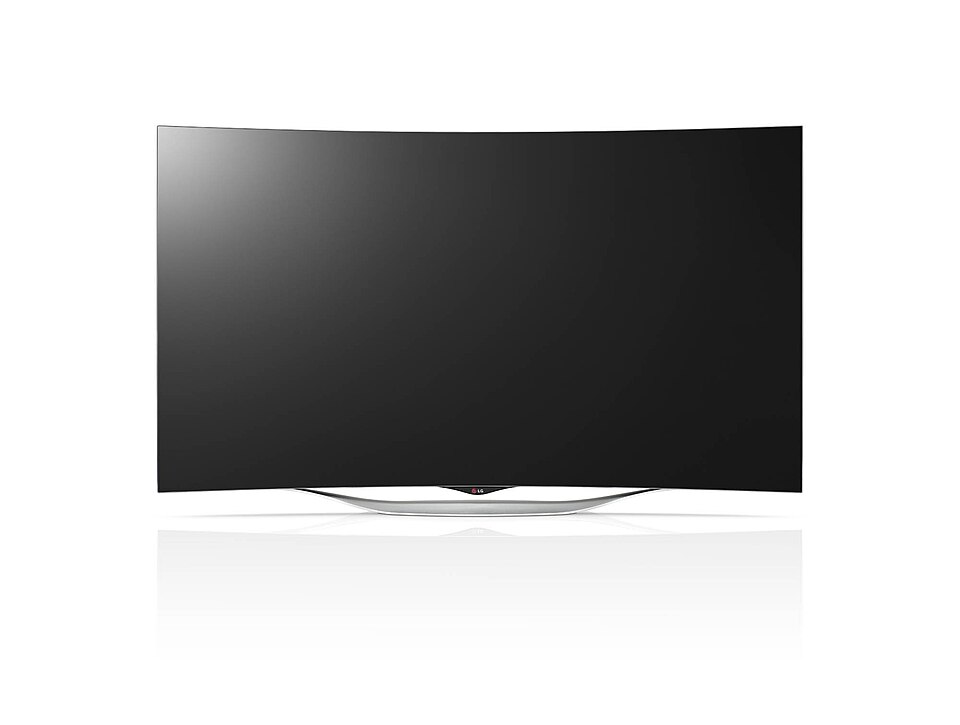
Screen types — good, brighter, and best. LED is the common, affordable kind in most TVs and monitors. QLED is a brighter LED — great for sunny rooms. OLED gives the richest picture with the deepest blacks, and costs the most.

Television or monitor? A television is made for watching shows and movies from across the room. A monitor is made for computer work up close — words and text look sharper on a monitor, which makes reading easier on your eyes.

More information about televisions

More information about monitors

Related: what refresh rate (60Hz vs 120Hz) means — explained on our TV guide page.

Ports and USB-C The plug-in spots

Think of ports as the places where things plug in. You will mostly meet two USB shapes: USB-A, the classic flat rectangle, and USB-C, the small rounded oval on newer devices.

Why USB-C wins: it plugs in either way, charges devices much faster, and moves photos and files much faster. One USB-C cable can often handle charging, accessories, and even a monitor.

Buying cables or a charger? Choose USB-C
A smartphone battery

Battery Power and charging

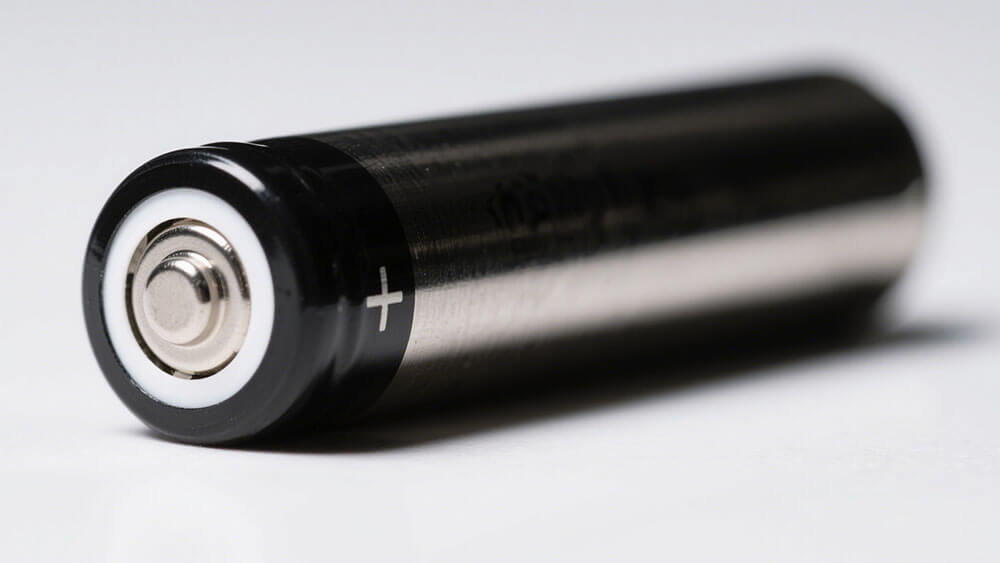
Think of it as a rechargeable flashlight. Every phone, tablet, and laptop runs on a lithium battery.

Two things to know: battery life is how long one charge lasts (aim for 10+ hours on a laptop); a battery cycle is one full 100% charge used up. Batteries wear a little with every cycle, and heat wears them fastest. If your old device dies at 40%, the battery is worn — a new battery is often cheaper than a new device.

Keep devices cool — heat is the #1 battery killer
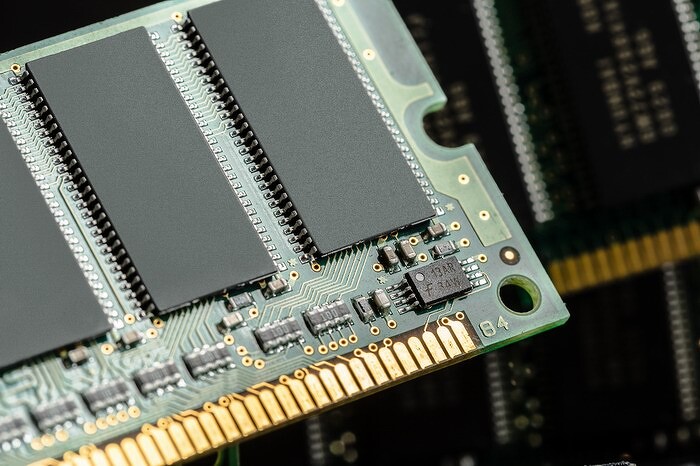
A computer memory stick

Memory or RAM The workspace

Think of it as your desk. A larger desk gives you more room to keep several things open at once.

Why it matters to you: More memory helps when you use many programs or browser pages together.

Good target: 16GB on a computer · 8GB on a tablet
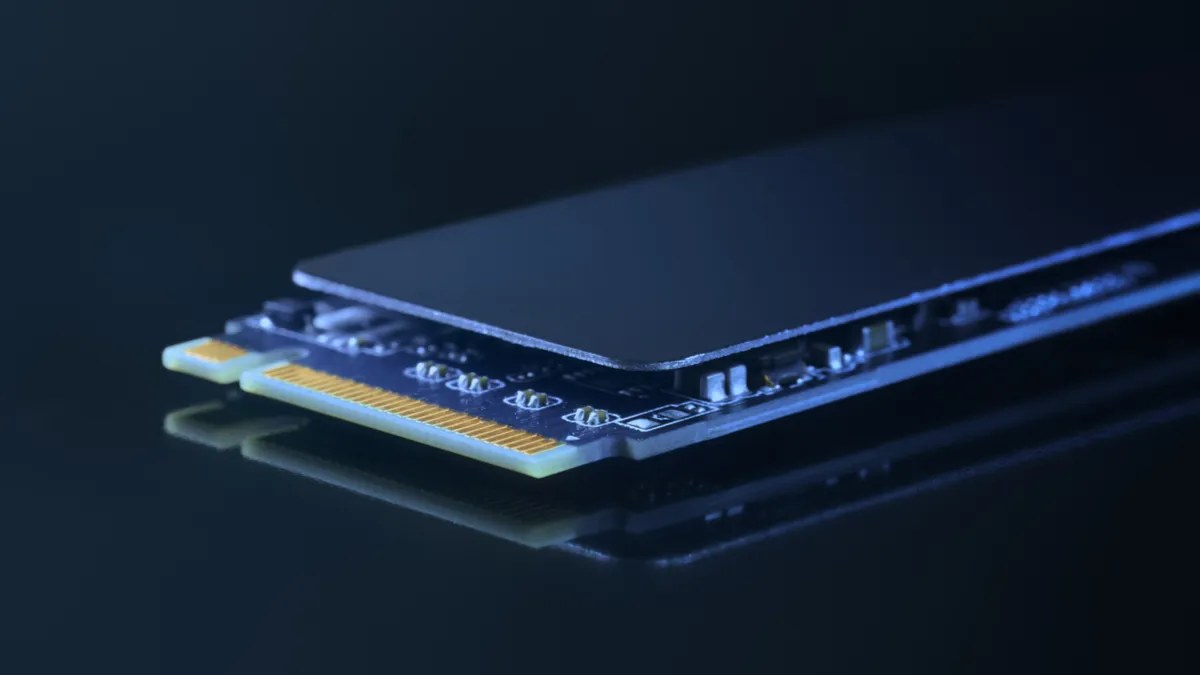
A solid-state storage drive

Storage The filing cabinet

Think of it as a filing cabinet. This is where your photos, documents, programs, and videos stay.

Why it matters to you: More storage means more room before you need to clean anything out.

Plenty for most people: 256GB to 512GB
A home Wi-Fi router

Wi-Fi The wireless connection

Think of it as an invisible cord to the internet. It connects your device without a cable.

Why it matters to you: A newer Wi-Fi version can give you a stronger, smoother connection when your home internet supports it.

Wi-Fi 6 or Wi-Fi 6E is current and fine

Operating system The device’s way of working

Think of it as the device’s way of working. It controls the menus, programs, and everyday feel.

WindowsRuns on most brands of computers — Dell, HP, Lenovo, and more. The widest choice of programs, and the most common system in homes and offices.
macOSRuns only on Apple Mac computers. Works closely with iPhone and iPad — your photos, messages, and calls flow between them.
iPadOS and iOSRun Apple’s iPads and iPhones. Simple, touch-friendly menus, and apps come only from Apple’s App Store, which keeps things safer.
AndroidRuns most non-Apple phones and tablets, including Samsung and Google Pixel. More choice of devices and prices; apps come from the Google Play Store.
LinuxA free system used mostly for servers and by techs — not something most people ever need.

Why it matters to you: The best choice is often the one that feels familiar and works well with the devices you already use.

Web browsers

The five you are most likely to see, explained one by one.

Web browsers — used to visit websites by most modern devices.

These are the five most-used browsers worldwide across phones, tablets, and computers in September 2026. The percentages are estimates of website visits, so they can vary a little by source.
1Google Chrome icon: a red, yellow, and green circle with a blue center

Google Chrome

Simple nameGoogle’s browser.

How to spot itA round red, yellow, and green icon with a blue center.

Where you see itAndroid phones and Chromebooks. You can also get it on Windows, Mac, iPhone, and iPad.

Why people use it: It works on nearly every kind of device and is the world’s most-used browser.

2Apple Safari icon: a blue compass with a red needle

Apple Safari

Simple nameApple’s browser.

How to spot itA blue compass with a red needle.

Where you see itIt comes on iPhone, iPad, and Mac.

Why people use it: It is already built into Apple devices and fits naturally with them.

3Microsoft Edge icon: a blue and green wave shaped like a lowercase e

Microsoft Edge

Simple nameMicrosoft’s browser.

How to spot itA blue-and-green wave that looks like a lowercase “e.”

Where you see itIt comes on Windows computers. You can also get it on Mac, iPhone, iPad, and Android.

Why people use it: It is ready to use when you get a Windows computer.

4Mozilla Firefox icon: an orange fox curled around a blue and purple globe

Mozilla Firefox

Simple nameMozilla’s browser.

How to spot itAn orange fox curled around a blue and purple globe.

Where you see itYou can get it on Windows, Mac, Android, iPhone, and iPad.

Why people use it: It is made by the nonprofit Mozilla Foundation and is known for privacy controls.

5Brave browser icon: an orange lion head

Brave

Simple nameBrave’s browser.

How to spot itAn orange lion head.

Where you see itYou download it yourself on Windows, Mac, Android, iPhone, and iPad.

Why it made the list: It blocks ads and trackers on its own, which means fewer scam pop-ups — a real plus for staying safe.

Which one should you use?

For everyday use, the simplest answer is usually the browser that came with your device. All five can visit the same everyday websites.

iPhone or iPad

Safari is the easy choice because it is already there.

Windows computer

Edge is already included. Chrome is also a familiar choice if you already use Google services.

Android phone

Chrome is the usual choice.

Want a different choice?

Firefox works on all the common devices and is a solid choice for people who value privacy controls.

Which browser are you using right now?

Think about the icon you tapped before this page opened. Match it to one of these pictures.

The browser’s name may also appear at the top of the screen or window. If a link opened from another app, the browser controls may be smaller or hidden.

  • Colorful circle: Chrome
  • Blue compass: Safari
  • Blue-green wave: Edge
  • Orange fox around a globe: Firefox
  • Orange lion: Brave

Keyboard shortcuts worth knowing

Small key combinations that save a hundred mouse trips a day. Every key is described by where it sits on the keyboard, so the list reads naturally aloud too.

Where your keys are

  • Ctrl is the key in the bottom-left corner of the keyboard.
  • Shift is the wide key on the left side, just above Ctrl, with an up arrow on it.
  • Alt is on the bottom row, between Ctrl and the spacebar.
  • Windows key is on the bottom row between Ctrl and Alt — it has a little window picture on it.
  • Esc is the key in the very top-left corner.
  • F1 through F12 are the small keys across the very top row.
  • Enter is the large key on the right edge of the letter keys.
  • Plus shares the equals key at the far right of the number row.
  • Fn (laptops only) is in the bottom-left corner, near Ctrl.

When you see two keys joined by a plus sign, hold the first key down, tap the second, then let go.

Hold Ctrl (bottom-left corner), then tap a letter:
Ctrl+CCopyCtrl+XCutCtrl+VPasteCtrl+ZUndoCtrl+ASelect all

Working with words

The five moves you will use every day. Learn these and the computer starts feeling easy.

Select the words first

Before you can copy or move words, you tell the computer which words you mean. Selected words turn blue — that means “these are the ones.”

  1. Drag across them: click and hold at the start of the words, slide across them, let go.
  2. One word: double-click it.
  3. A whole paragraph: triple-click anywhere inside it.
  4. Everything: click inside the document first, then hold Ctrl and tap the letter A.

Mouse only — no keys needed

Good to know: If you drag but nothing stays blue, you let go of the mouse button too soon, or you clicked again (which cancels it). Just drag across the words again, slower.

Copy

Copying remembers the words without removing them. The words stay where they are, and a perfect duplicate waits invisibly until you paste it.

  1. Select the words first, until they turn blue.
  2. Hold Ctrl and tap the letter C.
  3. Nothing visible changes — that is normal.

Ctrl + C

Good to know: If pasting later produces nothing, the words were never selected. Go back and highlight them first.

Cut

Like copy, but the words are removed from where they were. Use it when you are moving text, not duplicating it.

Ctrl + X

Good to know: If you cut and then get distracted, the page has a hole in it — do not panic. Paste right away, or press Undo (below) to put the words back.

Paste

Places the words you copied or cut wherever your cursor is blinking.

  1. Click once exactly where you want the words (look for the blinking vertical line).
  2. Hold Ctrl and tap the letter V.

Ctrl + V

Good to know: Pasting twice pastes a second copy — the computer keeps remembering until you copy something new. Unwanted duplicate? Press Undo once.

Undo — the oops key

Takes back your last action: typed the wrong thing, deleted by accident, pasted in the wrong spot. Press it more than once to step further back.

Ctrl + Z

Good to know: Redo is the “oops, I did not mean Undo” key: hold Ctrl and tap the letter Y. It puts back what Undo took away.

No keys at all: right-click

If holding two keys at once is fiddly, the mouse alone can do copy, cut, and paste.

  1. Select the words.
  2. Click the right mouse button on them — a small menu pops up.
  3. Click Copy (or Cut).
  4. Right-click where you want the words, then click Paste.

Mouse only — no keys needed

Browser essentials

The keys that make the web feel fast.

Open a new tab

Opens a fresh tab so you can start a new search without losing the page you are reading. A tab is a separate page open inside the same window — like several newspaper pages open at once.

Ctrl + T

Close the tab

Closes the tab you are looking at, tidying up without closing the whole browser.

Ctrl + W

Switch to the next tab

Jumps to the next tab along the top without clicking. Add Shift to go backward.

Ctrl + Tab

Good to know: Ctrl + Shift + Tab goes to the previous tab.

Reopen a closed tab

Brings back the last tab you closed — the “I just closed something!” rescue. Press again for the one before that.

Ctrl + Shift + T

Jump to the address bar

Puts your cursor straight into the top bar so you can type an address or a search without touching the mouse.

Ctrl + L

Go back a page

Back is the universal undo for where you just were. Clicked something, got lost, go back.

Alt + Left arrow

Good to know: Press and hold the Back arrow (or right-click it) to see a list of pages you visited in that tab — pick one to jump straight back.

Reload the page

Asks the website for a fresh copy of the page. Fixes pages that look broken, blank, or half-loaded — the fix that works nine times out of ten.

F5 or Ctrl + R

Good to know: On many laptops F5 needs the Fn key held too (Fn + F5) if the top row is set to volume and brightness. See the function-keys section below.

Hard refresh

Forces the page to load completely fresh, ignoring the saved copy on your computer. The real fix when a page still looks old or broken after a normal reload.

Ctrl + Shift + R

Good to know: Edge also accepts Shift + F5.

Find a word on the page

Pops open a little search box. Type a word and the browser jumps to and highlights every match — no more long-page scrolling hunts.

Ctrl + F

Good to know: Press Enter to jump to the next match.

Bookmark this page

Saves the page to a list you can reopen with one click — like a dog-eared page in a phone book.

Ctrl + D

Good to know: In Edge it is called a “favorite,” not a bookmark — same thing, different name. Show or hide the bookmarks bar with Ctrl + Shift + B.

Private window

A private window simply does not save history or typed searches on your computer. It does not make you anonymous — websites and your internet provider can still see what you do. Useful on a shared computer, or shopping for a surprise gift.

Ctrl + Shift + N

Good to know: Firefox is the odd one out: it uses Ctrl + Shift + P.

Stop a loading page

Tells the browser to give up on a page that is taking forever. Also closes pop-up boxes and small menus.

Esc

Print the page

Opens the print screen for the page you are looking at.

Ctrl + P

Windows system shortcuts

Keys that control the computer itself, in any program.

Magnifier on and off

Enlarges everything on screen — from a little bigger up to sixteen times — so small text and photos are easier to see.

Windows key + Plus on / Windows key + Esc off

Good to know: While it is on, Windows key + Plus zooms further in and Windows key + Minus zooms back out.

Open your files

Opens the window where your documents, pictures, and downloads live.

Windows key + E

Good to know: Once it is open, Ctrl + E jumps into its search box.

Show the desktop

Hides every open window so you can see your desktop. Press again to bring them all back.

Windows key + D

Lock the computer

Locks the screen so nobody can use your computer until you sign back in. Use it before you walk away.

Windows key + L

Open Accessibility settings

Opens the settings page with text size, magnifier, and other easy-reading options.

Windows key + U

Screenshot part of the screen

Dims the screen and lets you drag a box around whatever you want to capture — a copy goes to your clipboard. Click the small notification that appears to save it.

Windows key + Shift + S

Good to know: For the whole screen instead: Windows key + Print Screen saves the picture into Pictures, then Screenshots.

Switch between open programs

Hop from one open program to the next without the mouse.

  1. Hold Alt down.
  2. Tap Tab once for each program.
  3. Let go when the one you want is highlighted.

Alt + Tab

Rename a file / new folder

In your files window: click a file or folder once, then rename it — or create a fresh empty folder.

F2 rename / Ctrl + Shift + N new folder

Good to know: After typing the new name, press Enter to save it. F2 may need Fn held on laptops.

Send an email

Sends the email you are writing without clicking the Send button. Works in Gmail and in Outlook on the web.

Ctrl + Enter

Function keys: F1 to F12

The small keys across the very top row. You only need six of them — the rest you can safely ignore.

F1 — Help

Opens the help page of the program you are using. (In Windows 11 it often opens a web support page instead.)

F1

F2 — Rename

Click a file or folder once, press F2, type the new name, press Enter.

F2

F5 — Refresh the page

Reloads the web page you are looking at.

F5

F6 — Jump to the address bar

In a browser, moves your cursor straight to the top bar.

F6

F11 — Full screen

The web page fills the whole screen. Press F11 again to bring the toolbars back — if your toolbars ever “vanish,” the answer is just press F11 again.

F11

Shift + F10 — Right-click

Works exactly like a right mouse click — handy if the mouse is not cooperating.

Shift + F10

The rest, briefly: F3 opens search. Alt + F4 closes the window you are looking at (the fastest way to shut a stuck program — do not use it with unsaved work). F7 in a browser asks about “caret browsing” — an accidental press is harmless, just click No. F8, F9, F10 alone, and F12 do nothing you need. Old guides mention F8 for Safe Mode — that trick no longer works on Windows 10 or 11.

On laptops: the Fn key

On most laptops the top row defaults to picture-actions (volume, brightness), so you hold Fn and press the key for the plain F1–F12 action — for example Fn + F5 to refresh. To flip it permanently, press Fn + Esc (the Esc key often has a little padlock picture); on some HP models it is Fn + Shift. Test it: press F5 in a browser. Page refreshes means direct. Volume changes means hold Fn, or toggle the lock. Desktop keyboards usually have no Fn key — F1–F12 just work.

Low vision helpers

Built-in tools that make everything easier to see. All free, all already on your computer.

Screen magnifier

Enlarges everything on screen so small text and photos are easier to see.

Windows key + Plus on / Windows key + Esc off

Good to know: Also at: Start, then Settings, then Accessibility, then Magnifier.

Make all text bigger

A system-wide text-size slider — drag it right and click Apply. Nothing else changes.

Start > Settings > Accessibility > Text size

Good to know: Its sibling, Settings, then System, then Display, then Scale, makes everything bigger, not just text.

Make just this web page bigger

Enlarges the current web page instantly, and the browser remembers it for that site.

Ctrl + Plus bigger / Ctrl + Minus smaller / Ctrl + 0 reset

High contrast themes

The strongest option: full color schemes like yellow-on-black. Quick toggle included.

Settings > Accessibility > Contrast themes — pick one, then Apply. Quick toggle: hold left Alt and left Shift, then tap Print Screen.

Good to know: For something gentler, try dark mode: Settings, then Personalization, then Colors, then choose Dark.

Screen reader (Narrator)

Speaks everything on screen aloud, for people who cannot see it well. The same keys turn it off again — so nobody gets stuck with a talking computer they did not ask for.

Windows key + Ctrl + Enter

Good to know: Also at: Settings, then Accessibility, then Narrator.

Read a web page aloud (Edge)

Reads the page in a natural voice, highlighting each word as it goes.

Ctrl + Shift + U

Good to know: The same keys stop it. Or right-click the page and choose Read aloud.

Bigger mouse pointer

Makes the pointer larger and easier to find — up to fifteen times normal size.

Settings > Accessibility > Mouse pointer and touch — drag the Size slider. Shortcut to Accessibility: Windows key + U.

Good to know: Night light (Settings, then System, then Display) warms the screen color at night for less harsh glare.

One thing worth understanding

The address bar is the search box

In Chrome, Edge, Firefox, and Safari today, the long strip at the top of the browser is both the address bar and the search box — one box does both jobs. There is no wrong place to type.

Typing a website address into search still takes you there — type s2wtech.com (no www or http needed) and the browser goes straight to it. A real web address is letters and dots, like www.s2wtech.com, usually with no spaces.

Stuck on any of these? That is exactly what a tutoring visit is for — call Sean at (813) 770-6082.

Search engines

How you find things on the web. A search engine is what finds websites for you when you type a question into your browser. You type, it brings back the answers.

Google

The most used, by far. It has been organizing the web the longest, so its answers are usually the most accurate. The trade-off: Google remembers what you search so it can show you ads.

Bing

Microsoft's search engine. It comes built into the Edge browser. Solid answers, and Microsoft also uses your searches to personalize ads.

DuckDuckGo

The privacy-first option. It does not build a profile on you. The trade-off: its answers are not as accurate as Google's — and weaker answers can lead you to the wrong sites.

Our recommendation

Use Google for accuracy. Better answers mean fewer wrong clicks into bad sites. Real privacy comes from a browser that blocks trackers, and from safe habits — see the Security section.

Security: staying safe online

Security means keeping your information private and your devices clean. Three ideas cover most of it: encryption scrambles your information, antivirus catches the bad programs, and a VPN gives you a private tunnel on public Wi-Fi.

Best antivirus and anti-malware, and why

Antivirus and anti-malware sound like the same thing, but they catch different criminals. You want both jobs covered — here is the simple version.

Antivirus: the guard at the door

Catches the classic viruses — bad programs that try to sneak onto your computer. Windows computers already have one built in, called Windows Security, and it is free. Macs and Chromebooks have their own built-in guards too. For most people, the built-in guard is enough — you do not need to buy another one.

Anti-malware: the detective

Catches the newer tricks: fake virus pop-ups, spyware that watches what you type, and hijackers that change your homepage or search engine. This is where Malwarebytes (below) comes in — it is the best at this job, and it is the one we install for our clients.

A gold padlock, the symbol for encryption

Encryption

Scrambled so only you can read it

What it isEncryption scrambles your information into a code. Only the right person or device can unscramble it. If someone snoops in the middle, all they see is gibberish.

Where you see itThe little padlock in your browser's address bar means the website uses encryption. Your Wi-Fi password turns on encryption for your home wireless too.

What you doAlmost nothing — it works in the background. Just look for the padlock before you type a password or card number, and keep a password on your Wi-Fi.

Malwarebytes logo

Malwarebytes

Antivirus · catches viruses and scams

What it isMalwarebytes is a security program that finds and removes viruses, spyware, and the fake pop-ups that try to scare you into calling a scammer.

Why this brandIt is the one we install for clients most. It is simple, it stays out of your way, and it is very good at catching the tricks aimed at seniors.

Good to knowOne security program is enough — two will fight each other and slow your computer down. If something already got through, that is cleanup work: call (813) 770-6082.

VPN: a private tunnel for public Wi-Fi

A VPN (virtual private network) wraps everything you do online in encryption. At home your Wi-Fi password already protects you. A VPN matters when you use someone else's Wi-Fi — a coffee shop, a hotel, the airport — where strangers could be watching.

NordVPN logo

NordVPN

VPN · one of the two biggest names

What it doesYou tap one button and all your internet traffic runs through NordVPN's private tunnel. It works on phones, tablets, and computers.

Monthly feeVPNs are a paid service — usually a few dollars a month, cheaper by the year. There is no useful free version worth trusting.

ExpressVPN logo

ExpressVPN

VPN · the other big name

What it doesThe same job as NordVPN: one tap, and your connection is private. It is known for being simple to use and fast.

Which one?Honestly, either is fine — they do the same thing. Pick the one whose app looks simpler to you, or ask us and we will set it up.

Everyday safety habits

  • Keep the padlock habit. Before typing a password or card number, glance at the address bar for the little padlock.
  • Let updates install. Those “update available” messages patch the holes criminals use. Do not put them off for months.
  • One antivirus, kept on. Malwarebytes or whatever you use — keep it running and let it update itself.
  • Public Wi-Fi? Use the VPN. Turn it on before you open email or anything personal on hotel or coffee-shop Wi-Fi.
  • When in doubt, call. A scary pop-up saying your computer is infected is almost always the scam itself. Close it and call (813) 770-6082 before you click anything.

Data protection: keep a copy of what matters

Your photos and documents only exist in one place until you back them up. Computers die, phones get lost, and hard drives wear out. A backup is simply a second copy — and “redundant” just means you keep more than one, so one failure can never take everything.

Cloud backup

Your copy is stored on the internet, on big computers run by Apple, Google, Microsoft, or Dropbox. It happens automatically, and it survives even if your house floods or your phone is stolen.

Hard drive backup

Your copy sits on a small external drive in your home. No internet needed, no monthly fee, and you hold it in your hand. Unplug it when the backup finishes so nothing bad can reach it.

The four big cloud backups, compared

Built into iPhone
Apple · iPhone, iPad, and Mac

iCloud

Apple's own backup. If you have an iPhone, it is already there — it quietly copies your photos and settings while you sleep.

What it isApple's cloud backup, built into every iPhone, iPad, and Mac. Turn it on once and it copies your photos, contacts, and settings by itself.
What it costsA small amount of space is free. Most people's photos fill that up, so Apple sells bigger plans for a few dollars a month.
Good to knowIt only covers Apple devices. If the whole family uses iPhones, one plan can cover everyone.
Most free space
Google · Android phones and any computer

Google Drive

Google's backup gives you the most free space of the big four, and it works on almost anything.

What it isGoogle's cloud storage. On Android phones it backs up photos and settings automatically, and on any computer you can drag files straight into it.
What it costs15GB free — the biggest free slice here. Bigger plans cost a few dollars a month.
Good to knowThat 15GB is shared with your Gmail and Google Photos, so heavy photo takers still fill it up.
Comes with Word and Excel
Microsoft · Windows computers

OneDrive

Microsoft's cloud, built into Windows. The paid plan throws in Word, Excel, and a huge amount of space.

What it isMicrosoft's cloud backup, built into Windows 10 and 11. Your Documents folder can sync to it without you lifting a finger.
What it costsA little space is free. The Microsoft 365 plan costs about ten dollars a month and includes Word, Excel, and a full terabyte of backup space.
Good to knowIf you already pay for Microsoft 365, you already have the backup — most people never turn it on.
Simplest to share
Dropbox · works on any device

Dropbox

The original cloud backup. Not the cheapest, but dead simple — especially for sharing files with family.

What it isA folder on your computer that magically exists on all your other devices too. Put a file in, and it appears everywhere.
What it costsOnly a tiny bit is free. Paid plans run about ten dollars a month for a big chunk of space.
Good to knowSharing is its superpower — send a link and anyone can view or download, no account needed.

The backup you keep at home

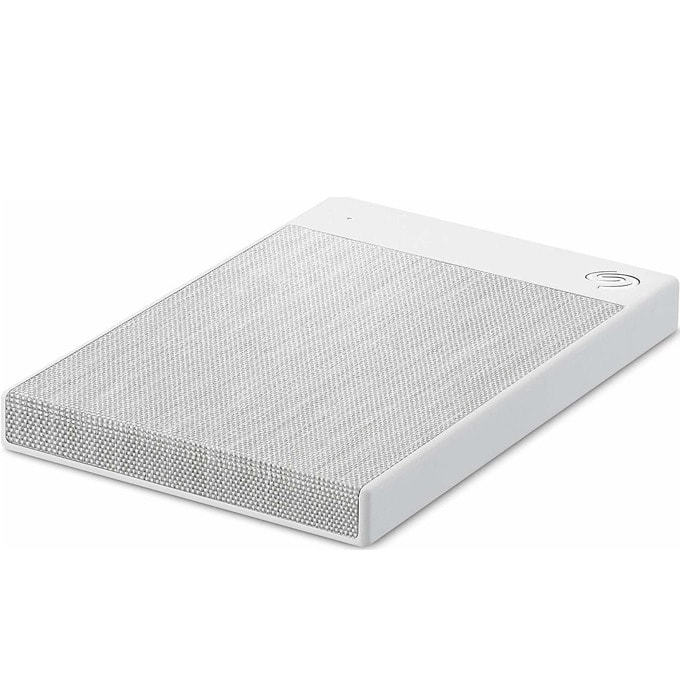
No monthly feeA portable external hard drive
Home backup · one-time purchase · no monthly fee

External hard drive

A small box that holds a full copy of your files. You hold it in your hand, and nobody bills you every month.

What it isA small box, about the size of your phone, that plugs into your computer with a cable. It holds a full copy of your files.
How you use itPlug it in, copy your photos and documents over (or let the computer do it on a schedule), then unplug it and put it somewhere safe.
Why unplug itA backup only protects you if a virus or power surge can't reach it. Unplugged on a shelf, it is safe from both.

The simple rule: two copies, two places

  • One copy in the cloud (iCloud, Google Drive, OneDrive, or Dropbox) — protects against theft, fire, and a dead device.
  • One copy on an external drive at home — protects against internet problems and monthly fees, and it is fast to restore from.
  • Check once in a while. A backup you never look at might have stopped working months ago. Open it twice a year and make sure your newest photos are there.
  • Setting it up is our work. Getting the cloud plan sized right and the home drive on a schedule takes some fiddling — call (813) 770-6082 and we will set both up for you.

Restarting your modem and router

When the internet stops working, this simple restart fixes it most of the time. First match your boxes to the pictures, then follow the matching steps. Give it five to ten minutes.

Spectrum: the two black boxes

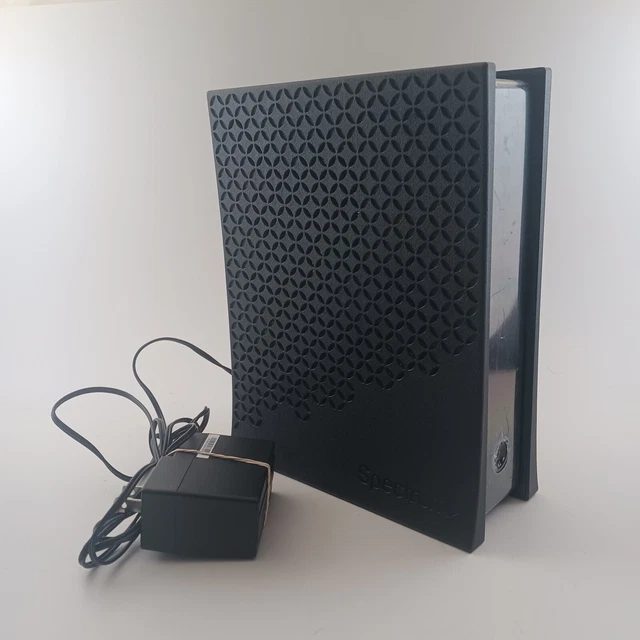
Spectrum modem, a small black box
The modem — the smaller black box. The internet comes into your house through this one.
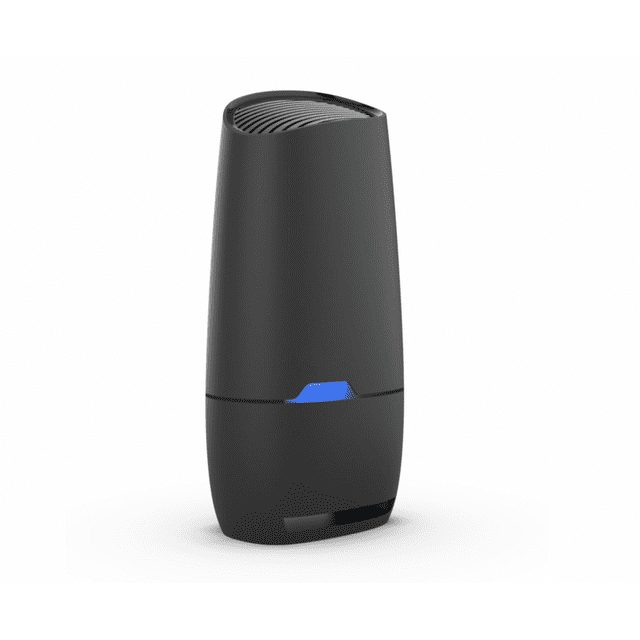
Spectrum Wi-Fi 6 router, a tall black tower with a blue light
The Wi-Fi router — the tall black tower. This one sends the Wi-Fi through your house.
  1. Unplug the small black power cable from the back of both boxes. Leave every other cable alone.
  2. Wait 30 seconds. Count it out — the boxes need a real rest.
  3. Plug the power back into the small box (the modem) first. Push it in firmly until it is snug.
  4. Wait until the modem's lights turn solid. This takes a few minutes. The lights will blink while it wakes up — that is normal.
  5. Now plug the power back into the tall box (the router). Wait a few more minutes until its light turns solid blue.
  6. Try your internet. Open a web page or check your email.

The small white eero box (Spectrum or Frontier)

An eero, a small round white box
The eero — the small white box. It is your Wi-Fi router. Frontier Fiber includes one, and many Spectrum homes use one too.
  1. Unplug the power cable from the back of the white eero box. Leave every other cable alone.
  2. Wait 30 seconds. Count it out.
  3. Plug the power cable back in. Push it in firmly until it is snug.
  4. Wait a few minutes until the light turns solid white, then try your internet.

Frontier Fiber: restart the wall box first

Frontier internet comes through a small fiber box mounted on the wall, usually in the garage or a closet. If restarting the eero did not help, restart that box too:

  1. Unplug the black power cable from the bottom of the fiber box. Do not touch the thin fiber cable — it is glass and breaks easily. Only the power cable.
  2. Wait 30 seconds, then plug the power cable back in.
  3. Wait five to ten minutes. The fiber box wakes up slowly — this is normal.
  4. Then restart the white eero box using the steps above.

Spectrum router (tall black tower)A solid blue light means it is working. Blinking blue means it is still waking up. A red light means something is wrong.

Spectrum modem (small black box)The Power and Online lights should be solid when it is working. Blinking means it is still waking up.

eero (small white box)A solid white light means it is working. A red light means something is wrong.

Lights blink while a box wakes up — that is normal. If lights stay off or turn red after ten minutes, the box may need help.

When to call us

If the restart does not fix it, or the lights stay red or off after ten minutes, do not unplug anything else. Call (813) 770-6082 and we will take it from there.

Your Xumo remote: what the buttons do

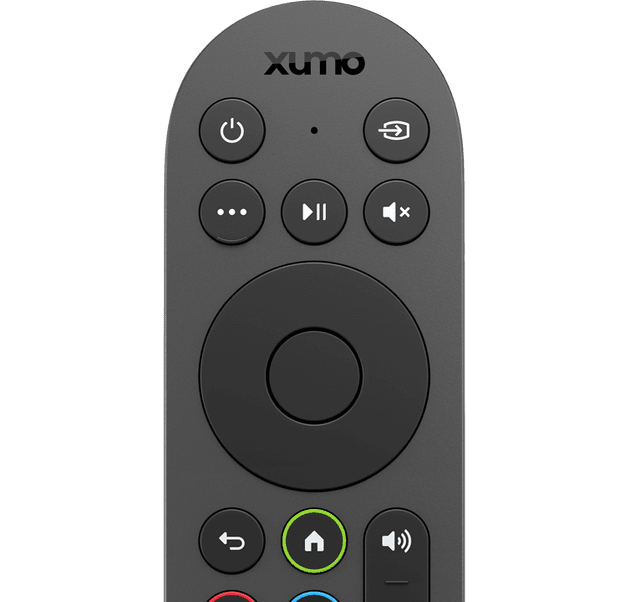
This is the remote that comes with the Spectrum Xumo box. Here is what each button does.

A black Xumo TV remote with a round navigation pad in the middle
Your Xumo remote. Match the button you are wondering about to the list.

PowerTop left. Turns the TV box on and off.

VoiceThe button with three dots. Hold it down and say what you want to watch, like “weather channel.”

Play / pausePauses what you are watching and starts it again.

MuteThe speaker with an X. Turns the sound off, and back on when you press it again.

OK and the arrowsThe big round pad. The arrows move around the screen. OK picks whatever you have highlighted.

BackThe curved arrow. Goes back one step.

HomeThe little house. Takes you to the main screen with all your apps.

VolumeThe speaker button. Turns the sound up and down.

ChannelMoves up and down through the channels.

GuideShows the TV listings so you can see what is on now and later.

A note about the remote

This page only explains what the buttons do. If the remote stops working with your TV, that is setup work — call (813) 770-6082 and we will sort it out.

Want hands-on help?

You do not need to memorize every term. Straight 2 Work can help you understand your choices in plain words.

Call Sean — (813) 770-6082