Copy Once, Paste Anywhere: Your Phone's Clipboard
Copy once, paste anywhere: the hardest-working trick on your phone. Copying lifts words, a photo, or a link from one app and sets it down in another — no retyping, no mistakes. This lesson is the phone job from end to end: an address out of a text message and into Maps, a tracking number out of an email and into the delivery page, where your recent copies are kept, and one privacy habit worth having. The basic cut, copy, and paste moves — including on a computer — live in the Basics chart Cut, Copy, Paste, and Undo: Four Moves That Work Almost Everywhere; this lesson is the phone's own version, at full length.
Copy and paste, slowly, once
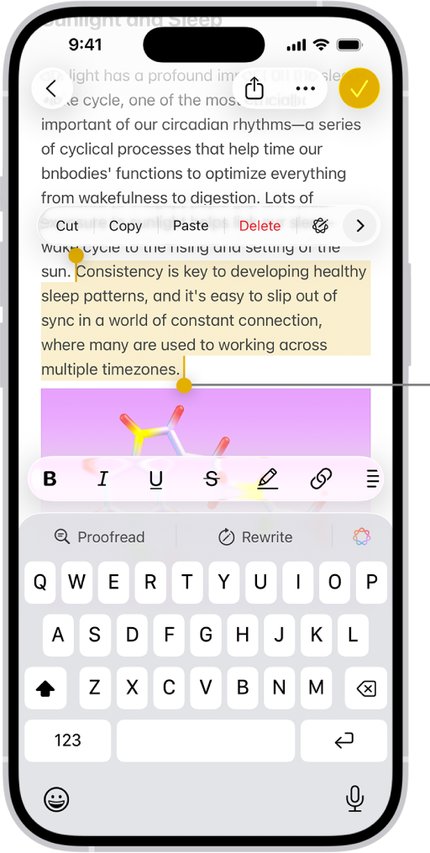
- Touch the words and hold (a long press) until the word highlights and little handles appear at both ends.
- Drag the handles to cover everything you want — a whole address, the full tracking number — then tap Copy.
- Go to the app where it belongs, tap in the empty box, and long-press in the box.
- Tap Paste. On an iPhone, a little paste button may pop up asking you to confirm — tap it. What you copied lands, exactly as it was, typos impossible.
Photos and links copy too: long-press a photo or a link and look for Copy in the menu that appears — or tap Share and then Copy, which puts the link on the same shelf.
Two jobs this trick was made for
- An address from a text into Maps. A friend texts you an address. Long-press it, Copy. Open Maps, tap the search box, Paste, and tap Directions. The whole address arrives letter-perfect — no reading glasses, no transposed numbers on a house you have never visited.
- A tracking number from an email into the delivery page. In the shipping email, long-press the tracking number and Copy. Open the delivery company's app or page, Paste into its tracking box. No twenty-digit number typed by thumb, ever again.
Where your copies wait: clipboard history
The holding shelf behind copy and paste is called the clipboard. On an iPhone it politely holds just the one most recent copy — copy something new and the old one is gone. Many Android phones keep a small history instead:
- Samsung phones: when the keyboard is open, tap the clipboard choice on the keyboard's toolbar (tap the three dots if you don't see it) to find your recent copies and tap one to paste it.
- Phones using Google's Gboard keyboard: tap the clipboard icon above the keys. Copies wait there — but here is the honest part — only for about an hour, unless you press and hold one and choose Pin, which keeps it. An hour is plenty for most jobs; just do not copy a number on Monday and expect it on Friday.
Paste it on a different device entirely
The title of this lesson promises “paste anywhere” — and copy and paste can jump between devices, not just between apps.
- iPhone to iPad or Mac (Apple’s Universal Clipboard): if your iPhone and your iPad or Mac are signed in to the same Apple account, with Wi-Fi and Bluetooth on and the devices near each other, there is nothing to set up and nothing extra to tap. Copy on the phone exactly as above, then go to the iPad or Mac and Paste — the words arrive from the phone. It works the other way too, from the Mac to the phone. One honest detail: the copy only waits a short while, so walk to the other device and paste promptly.
- Samsung phone to Samsung tablet: with both signed in to the same Samsung account, look in Settings for Continue apps on other devices (under Advanced features on many models) and switch it on — copies on the phone become paste-able on the tablet the same way.
- And tablets generally: every step in this lesson — long-press, Copy, Paste, the clipboard shelf — works on a tablet exactly as it does on a phone. The tablet is just a bigger place to paste.
One privacy habit
Whatever you copied sits on the clipboard where other apps can sometimes peek — a copied password waits there like a note on the counter. Modern phones guard this much better than the old ones: your phone now speaks up with a little banner telling you when an app has taken what you copied, and on an iPhone apps may have to ask before pasting from another app. Still, one habit is worth having: after copying a password, a code, or anything private, copy something harmless — a word from any page — so the private thing is wiped off the shelf.
Words in this lesson
- Clipboard: the invisible holding shelf where a copy waits until you paste it. On an iPhone it holds one thing; many Android phones hold a recent handful.
- Long press: touching and holding instead of tapping. It is the phone's way of asking 'what would you like to do with this?'
- Pin (a copy): on keyboards with clipboard history, keeping one copy past its usual hour, for something you paste often — like your own address.
- Universal Clipboard: Apple’s name for the trick where a copy on your iPhone can be pasted on your iPad or Mac — same account, devices nearby, nothing to install.
Straight 2 Work Tech, LLC — patient, plain-words tech help.
(813) 770-6082