Turning on your devices
Every device wakes up the same way: find the power button, press it, and wait a moment. But that button lives in a different spot depending on your device — find yours below.
The button is on the right edge — Apple calls it the Side button. (On very old iPhones, the 5s and earlier, it is on the top edge instead.) Press and hold it until the white Apple logo appears, then let go.
The power button is on the right edge, usually just above or below the volume buttons. Press and hold it until the screen lights up. On newer Samsung phones, holding the power button alone may wake the voice assistant instead — if that happens, hold the power and volume-down buttons together for the power menu.
On a desktop, the power button is on the front of the tall box (the tower). On a laptop, it is above the keyboard or on the side edge. Press it once and listen — the soft hum of the fan means it is waking up.
Point the remote at the TV and press the power button at the top. You can also press the small button on the bottom edge of the TV itself.
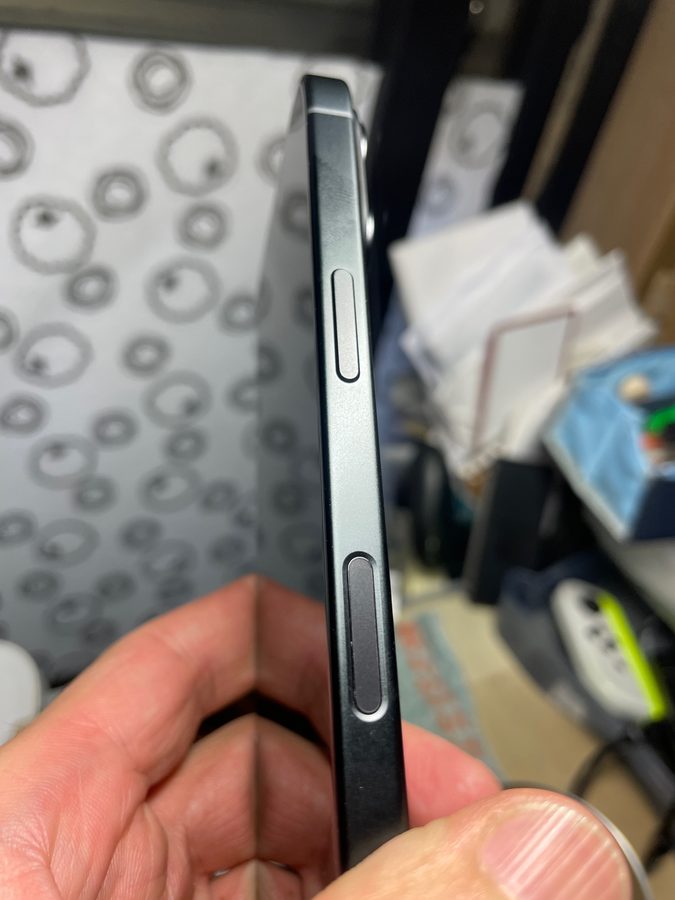
Photo: Kyu3, Wikimedia Commons, CC BY-SA 4.0

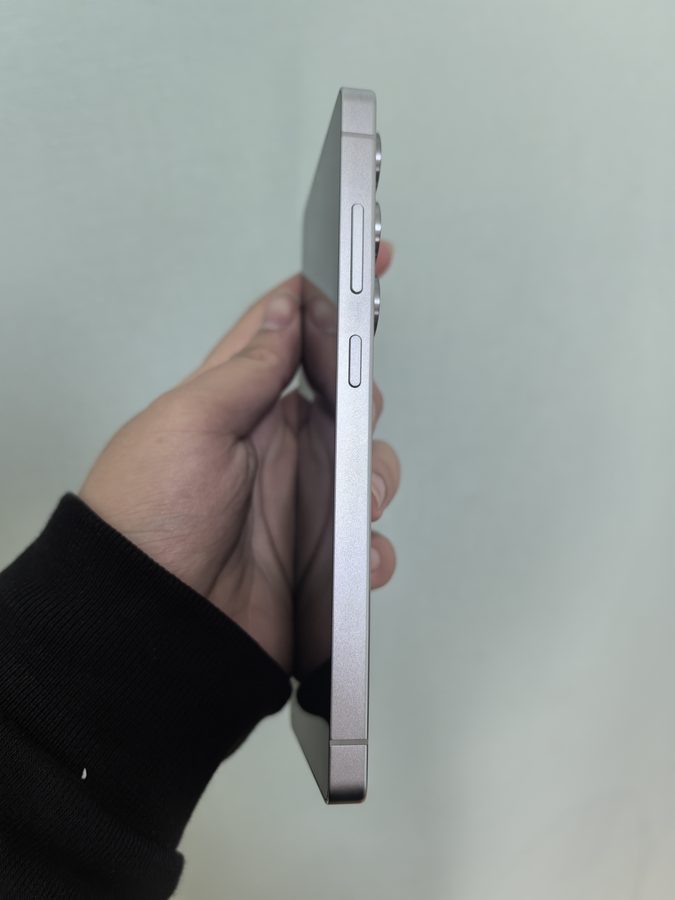
Photo: HuangWending18072009, Wikimedia Commons, CC0

Nothing happens?
- Charge it first. A dead battery is the most common reason a device will not turn on. Plug it in, wait ten minutes, then try again.
- Android: hold the power button and the volume-down button together for at least 7 seconds, until the logo appears, then let go and wait. On a Google Pixel, hold the power button alone for about 30 seconds instead.
- iPhone: press volume up, then volume down, then hold the Side button until the Apple logo appears. (Holding the Side button alone only calls up Siri.)
- Pressing the power button is always safe to try.
Straight 2 Work Tech, LLC — patient, plain-words tech help.
(813) 770-6082