Pull down notifications and settings
Your phone hides its handiest screens at the top edge — your messages, and a panel of quick on/off buttons. iPhone and Android get there differently, so find your phone below.
Swipe down from the top of the screen. (On iPhones with no Home button, start from the top-left or center — the top-right corner opens your quick buttons instead.) Your messages and alerts appear in a list. Tap one to open it. Swipe one sideways to clear it away.
This panel is called Control Center. On iPhones with no Home button (iPhone X and newer): swipe down from the top-right corner. On iPhones with a Home button (iPhone 8 and older): swipe up from the bottom edge. You get buttons for Wi-Fi, Bluetooth, and the flashlight — tap one to turn it on or off.
Put your finger at the very top of the screen and swipe down. Your messages and alerts appear in a list. Tap one to open it. Swipe one sideways to clear it away.
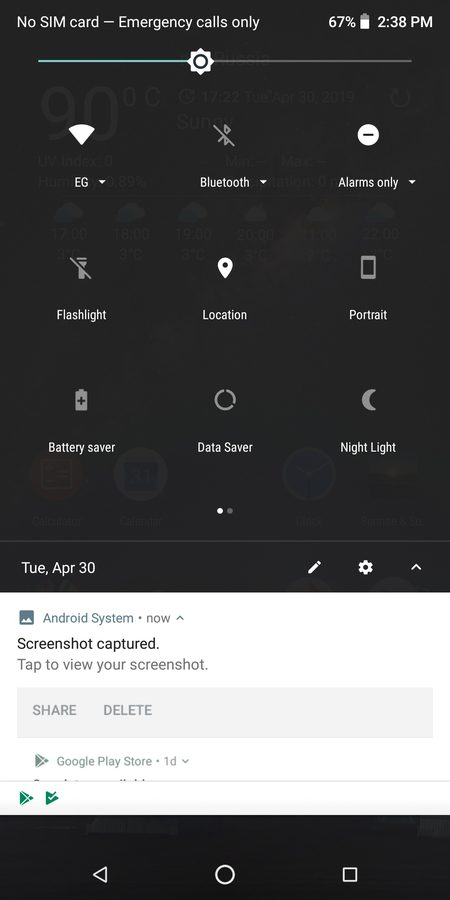
Your quick buttons — Wi-Fi, Bluetooth, the flashlight — live one more swipe away. Swipe down from the top a second time and they appear as a grid of round buttons. Tap one to turn it on or off. (On newer Samsung phones, swiping down from the top-right corner jumps straight to the buttons.)
For everything else, open the Settings app — the gray gear icon on your home screen or app list. Every switch for your phone lives here: sound, display, Wi-Fi. Whenever you wonder "where do I change this?" — the answer is almost always Settings.

Try it right now
- iPhone: open Control Center and tap the flashlight button — your light turns on. Tap it again to turn it off.
- Android: swipe down from the top twice, tap the Flashlight tile, and watch your phone's light turn on. Tap it again to turn it off. That is the whole move — you just learned the shade.
Straight 2 Work Tech, LLC — patient, plain-words tech help.
(813) 770-6082