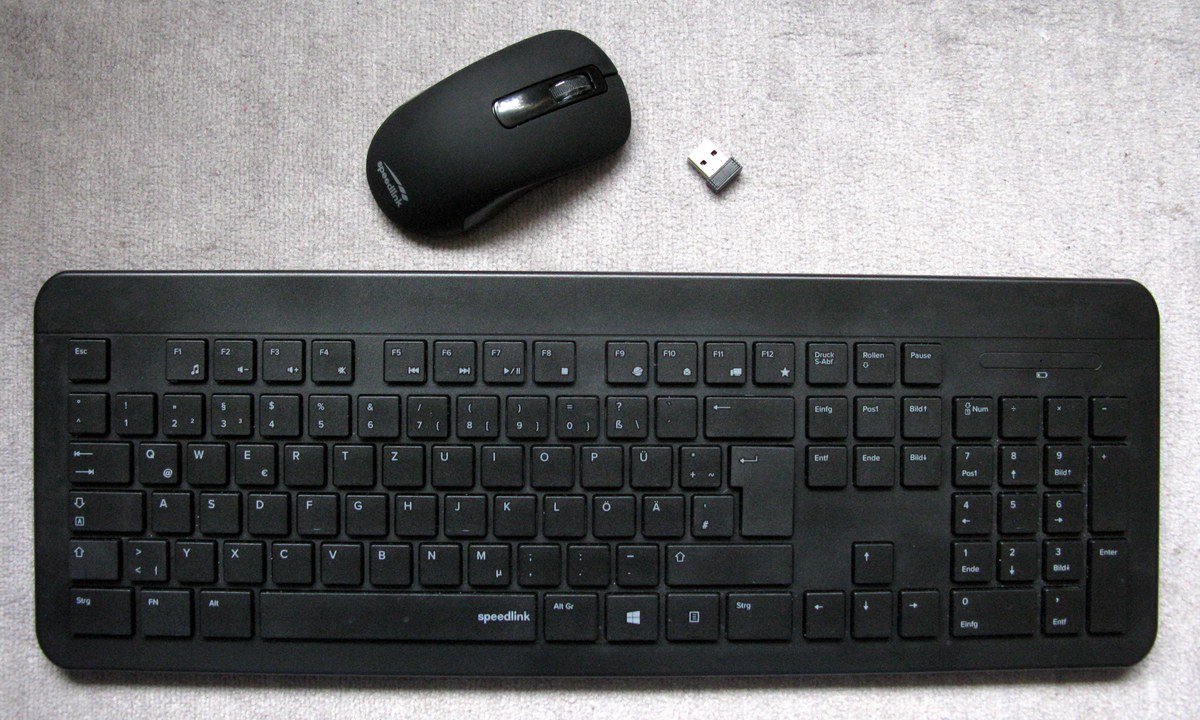
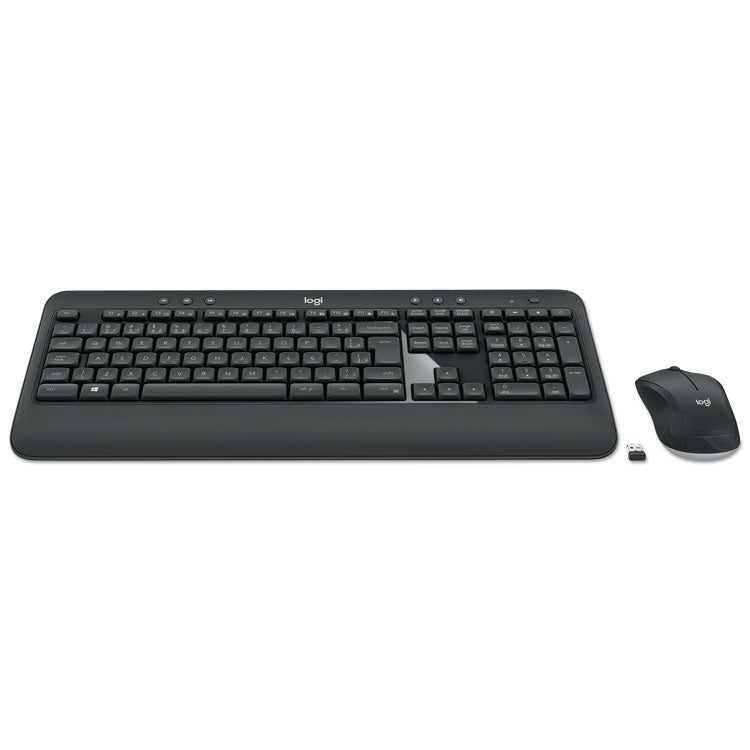
A wireless keyboard and mouse free you from cords. Type from the couch, click from across the room — they work with computers, tablets, and many smart TVs. No cables to trip over, no tangled mess behind the desk.
Why Logitech is the name to know
Plenty of companies make wireless keyboards and mice — Microsoft and Dell make fine ones, and Apple makes a beautiful one for Macs. But for most people, Logitech wins, and here is why.
Batteries last months — sometimes years. Logitech rates the K380 keyboard at 2 years on two AAA batteries, the M720 mouse at 24 months, and the MK540 keyboard at up to 36 months. You change batteries so rarely you forget when you last did.
The tiny USB receiver just works. Plug the little receiver into a USB port and the keyboard or mouse connects instantly — no pairing, no settings, no fuss. Newer models use the Logi Bolt receiver (look for the lightning-bolt icon); older ones use Unifying (orange star icon). The two receivers do not mix, but Bluetooth works with everything.
One keyboard for several devices. Many Logitech models pair with three devices at once — your computer, your tablet, your phone — and switch between them with one keypress. Type an email on the computer, tap a button, reply to a text on the phone.
There is one for every hand and budget. Simple, ergonomic, compact, full-size with a number pad, quiet keys for shared rooms — Logitech makes them all, and reviewers keep ranking their models at the top year after year.
The top picks
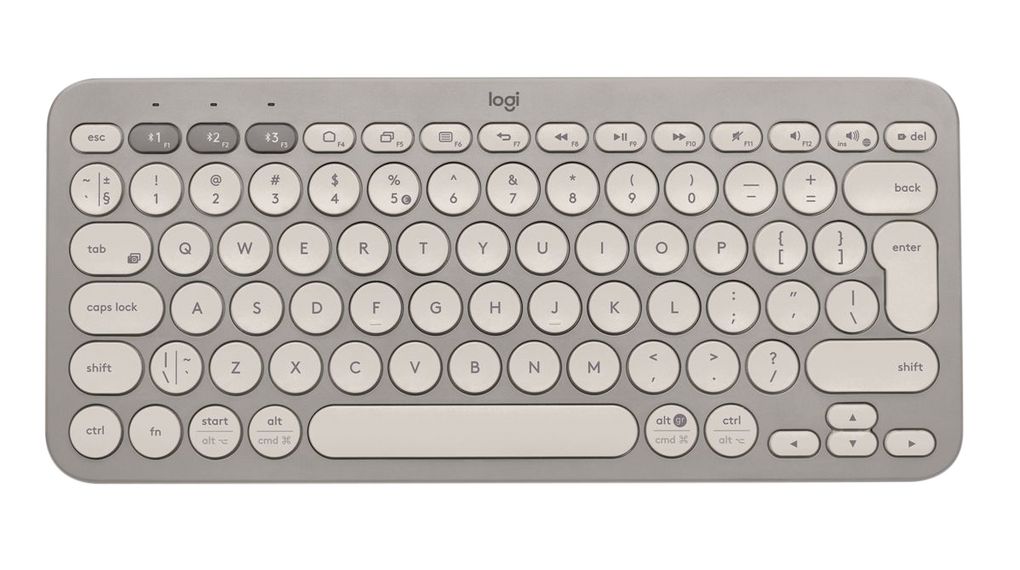
Logitech K380 — simplest keyboard
Small, quiet, and friendly. Pairs with three devices (computer, tablet, phone) and the batteries last about 2 years. The round keys take a day to get used to, then most people love it. Best if: you want one simple keyboard for everything.
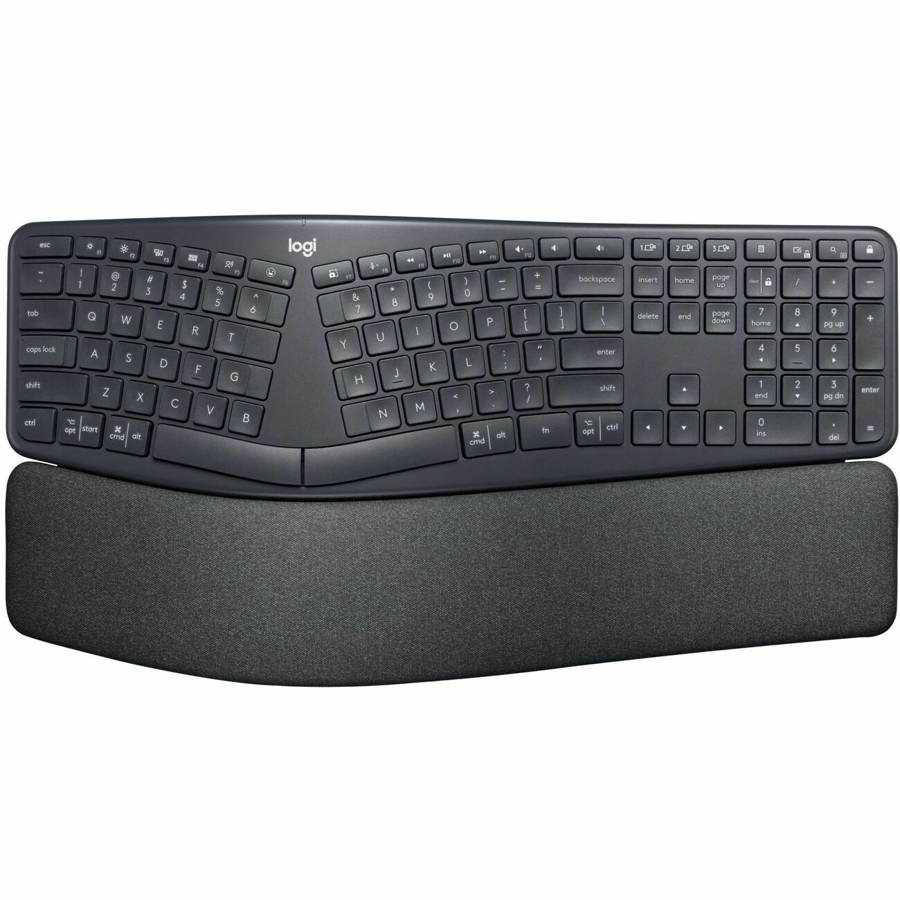
Logitech Ergo K860 — easiest on wrists
A curved, split keyboard with a soft wrist rest. Your hands sit in a natural position instead of twisting flat, which helps if typing makes your wrists ache. Full-size with a number pad, about 2 years of battery. Best if: your hands or wrists hurt after typing.
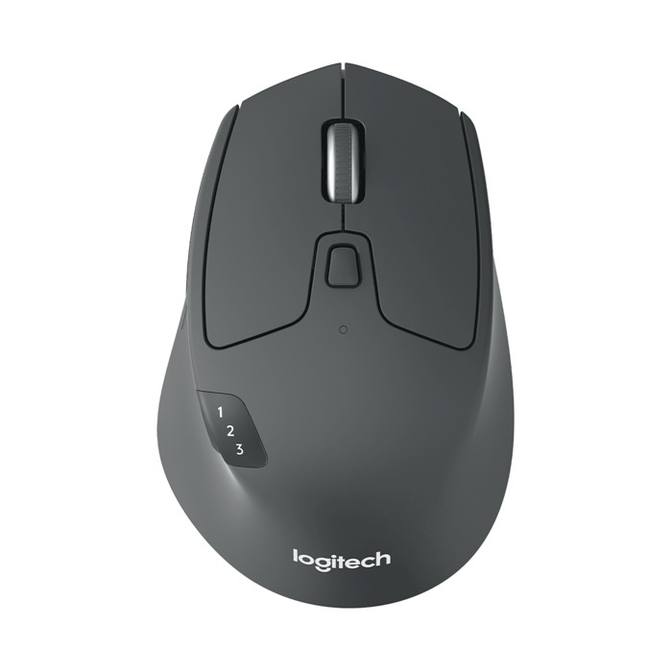
Logitech M720 Triathlon — best mouse
A comfortable full-size mouse that also switches between three devices, with a battery rated at 24 months. Big enough to rest your whole hand on, with extra buttons you can ignore or customize. Best if: you want one mouse that does it all.
Logitech MK540 — best keyboard-and-mouse set
A familiar full-size keyboard with number pad, palm rest, and volume keys, plus a comfortable mouse — one receiver runs both. The keyboard battery is rated up to 36 months. Best if: you want the classic desktop setup with zero fuss.
Setting one up, in plain words
Narrated tutorial: setting up a keyboard and mouse.
Receiver models: plug the tiny USB receiver into the computer’s wide, flat USB-A port. That is the whole setup — start typing. Only small oval USB-C ports on your computer? The receiver won’t fit — connect by Bluetooth instead (step 2 above), or use a small USB-C to USB-A adapter.
Bluetooth models: turn the keyboard or mouse on, hold its pairing button until the light blinks, then pick it from the Bluetooth list on your computer, tablet, or phone.
Batteries: most Logitech models use AA or AAA batteries that last a year or more. When the pointer gets jumpy or keys start missing, change the batteries — do not buy a new mouse.
Rechargeable models: a few premium models recharge with a cable instead of using batteries. Plug them in overnight every few months.
How to choose
One computer, keep it simple: the MK540 combo — familiar and dependable.
Computer plus tablet: the K380 keyboard and M720 mouse — both switch devices with one press.
Sore wrists: the Ergo K860 — the split curve really does help.
Small hands or a small desk: the compact K380 over a full-size board.
Card note: if you already own an older Logitech with the orange-star Unifying receiver, new Logi Bolt devices will not pair to that receiver — use Bluetooth instead, or keep the new device's own receiver plugged in.
When to call Sean instead
Pairing a keyboard or mouse over Bluetooth when it will not show up.
Choosing between models before you buy — hand size and wrist comfort matter.
Setting up one keyboard to switch between a computer and a tablet.
A wireless mouse that keeps freezing or disconnecting.
Alt+Tab (switch programs) Hold Alt and tap Tab to jump between your open programs without touching the mouse. Keep holding Alt and tap Tab again to cycle through them; let go when the one you want is highlighted. It's the fastest way to flip between email and a web page.
Caps Lock and Num Lock Caps Lock makes everything type in CAPITAL LETTERS — tap it once to turn it off if your password keeps failing, since passwords care about capitals. Num Lock turns the number pad on the right side of big keyboards on and off; if those numbers don't work, tap Num Lock once.
Double-click vs single-click vs right-click Single-click selects something; double-click (two quick clicks) opens it — files, folders, and programs all open on double-click. Right-click opens a menu of extra choices for whatever you clicked. If double-clicking is hard, you can slow it down in Settings under Bluetooth & devices, then Mouse.
Scroll wheel and touchpad scrolling Roll the little wheel in the middle of your mouse to move up and down a page. On a laptop touchpad, slide two fingers up or down together to scroll. If scrolling goes the "wrong" way for you, flip it in Settings under Bluetooth & devices, then Touchpad.
Escape key The Esc key (top-left of your keyboard) is the universal "get me out of here" — it closes menus, exits full-screen videos, and cancels dialogs. When something takes over your screen and you want out, Esc is always worth trying first.
Delete vs Backspace Backspace erases the letter to the left of your cursor; Delete erases the letter to the right. In File Explorer, both keys send a selected file to the Recycle Bin. Laptops often only have Backspace — hold Fn with it to get Delete's job.
Changing mouse pointer speed and size Open Settings, go to Bluetooth & devices, then Mouse, and drag the "Mouse pointer speed" slider until it feels right. To make the pointer itself bigger and easier to see, go to Accessibility, then "Mouse pointer and touch."
Keyboard language / typing in another language Open Settings, go to "Time & language," then "Language," and add the language you want — Windows downloads its keyboard. Switch between keyboards anytime with Windows key + Spacebar. For a single accent mark, holding the letter often shows options in many programs.