Printers
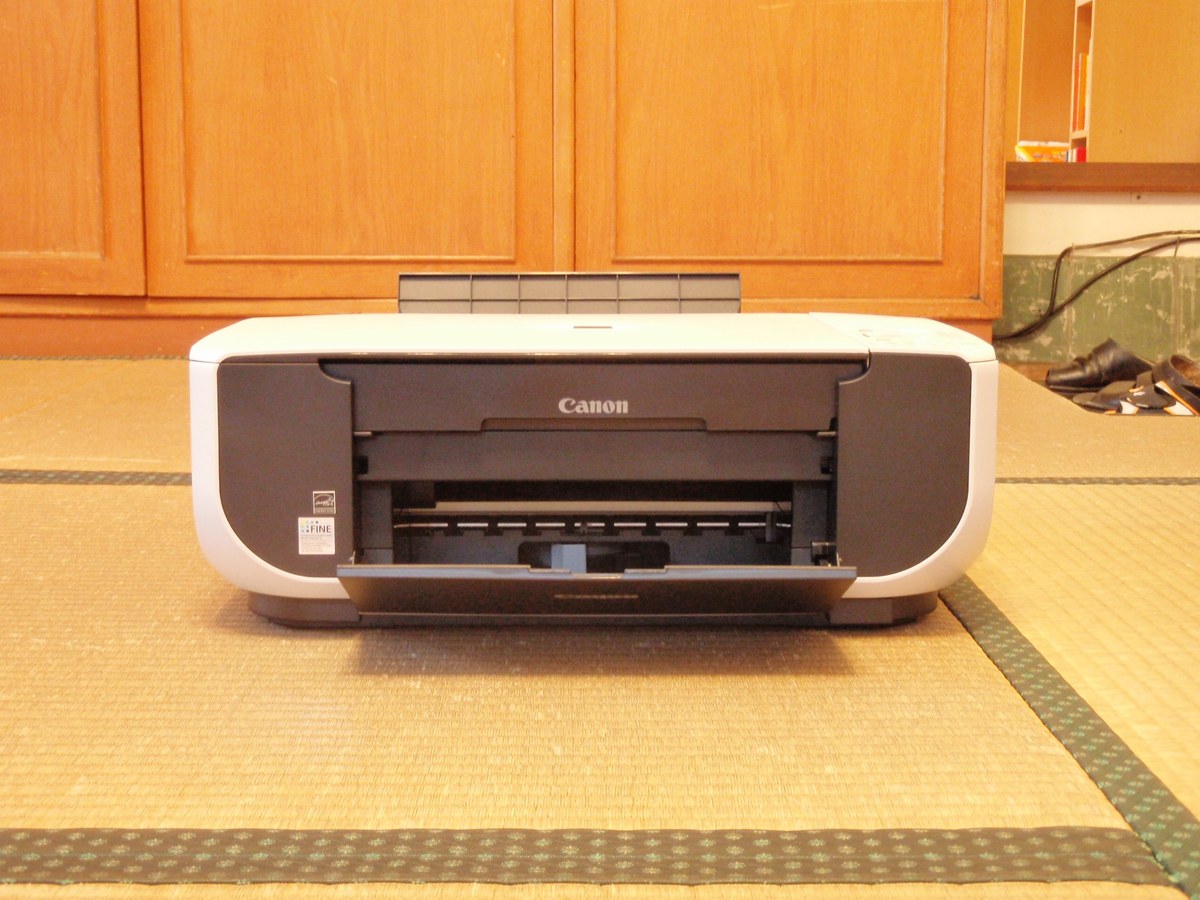
Photo: Smartway777, Wikimedia Commons, CC BY-SA 3.0

Printers jam, go offline, and hang onto old print jobs. Almost all of it is fixable in a few minutes. One rule covers all of it: never force anything. Gentle fixes work; forcing breaks printers.
What kind of printer do you have?
Two kinds live in most homes. Knowing which one you have makes everything below easier.
Prints with liquid ink in little cartridges. Best for photos and color pages. If you print only once in a while, the nozzles can clog — most printers can run a cleaning cycle from their own menu or settings screen to clear it.
Prints with toner, a fine powder in a cartridge. Best for black-and-white documents. Toner never dries out, so a laser printer can sit unused for months and still print.
Clearing a paper jam
Paper threads through tight spaces inside the printer, so jams happen to every printer sooner or later. Slow down and work gently.
- Turn the printer off first, so nothing moves while your hands are inside. If it is a laser printer, unplug it and wait a few minutes — the inside gets very hot.
- Spot 1 — the paper tray: slide it out, take out any crumpled sheets, and straighten the stack before sliding it back in.
- Spot 2 — inside the printer: open the cover and lift out the cartridge. Pull jammed paper gently, in the direction it was traveling — the way pages normally move, never backward. Both hands, slow and steady.
- Spot 3 — the back: open the rear door and ease out any paper you find there.
- Hunt for torn scraps. Even a stamp-sized piece left behind causes the next jam. A flashlight helps you see inside; tweezers work well for tiny pieces. If paper will not come out with a gentle pull, stop — don't force it.
- Close every door and tray, turn the printer back on, and print a test page. Then clear any stuck job from the print queue — see “A print job is stuck” below.
Fewer jams next time
- One kind of paper at a time in the tray — do not mix types or sizes.
- Do not overfill the tray. Leave some room at the top.
- Fan the stack before loading it: hold the paper loosely and fan the edges like a deck of cards, then tap the stack square on the table.
- Slide the paper guides in the tray until they just touch the paper — snug, not squeezing.
A print job is stuck
Sometimes a document gets stuck in the line of jobs waiting to print, and nothing behind it will print either. Cancel the stuck job and the rest flow through.
Open Settings, then Bluetooth & devices, then Printers & scanners. Click your printer, then Open print queue. Right-click the stuck job and choose Cancel. To clear everything at once, open the three-dot menu and choose Cancel all.
On Windows 10, the same screen lives under Settings → Devices → Printers & scanners.
Click the Apple menu, then System Settings, then Printers & Scanners. Click your printer, then Open Print Queue. Click the X next to the stuck job to cancel it.
On older Macs, the same screen is under Apple menu → System Preferences → Printers & Scanners.
If a job refuses to cancel, restart the computer — that clears the line for most people. If it is still stuck after a restart, call me.
Printer says “offline” or nothing prints
Work through these in order — the fix is usually in the first three.
- Is the printer on? Look for lights or a screen. Printers fall asleep — press the power button to wake it.
- Are you printing to the right printer? In the print window, check the printer name at the top. Computers collect old printers, PDF printers, and fax entries — your job may be going to the wrong one.
- Check the cables. If it plugs into the computer with a USB cable, push the cable in firmly at both ends — the computer end and the printer end.
- Same Wi-Fi network. If the printer is wireless, the printer and the computer must be on the same Wi-Fi network name. Check the printer's Wi-Fi light or its little screen.
- Read the printer's own screen. Many printers say exactly what is wrong — out of paper, low ink, or a jam. Fix what it says first.
- On Windows, check the offline switch: Settings → Bluetooth & devices → Printers & scanners → your printer → Open print queue. Click Printer at the top of that window — if Use Printer Offline has a checkmark, click it to turn it off.
- Remove the printer and add it back. Still offline? Go to Settings → Bluetooth & devices → Printers & scanners, click your printer, choose Remove, then Yes. Then click Add device and let Windows find the printer again. This fixes most stubborn cases.
- Restart the printer: turn it fully off, wait 30 seconds, turn it back on. Then try printing again.
Windows 11 also has a built-in fixer: Settings → System → Troubleshoot → Other troubleshooters → Printer → Run. It finds and fixes common problems by itself.
Print a test page
A test page tells you in seconds whether the printer itself is healthy. If the test page prints fine, the problem is in the computer — not the printer.
Open Settings, then Bluetooth & devices, then Printers & scanners. Click your printer, then Printer properties, then Print Test Page.
On Windows 10: Settings → Devices → Printers & scanners → your printer → Manage → Printer properties → Print Test Page.
Just print any page — it tells you the same thing. Open anything printable and press Command + P.
Getting the printer onto your Wi-Fi
If the printer has never been on your Wi-Fi, the easiest method uses the WPS button — no password typing.
- Find the WPS button on your internet router (often on the back or side) and press it once.
- Within two minutes, press the WPS or wireless button on the printer — or on the printer's screen choose Wi-Fi Protected Setup, then Push Button.
- Wait about a minute. The printer's Wi-Fi light should stop blinking and stay solid.
If it does not connect after two tries, try the printer maker's app below — or call me and I will get it on.
No WPS button? Let the printer maker's app do it
Plenty of printers have no WPS button at all, and many routers have WPS switched off. The modern way in is the free app from the company that made your printer. It finds the printer, lets you pick your home Wi-Fi and type its password once, and walks the printer onto the network for you.
- On your phone or tablet, open the app store and install the maker's app: HP Smart for an HP printer, Canon PRINT for a Canon, Epson Smart Panel for an Epson, or Brother Mobile Connect for a Brother.
- Open the app and tap the plus sign, or Add Printer — the exact wording varies a little by brand.
- Choose the setup choice for a new printer. The app finds the printer, shows your home Wi-Fi name, and asks for its password. Type it once, carefully.
- Wait for the app to say the printer is connected, then print a test page from the app to prove it.
That same app is worth keeping afterwards: it shows your ink levels and can scan and print right from your phone.
“Low ink” is a warning, not an emergency
Printers warn you early — sometimes very early. Here is how to read the warnings.
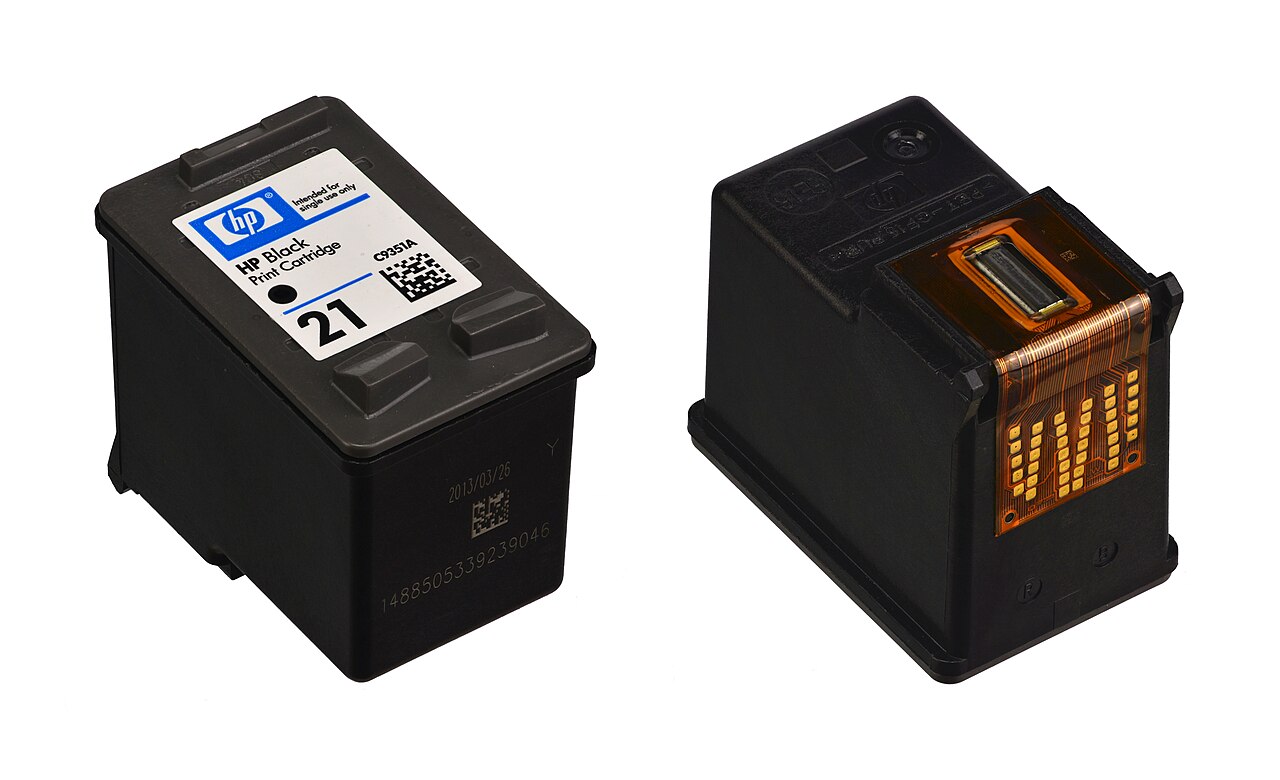
Photo: Marco Tangerino, Wikimedia Commons, public domain

“Low ink” means start thinking about a replacement — you can keep printing. The printer stops only when a cartridge is truly empty. Keep a spare cartridge on hand so you are never stuck mid-job.
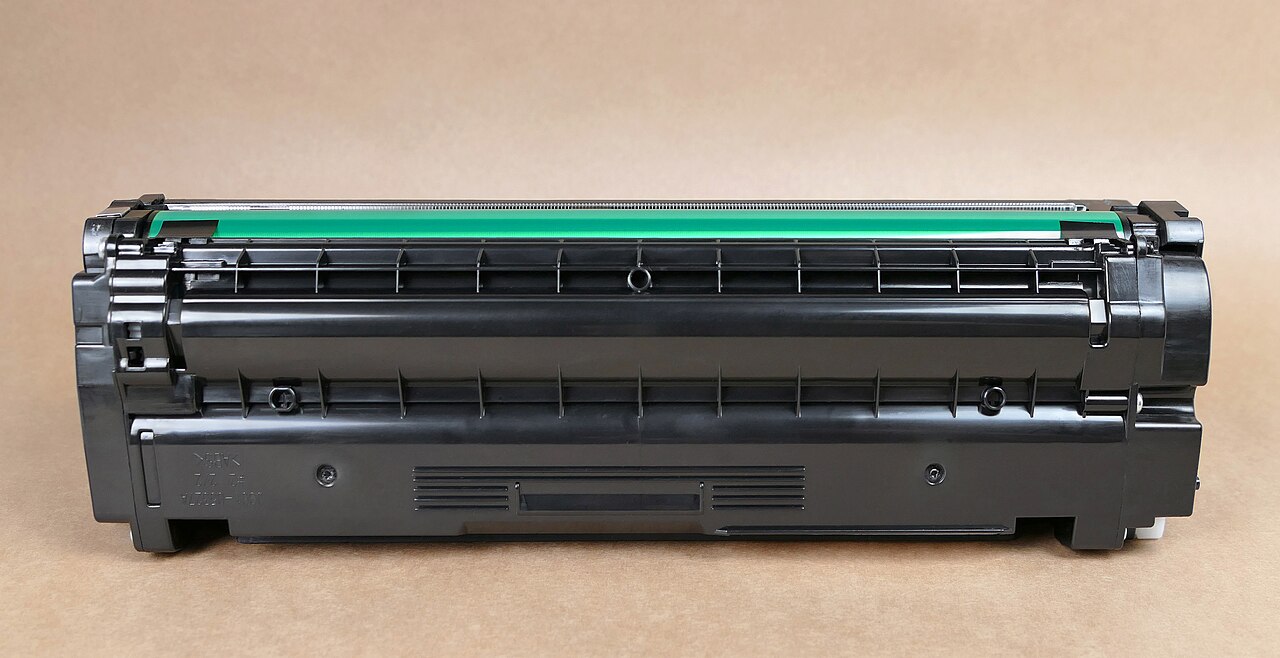
Photo: W.carter, Wikimedia Commons, CC BY-SA 4.0

“Toner low” means the same thing: keep printing while the pages look good, and have a spare ready. “Replace toner” is the later, firmer warning — finish what you are printing, then swap the cartridge.
Printing from your phone or tablet
Your phone and the printer must be on the same Wi-Fi network. Open the photo, document, email, or web page. Tap the Share button (the square with an arrow pointing up), then Print. Choose your printer, adjust the copies if you like, and tap Print. Most modern printers work with no app and no setup — this is called AirPrint.
Open Settings, then Connections, then More connection settings, then Printing, and make sure Default Print Service is turned on. Then open the photo or document, tap Share, tap Print, and choose your printer.
On non-Samsung Android phones the path is Settings → Connected devices → Connection preferences → Printing.
If your printer does not appear in the list, check the same-Wi-Fi rule first — that is the cause almost every time.
When to call Sean instead
- Anything smells like burning, or the printer starts making loud grinding or strange new noises — turn it off and call.
- Paper will not come out with a gentle pull. Forcing it breaks printers, and a service visit costs less than a new printer.
- Ink or toner spilled inside the printer. Toner powder spreads everywhere and stains — best handled, not wiped.
- The same jam keeps coming back after you cleared it carefully — something inside needs attention.
- The printer still says offline after you worked through the steps above.
An ink-jet printer sprays tiny drops of ink onto paper. It is the most common home printer and prints nice photos, but replacement ink costs add up — a laser printer is cheaper per page for plain documents.
Photocopy a document "Xerox" is a brand name that people use to mean "make a copy." Lift the lid of your printer, lay the page face-down on the glass, close the lid, and press the button labeled Copy. The printer will print you a duplicate of the page.
“Replace toner” “Replace toner” is the later, firmer warning — finish what you are printing, then swap the cartridge.
“Toner low” “Toner low” means the same thing: keep printing while the pages look good, and have a spare ready.
Printing a document Open what you want to print and press Ctrl + P — a preview appears showing exactly what will come out. Check the printer name at the top, set how many copies you want, and click Print. If nothing happens, check the printer is on and has paper.
Print preview Print preview shows you on screen exactly what the paper will look like — press Ctrl + P and the preview is right there. If a web page preview shows five pages when you expected one, look for a "simplified" or "reader-friendly" option, or just print pages 1–2.
Choosing color or black-and-white In the print window (Ctrl + P), look for "Color" options — choosing "Black & white" or "Grayscale" saves your expensive color ink for when it matters. For everyday documents, black-and-white is sharper and far cheaper.
Double-sided printing In the print window, look for "Print on both sides" or "Duplex" — check that box and the printer flips the paper itself. If your printer can't do it automatically, print the odd pages first, flip the stack, then print the even pages.
Printer says offline First check the printer is actually on and has paper — half of all "offline" problems end there. Then restart both the printer and your computer; that reconnects them most of the time. If it's a Wi-Fi printer, make sure it's on the same Wi-Fi network name as your computer.
Canceling a print job Click the little printer icon by the clock to open the print queue, right-click the stuck job, and choose Cancel. If the printer keeps going, turn it off, wait ten seconds, and turn it back on — that clears its memory.
Scanning a document to PC Lay the page face-down on the printer's glass, then on your computer press the Windows key, type "scan," and open "Windows Scan." Click Scan and the image lands in your Pictures folder. Choose PDF if it's a document you'll email, JPG if it's a photo. On a Mac, the matching tool is already on your computer too: open Image Capture (in the Applications folder), pick your printer on the left, and click Scan.
Paper jam Turn the printer off first, then gently pull the stuck paper out in the direction it was going — never yank it backward. Check for tiny torn bits left inside, since one scrap can keep jamming it. Fan the paper stack before reloading so the sheets don't stick together.
Straight 2 Work Tech, LLC — patient, plain-words tech help.
(813) 770-6082