Turn a Document Into a PDF and Send It
“Please send it as a PDF” — offices, insurers, and family tech support all say it, because a PDF looks the same on every screen and nobody can change a word by accident. Making one takes three clicks in Google Docs, Google Sheets, and Microsoft Word, and your original stays untouched. This lesson walks each road, then attaches the result to an email.
Why people ask for a PDF
- It looks the same everywhere. A Word document can shift its spacing on a different computer. A PDF is a photograph of the page: your letter arrives exactly as you left it, on any machine, phone, or printer.
- Nobody can change it by accident. A reader can’t rub out a paragraph with a stray keystroke — for forms, invoices, and anything official, that is the point.
- Every device can open one. Browsers read PDFs natively. No Word, no Google account, no special program.
Making one is not a conversion project. In each program it is two or three clicks, and your original document stays exactly where it was — the PDF is a copy.
From Google Docs (or Sheets)
- Open the document. Click File.
- Point at Download, then click PDF Document (.pdf).
- The PDF lands in your computer’s Downloads folder, wearing the document’s name. In Google Sheets the same road works — and a settings page appears first, where you can confirm it is set to print the whole sheet, fitted to one page wide, before you click Export.
- On a phone: in the Docs or Sheets app, tap the three dots, then Share & export, then Save as, and choose PDF.
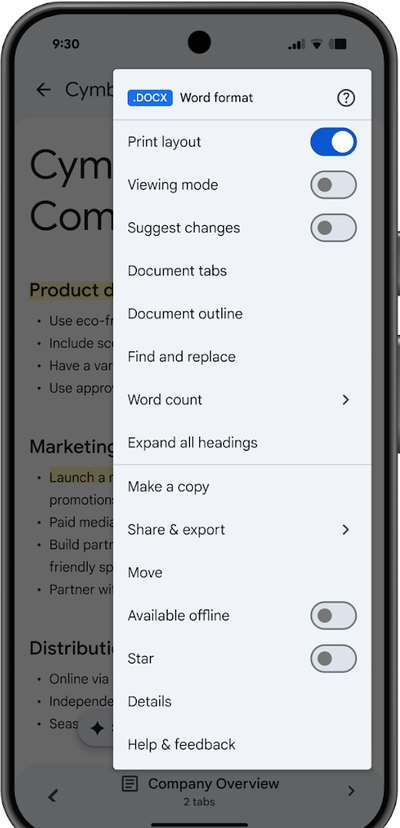
The Docs app's three-dot menu. Share & export is the door — Save as, and then PDF, live inside it.
From Microsoft Word
- Open the document. Click File, then Save As.
- Choose where it should live (Documents is fine), and in the file type box under the name — it says Word Document (.docx) — choose PDF instead.
- Click Save. A PDF twin of your letter appears beside the original, same name, different ending.
- Word’s other road to the same place: File > Export > Create PDF/XPS Document. Either is fine; Save As is the one to remember.
Excel wears the same two roads — Save As with PDF chosen as the type will offer to save the sheet as a PDF. And on Word on the web (free), it is File > Save As > Download as PDF.
Send it
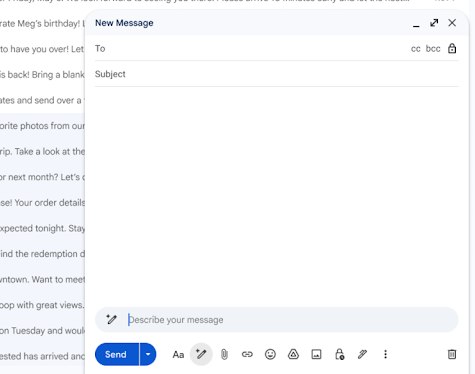
- Write your email as usual, and click the paperclip (Attach) button.
- Find the PDF — check Downloads first; that is where Docs and Sheets put it, and where a Word PDF goes if you saved it there.
- Double-click it to attach, then look: the email now shows the file’s name with a small PDF icon. That is the moment to press Send — the famous “the attachment is attached, honestly” check, done in one glance.
A letter’s PDF is tiny — far smaller than a single photo — so size is never the problem with documents. If a PDF of yours is enormous, it almost always has photographs inside it, which is a different lesson’s territory.
The other direction, honestly
A PDF someone sends you is for reading. If you need to change its words, you need the document it was made from — ask the sender for the Word or Docs original. (Programs that promise to “unlock” any PDF into perfect editable text are, charitably, optimistic: tables and headings rarely survive the trip.) The document that won’t open lesson covers the reading side.
Words in this lesson
- PDF — a fixed copy of a page that looks identical on every device. Made for reading, printing, and sending — not for editing.
- Download / Export — two names for the same act: making a copy of your document in another shape and putting it on your computer.
- Attachment — a file riding along with an email. The paperclip button adds one.
Straight 2 Work Tech, LLC — patient, plain-words tech help.
(813) 770-6082