Wi-Fi
The wireless connection. Think of it as an invisible cord to the internet. It connects your device without a cable.
Watch: joining Wi-Fi on iPhone
Narrated video. Use the play bar to pause on any step.
- Open the Settings app (the gray gear icon) on your Home screen.
- Tap Wi-Fi near the top of the list.
- Make sure Wi-Fi is turned on — the switch should be green.
- Under Choose a Network, tap your network’s name. A little lock means it needs a password.
- Type the Wi-Fi password, then tap Join in the top-right corner.
- A checkmark appears next to the network name — you are connected. You will also see the Wi-Fi fan icon at the top of your screen.
Watch: joining Wi-Fi on Samsung
Narrated video. Use the play bar to pause on any step.
- Open Settings (the gray gear icon).
- Tap Connections at the top of the list.
- Tap Wi-Fi. Make sure the switch at the top is turned on (blue).
- Tap your network’s name in the list. A lock means it needs a password.
- Type the Wi-Fi password in the box.
- Tap Connect in the bottom-right corner of the box.
- The word Connected appears under your network’s name — you are on Wi-Fi.
Watch: joining Wi-Fi on Windows 11
Narrated video. Use the play bar to pause on any step.
- Click the Wi-Fi, sound, and battery icons together in the bottom-right corner of the taskbar, by the clock.
- Click the small arrow (›) next to Wi-Fi.
- Click your network’s name in the list.
- Check the Connect automatically box so it joins on its own next time.
- Click Connect.
- Type the network security key (your Wi-Fi password), then click Next.
- It will say Connected, secured under your network’s name — you are on Wi-Fi.
Joining Wi-Fi on a Mac
- Look at the top-right corner of the screen, in the menu bar, and click the Wi-Fi fan icon. (If it is not there, open System Settings, then Wi-Fi, and turn Wi-Fi on.)
- A list of nearby networks opens. Click your network’s name.
- Type your Wi-Fi password in the box that appears, then click Join.
- The fan icon fills in solid — you are connected. The Mac remembers the network and joins by itself from now on.
A newer Wi-Fi version can give you a stronger, smoother connection when your home internet supports it. Wi-Fi 6 or Wi-Fi 6E is current and fine. Wi-Fi 7 is the newest version — nice to have, but nothing you need yet.
Restarting your modem and router
When the internet stops working, this simple restart fixes it most of the time. First match your boxes to the pictures, then follow the steps. Give it five to ten minutes.
Spectrum: the two black boxes
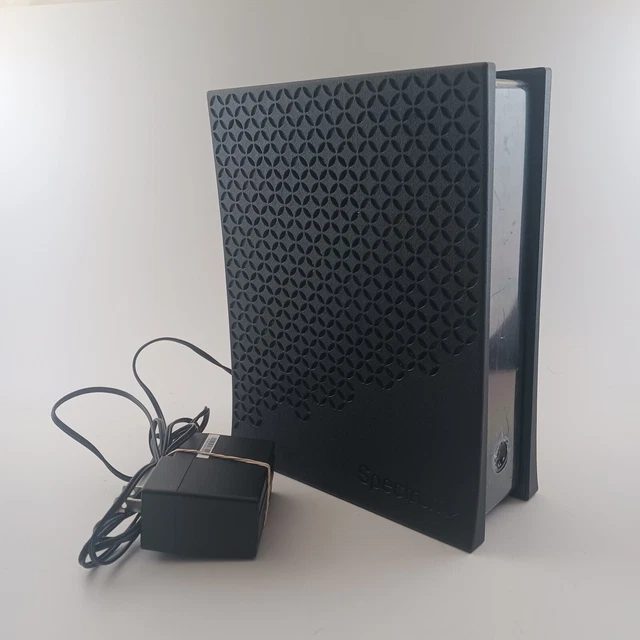
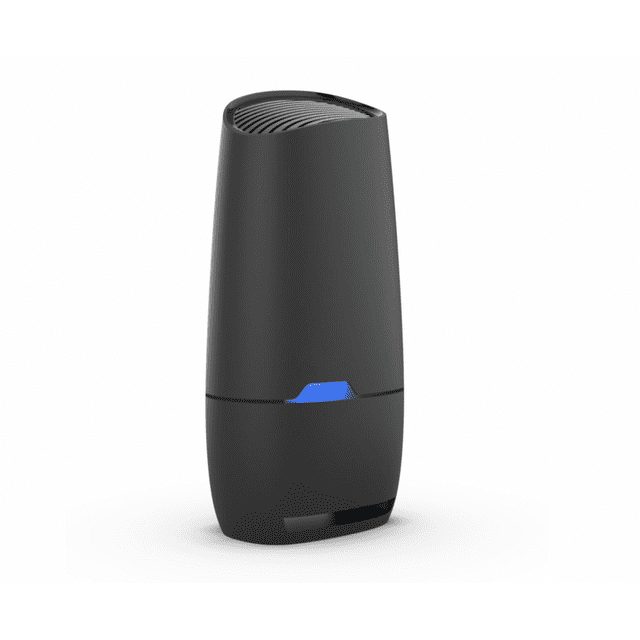
- Unplug the small black power cable from the back of both boxes. Leave every other cable alone.
- Wait 30 seconds. Count it out — the boxes need a real rest.
- Plug the power back into the small box (the modem) first. Push it in firmly until it is snug.
- Wait until the modem's lights turn solid. This takes a few minutes. The lights will blink while it wakes up — that is normal.
- Now plug the power back into the tall box (the router). Wait a few more minutes until its light turns solid blue.
- Try your internet. Open a web page or check your email.
The small white eero box (Spectrum or Frontier)

- Unplug the power cable from the back of the white eero box. Leave every other cable alone.
- Wait 30 seconds. Count it out.
- Plug the power cable back in. Push it in firmly until it is snug.
- Wait a few minutes until the light turns solid white, then try your internet.
Frontier Fiber: restart the wall box first
Frontier internet comes through a small fiber box mounted on the wall, usually in the garage or a closet. If restarting the eero did not help, restart that box too:
- Unplug the black power cable from the bottom of the fiber box. Do not touch the thin fiber cable — it is glass and breaks easily. Only the power cable.
- Wait 30 seconds, then plug the power cable back in.
- Wait five to ten minutes. The fiber box wakes up slowly — this is normal.
- Then restart the white eero box using the steps above.
Spectrum router (tall black tower)A solid blue light means it is working. Blinking blue means it is still waking up. A red light means something is wrong.
Spectrum modem (small black box)The Power and Online lights should be solid when it is working. Blinking means it is still waking up.
eero (small white box)A solid white light means it is working. A red light means something is wrong.
Lights blink while a box wakes up — that is normal. If lights stay off or turn red after ten minutes, the box may need help.
Wi-Fi keeps disconnecting
If your phone or computer keeps saying disconnected or the Wi-Fi drops out and comes back, try these in order:
- Move closer to the router. Walls and distance weaken the signal. If it stays connected in the same room as the router, the signal is not reaching far enough.
- Restart the router (unplug the power cable for 30 seconds, plug it back in, wait five minutes).
- Forget the network and rejoin it. On your phone, go to Wi-Fi settings. On iPhone, tap the little "i" next to the network name, then Forget This Network; on Samsung, press and hold the network name and tap Forget network. Then join it again fresh.
- Check for too many devices. If the whole house slows down at night, the router may be overwhelmed — this is normal on older routers.
A device that disconnects in one room but works fine in another has a range problem, not a broken device.
When to call us
If the restart does not fix it, or the lights stay red or off after ten minutes, do not unplug anything else.
Bandwidth is how much internet speed you have to share. More bandwidth means videos load faster and several devices can be online at once without slowing down.
A broadband connection is fast, always-on internet — the kind most homes have today through cable, fiber, or DSL. It replaced the old dial-up that tied up your phone line.
5G is the newest, fastest cell phone signal. If your phone shows 5G at the top, your mobile internet will feel quicker than the older 4G.
DNS is like the internet's phone book. When you type a name like google.com, DNS turns it into the number computers need to find that site. You never type it yourself — it just works quietly.
Internet is down When the whole internet is down, restart your modem and router: unplug the power cord from the small box your internet comes in on, wait a full 30 seconds, and plug it back in. Give it about five minutes to wake back up. If it's still down after that, the problem is usually with your internet company — call them before you change any settings.
Hotspot A hotspot turns your phone into a mini Wi-Fi station so your tablet or laptop can get online using your phone's mobile data. On iPhone, go to Settings, then Personal Hotspot, and turn on Allow Others to Join. On a Samsung phone, go to Settings, then Connections, then Mobile Hotspot and Tethering. On a Pixel, go to Settings, then Network & internet, then Hotspot & tethering. A hotspot uses your phone's mobile data, so watch your plan if you use it a lot.
Guest wifi The easiest way to share your Wi-Fi is to read the password off the sticker on your router — it's usually printed on the bottom. Many newer routers also have a "guest network," which is a separate Wi-Fi name just for visitors that keeps them off your main network. If you'd like one set up, that's something Sean can do on a visit.
Connected but no internet "Connected, no internet" means your phone reached the router, but the router isn't reaching the internet. Restart the router by unplugging it for 30 seconds and plugging it back in. If other devices in the house work fine and only your phone says this, turn your phone's Wi-Fi off and back on.
Forget a Wi-Fi network If your phone keeps joining the wrong Wi-Fi, tell it to forget that network. On iPhone, go to Settings, then Wi-Fi, tap the little "i" next to the network name, and tap Forget This Network. On a Samsung phone, go to Settings, then Connections, then Wi-Fi; press and hold the network name and tap Forget network.
Internet vs wifi The internet is the service coming into your house through the wire or fiber — that's what you pay the internet company for. Wi-Fi is just the wireless signal your router spreads around the house so your devices can use that internet without cables. If Wi-Fi is down but the internet is fine, your devices can't reach it — restarting the router usually fixes that.
Leave wifi on Yes, leave your Wi-Fi on — it uses less battery than mobile data does, and your phone needs it for updates and backups overnight. The only time to turn it off is if you're somewhere with a weak, unusable Wi-Fi signal that your phone keeps clinging to. Otherwise, just leave it alone.
Public wifi safe Public Wi-Fi at coffee shops and hotels is fine for browsing and videos, but avoid logging into your bank on it — strangers on the same network can snoop. If you must do banking away from home, use your phone's mobile data instead of the public Wi-Fi. And never do anything sensitive on a Wi-Fi network that doesn't ask for a password at all.
Connecting to Wi-Fi on a laptop Click the Wi-Fi icon at the bottom-right of the screen and pick your network's name from the list. Type the password carefully — it's case-sensitive, so capital letters matter. Check "Connect automatically" so you don't have to do this every time.
Forgetting a Wi-Fi network on PC Open Settings, go to "Network & internet," then Wi-Fi, then "Manage known networks." Click the network you want gone and choose Forget. Your computer will stop joining it automatically — useful for old networks with changed passwords.
Airplane mode on a laptop Airplane mode turns off all your laptop's wireless — Wi-Fi and Bluetooth — in one switch. Click the Wi-Fi icon at the bottom-right and click the airplane icon. Use it on planes, or anytime you want to be truly offline for a while.
Ethernet cable vs Wi-Fi An ethernet cable plugs your computer directly into the router — it's faster and steadier than Wi-Fi, great for video calls. The cable clicks into a wide port on the back or side of the computer. If Wi-Fi is flaky in one room, a cable is the most reliable fix there is.
No internet on PC but phone works If your phone's Wi-Fi works but the computer's doesn't, the problem is the computer, not the internet. First restart the computer — that alone fixes it half the time. Then click the Wi-Fi icon, turn Wi-Fi off and back on, and reconnect to your network.
Sharing your PC's internet (mobile hotspot) Your laptop can share its internet with your phone: open Settings, go to "Network & internet," then "Mobile hotspot," and turn it on. It shows a network name and password — join that Wi-Fi on your phone. Watch your data if the laptop itself is on a limited connection.
What is a router / modem vs router The router is the box that spreads the internet around your house as Wi-Fi — the modem brings it in, the router shares it. Many internet companies now give you one box that does both jobs. If your Wi-Fi is weak in some rooms, the router is the box to look at, not the modem.
What is a data cap A data cap is a monthly limit some internet companies put on how much you can download — go over it and they may charge extra or slow you down. Most cable and fiber plans these days have no cap, but some do, so it's worth asking. Streaming a lot of 4K video is what eats through a cap fastest.
What is a Wi-Fi extender A Wi-Fi extender is a small plug-in box that grabs your Wi-Fi signal and rebroadcasts it farther — made for that one room where the signal dies. They help, but they cut your speed roughly in half, so a mesh Wi-Fi set (two or three boxes that work together) is the better fix for a whole house. An extender runs about $25 to $50.
Do I need to rent the modem from my internet company Most internet companies charge about $10 to $15 a month to rent you their modem and router — that's $120 to $180 a year, every year. Buying your own approved modem (usually $70 to $150 once) pays for itself in under a year. Call your internet company first and ask which models they support, so you buy the right one.
How to restart the modem and router (right order) Unplug both boxes, then plug the modem back in first and wait until its lights stop blinking (about two minutes). Then plug the router back in and give it another two minutes. The modem has to fully wake up before the router can do its job — doing them in the wrong order is why a restart sometimes "doesn't work."
What do the modem lights mean Solid lights are good — blinking usually means the box is working or starting up. A red or orange light on the "internet" or "globe" symbol means the box can't reach your internet company, so restart it. If the red light stays on after a restart, call your internet company — the problem is on their end.
What is 5G home internet 5G home internet is a small box from your cell company (T-Mobile or Verizon) that gives your whole house internet over the cell signal — no cable or fiber wire needed. It's usually around $50 a month and works well if you get a strong cell signal at home. It's a good option where cable prices are high, but heavy 4K streaming households may find cable or fiber steadier.
What is an SSID / Wi-Fi name SSID is just the technical name for your Wi-Fi network name — the one you tap to connect, like "SmithFamily" or "Xfinity-5G." It's different from the password: the name is public, the password is what keeps neighbors off. Both are usually printed on the sticker on your router.
What is the WPS button WPS is a button on some routers that connects a device without typing the password — you press it, then choose the network on your device within two minutes. It's handy for printers and smart gadgets with no keyboard. Not every router has it, and it's fine to just type the password instead.
Wi-Fi keeps dropping / disconnecting Wi-Fi that drops and reconnects is usually the router getting overwhelmed or overheated — restart it first (unplug 30 seconds). If it keeps happening, move the router out into the open, up high, away from the microwave and fish tank. If only one device drops while others stay connected, restart that device — the problem is in it, not the Wi-Fi.
Wi-Fi dead zone / slow in one room A dead zone is a spot where your Wi-Fi barely reaches — usually the farthest room from the router, or upstairs. The real fix is moving the router to a central, open spot, or adding a mesh Wi-Fi set (two or three boxes that blanket the house, about $100 to $200). A cheap plug-in extender can help one room for about $30, but it halves your speed there.
My Wi-Fi password isn't working First, check the sticker on the router — you're probably typing it slightly wrong, and those passwords are case-sensitive (capital letters matter). If you changed it once and forgot the new one, you'll need to log into the router or reset it. Never "reset" the router with the pinhole button unless you mean it — that wipes everything back to the sticker password.
How to find my Wi-Fi password The easiest place is the sticker on the router itself — it's usually labeled "Wi-Fi password" or "network key." On a phone already connected, iPhone shows it under Settings, then Wi-Fi, then tapping the little "i" by the network name. On Windows, it's in the Wi-Fi settings under "show password."
Someone might be using my Wi-Fi If your internet suddenly got slow, a neighbor could be on your Wi-Fi — it happens when the password is weak or still the factory default. Change the Wi-Fi password to something long (a short sentence works great), and they'll be kicked off the next time they try. Your router's app or settings page shows every connected device if you want to check.
TV keeps losing Wi-Fi connection Smart TVs are the most common device to drop Wi-Fi, because their antennas are weak and they're often far from the router. First, restart the TV (unplug it 30 seconds, not just the remote). If it keeps dropping, run an ethernet cable from the router to the TV if you can — a $15 cable ends the problem forever.
Why does my phone switch between Wi-Fi and data Your phone drops Wi-Fi and uses mobile data whenever the Wi-Fi signal gets too weak to be useful — like at the far end of the house or in the yard. That's normal, but it can eat your data plan if your home Wi-Fi has dead zones. The fix is better Wi-Fi coverage (see "dead zone"), not a phone setting.
How many devices can my Wi-Fi handle A normal home router handles 20 to 30 devices fine — phones, TVs, tablets, smart gadgets and all. It only struggles when many are streaming video at the exact same time. If everything slows down in the evening, that's the cause, and a newer router or mesh set (about $100 to $200) raises the limit comfortably.
What is powerline adapter A powerline adapter sends internet through your house's electrical wiring — you plug one box by the router and another in the far room, and it acts like a wired connection between them. It's a good trick for a room where Wi-Fi won't reach and you can't run a cable. A pair costs about $40 to $60, and both boxes need to be plugged directly into the wall, not a power strip.
Printer keeps losing Wi-Fi Printers drop Wi-Fi more than any other gadget — their Wi-Fi parts are cheap and they "sleep" too deeply. Give the printer a fixed spot close to the router, and turn off its deep-sleep or "eco" mode if it has one. If it still drops, plug it into the router with a USB or ethernet cable once to set it up, then put it back — that often stabilizes it.
Straight 2 Work Tech, LLC — patient, plain-words tech help.
(813) 770-6082