When a File Won't Open
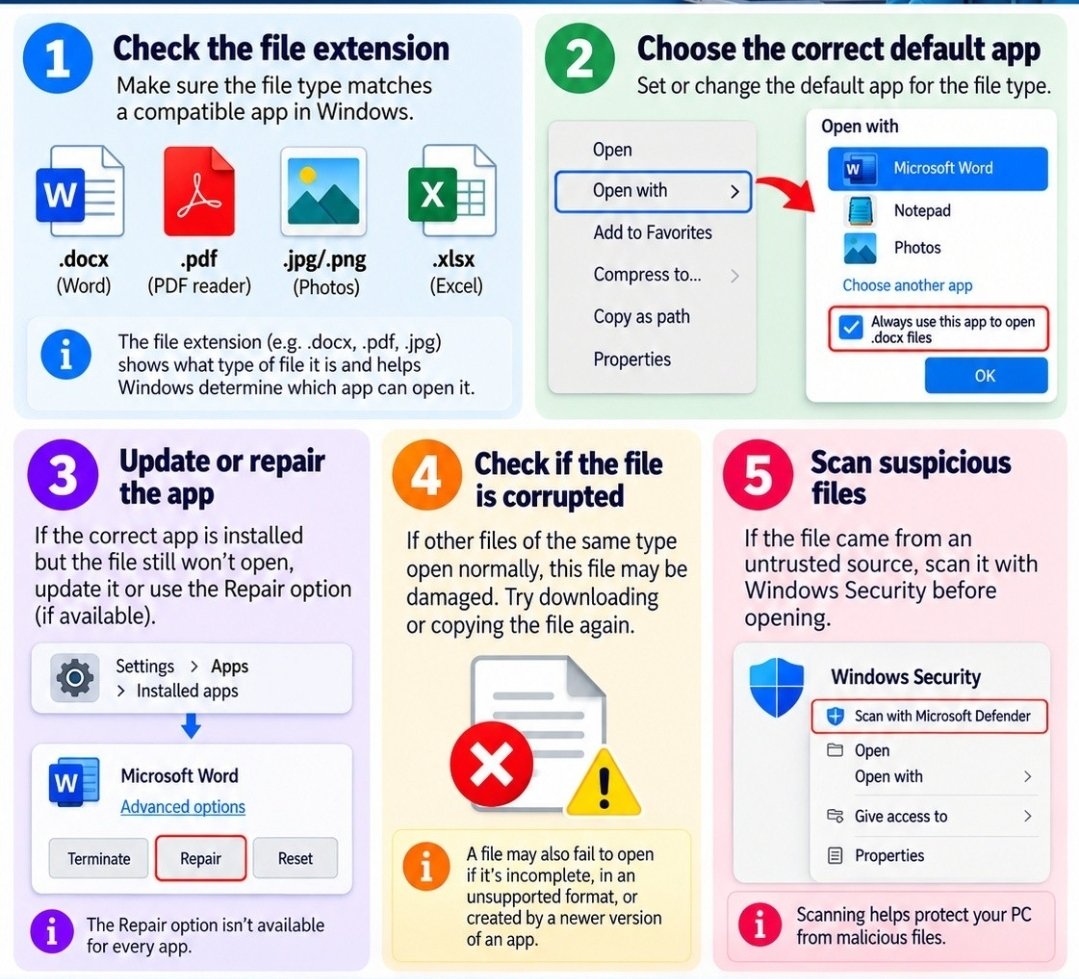
Five checks when a file will not open: the file type, the default app, updating or repairing the app, a corrupted file, and scanning anything suspicious.
On a Mac: the same five checks, in Mac words
The chart above is written for Windows. A Mac can do every one of the same checks — the doors just have different names:
1. Check the ending letters. Click the file once, then choose File → Get Info to see its type. (A Mac hides the letters less often than Windows does.) 2. Tell it which app to use. Right-click the file (or hold Control and click) → Open With → pick the right app. To make it permanent: Get Info → the "Open with" section → choose the app → Change All. 3. Update or repair the app — Mac apps update through the App Store (or the app’s own Help menu); a freshly updated app opens files its older self could not. 4. It may simply be damaged — download it again or ask the sender to re-send it. 5. Be suspicious of surprises. A Mac has no Windows Security, and that is fine — the rule is the same: a file you were not expecting, from someone you barely know, should not be opened at all. When in doubt, call the sender on a number you already trust — or call us.
Need a hand with this in person? Call (813) 770-6082 — Straight 2 Work Tech, LLC, Sun City Center, Florida.