Reference charts
Charts that explain tech at a glance. Tap any chart to open its own page.
Fix-It Charts
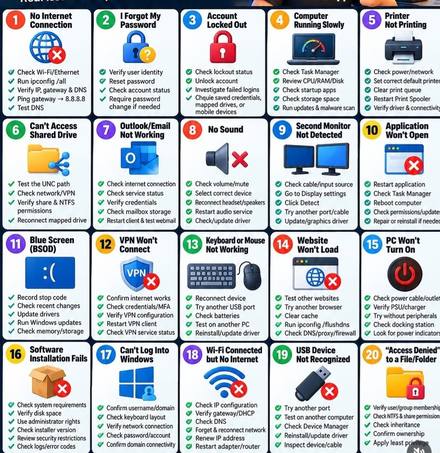 20 Common Computer ProblemsThe problems people call about most — no internet, slow computer, printer not printing — and the first things to check for each one.
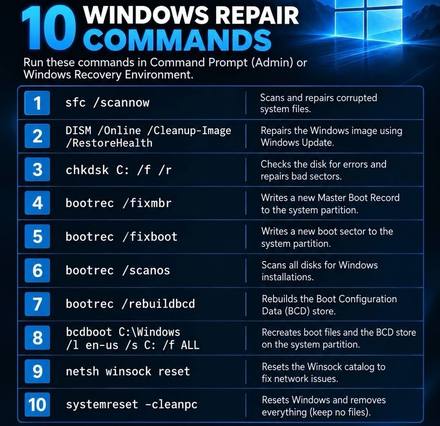 10 Windows Repair CommandsThe repair commands a technician runs when Windows is broken, corrupted, or will not start.
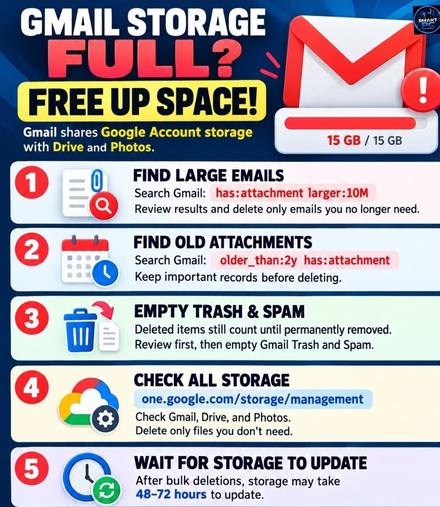 Gmail Storage Full? Free Up SpaceWhen Gmail says storage is full, here is how to find the big emails and free up space.
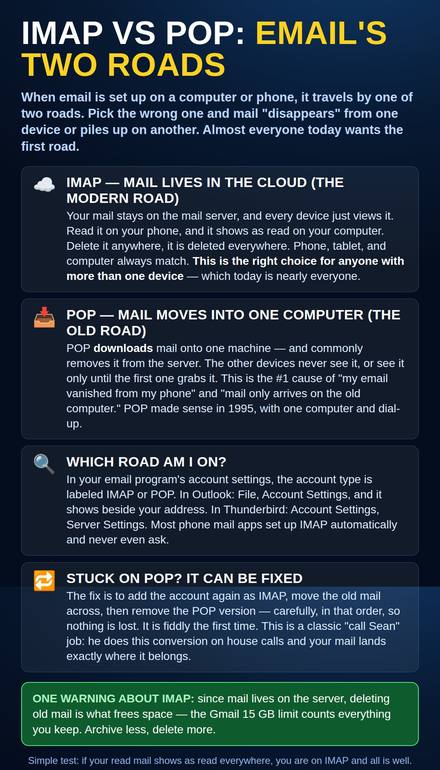 IMAP vs POP: Email’s Two RoadsWhy mail vanishes from one device: IMAP keeps mail in the cloud for every device, POP traps it on one computer - and how to convert safely.
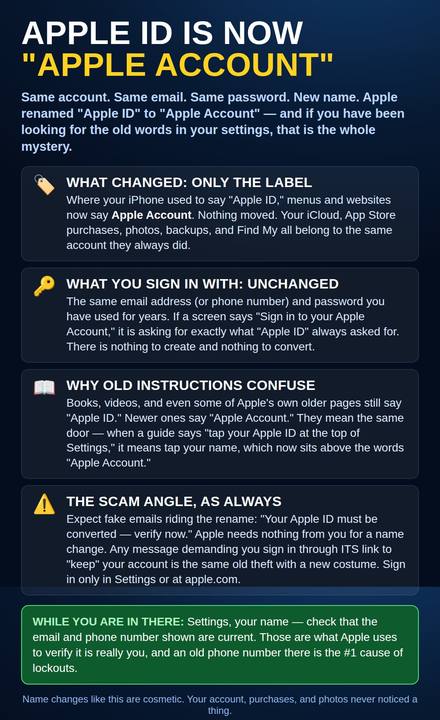 Apple ID Is Now “Apple Account”Apple renamed Apple ID - same account, same password, nothing to convert. Plus the "convert now" email scam riding the rename.
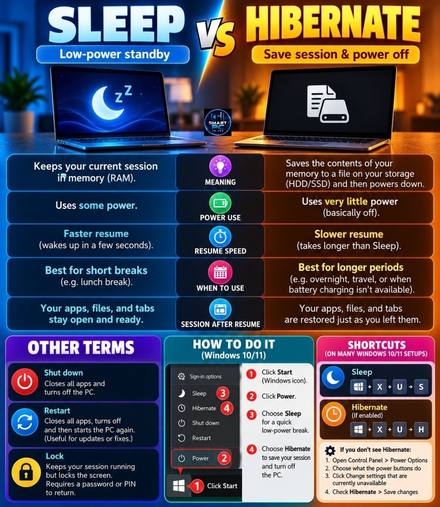 Sleep vs HibernateSleep keeps your work in memory and wakes in seconds. Hibernate saves it to the drive and turns fully off. This chart compares them, plus Shut down, Restart, and Lock.
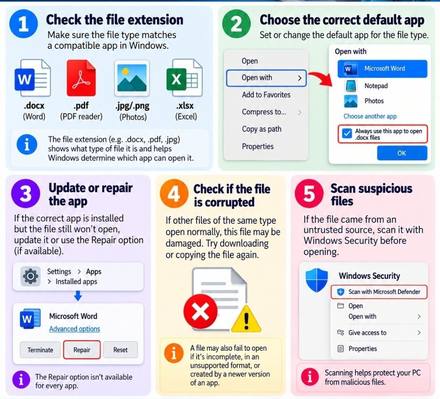 When a File Won't OpenFive checks when a file will not open: the file type, the default app, updating or repairing the app, a corrupted file, and scanning anything suspicious.
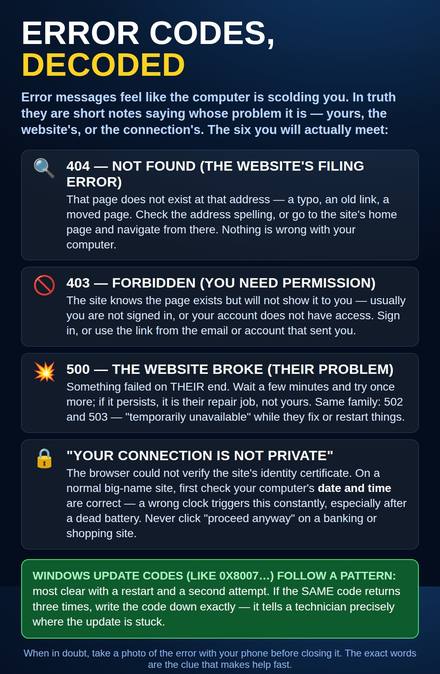 Error Codes, Decoded404, 403, 500, and "connection not private" in plain words - whose problem each one is, and the wrong-clock trick behind many warnings.
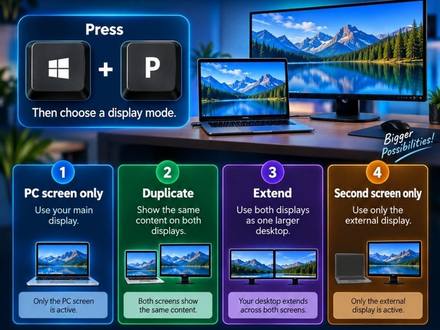 Second Screen: Win + P Display ModesPress the Windows key and P together to choose how a second screen works: PC screen only, Duplicate, Extend, or Second screen only.
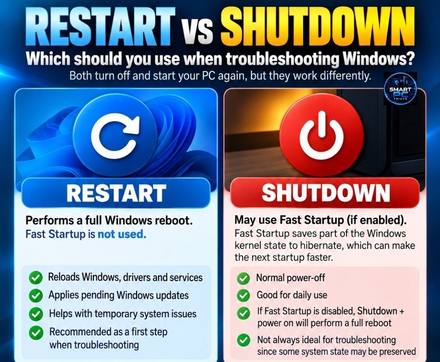 Restart vs ShutdownRestart does a full fresh reboot — it reloads Windows, drivers, and updates. Shutdown may use Fast Startup, which saves part of Windows, so a restart is the better first fix when troubleshooting.
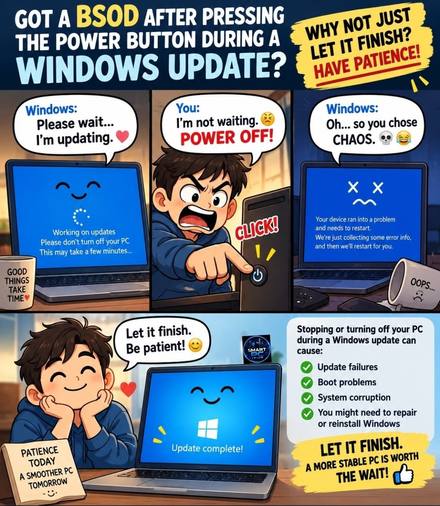 Never Power Off During a Windows UpdateTurning the power off while Windows is updating can cause update failures, boot problems, and system corruption. Let it finish — a smoother PC is worth the wait.
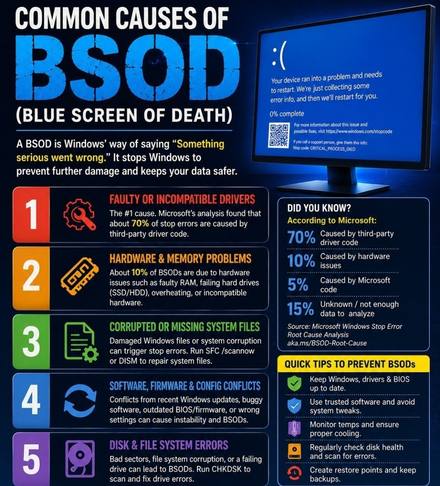 Common Causes of BSOD (Blue Screen)The five common causes of a blue screen: faulty drivers, hardware and memory problems, corrupted system files, software conflicts, and disk errors — plus quick tips to prevent them.
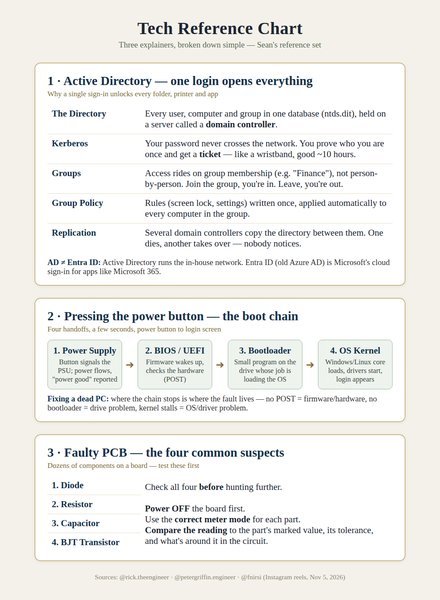 Tech Reference ChartThree explainers on one page: how Active Directory lets one login open everything, the four steps that happen when you press the power button, and the four parts to test first on a faulty circuit board.
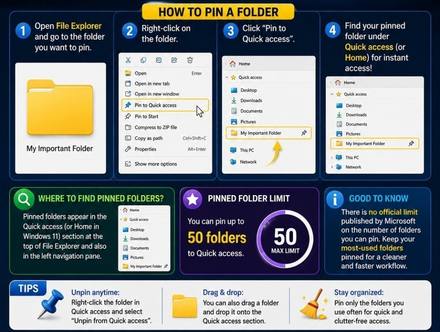 How to Pin a Folder to Quick AccessRight-click any folder and choose Pin to Quick access, and it stays at the top of File Explorer for one-click opening. You can pin up to 50, and unpin any time.
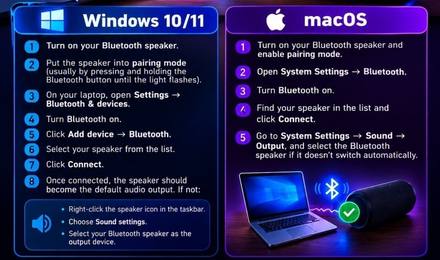 Connect a Bluetooth SpeakerStep-by-step pairing for Windows 10/11 and Mac: put the speaker in pairing mode, turn Bluetooth on, add the device, connect, and check the sound output.
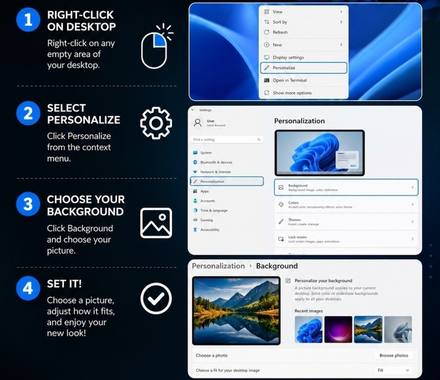 Change Your Desktop BackgroundRight-click an empty spot on the desktop, choose Personalize, then Background, and pick your picture. Four steps with the actual Windows screens shown.
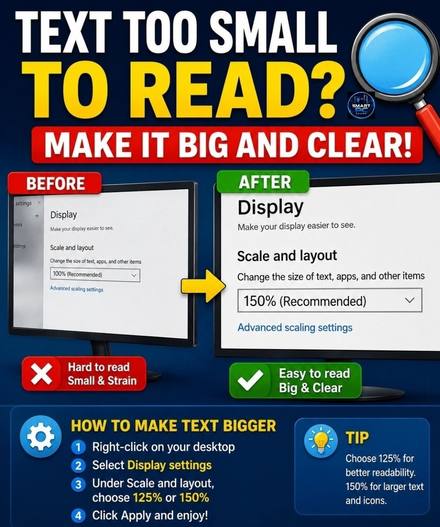 Text Too Small to Read? Make Text BiggerIf screen text is hard to read, right-click the desktop, open Display settings, and raise Scale and layout to 125% or 150%. Everything on screen gets bigger and clearer.
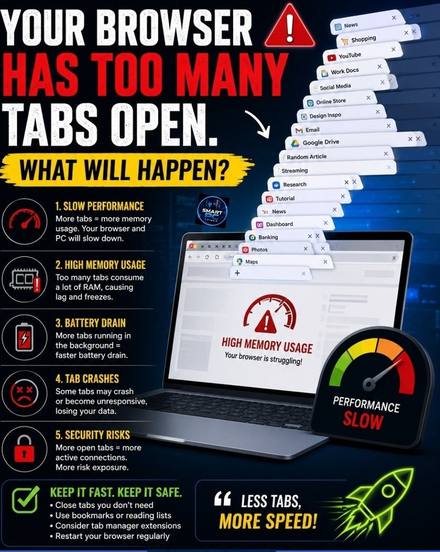 Your Browser Has Too Many Tabs OpenEvery open browser tab uses memory. Too many tabs slow your computer down, drain the battery, and can crash the browser. Close tabs you are done with, bookmark pages to read later, and restart the browser now and then.
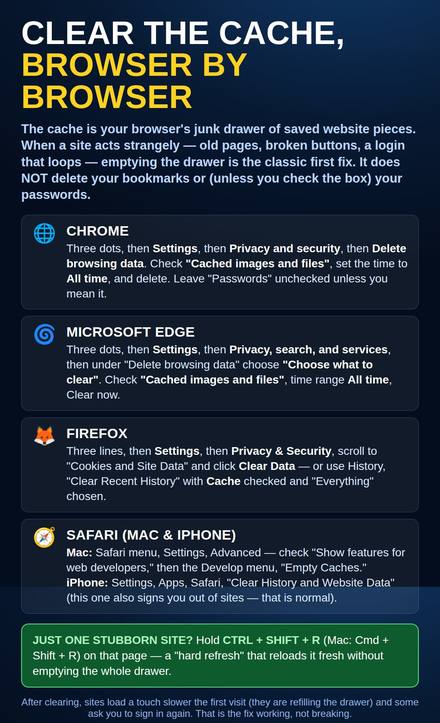 Clear the Cache, Browser by BrowserThe exact clicks for Chrome, Edge, Firefox, and Safari - plus the one-site hard refresh that skips the whole chore.
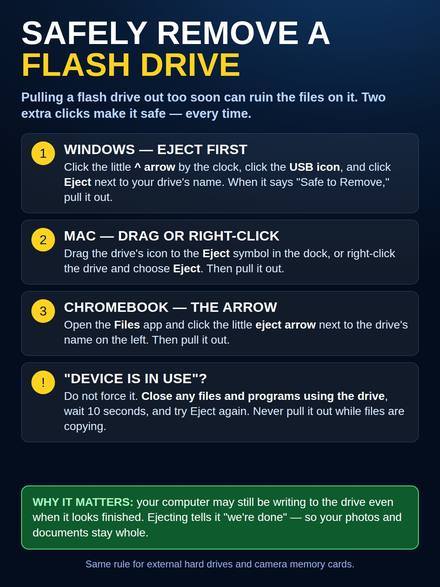 Safely Remove a Flash DrivePulling a flash drive out too soon can ruin its files. Eject first: two clicks on Windows, Mac, and Chromebook, and what to do when it says the device is in use.
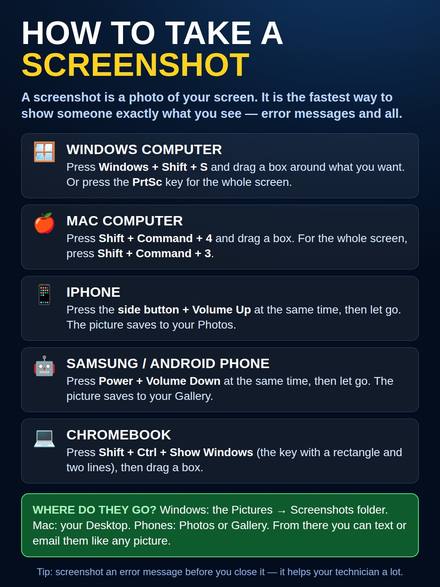 How to Take a ScreenshotThe exact keys for Windows, Mac, iPhone, Samsung, and Chromebook — and where the picture lands afterward so you can text or email it.
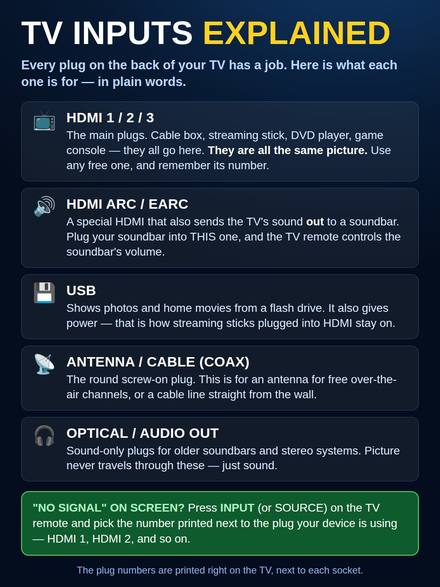 TV Inputs Explained: HDMI, ARC & MoreWhat every plug on your TV is for. HDMI carries picture and sound, HDMI ARC sends sound out to a soundbar, USB shows photos from a flash drive, and the coax plug is for an antenna.
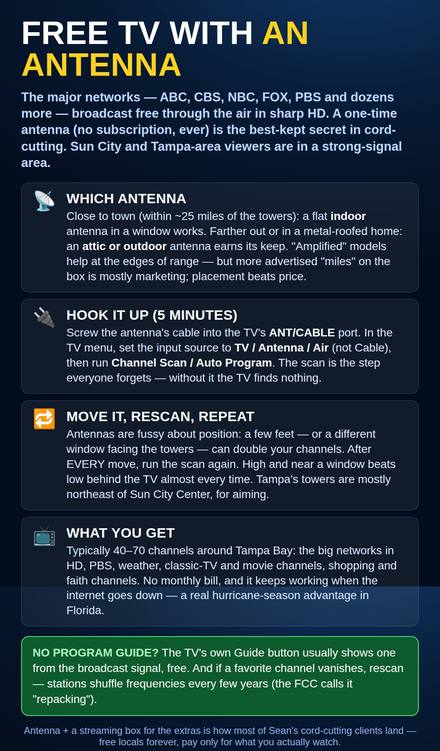 Free TV With an Antenna40-70 free HD channels around Tampa Bay with a one-time antenna: which kind, the scan step everyone forgets, and aim northeast.
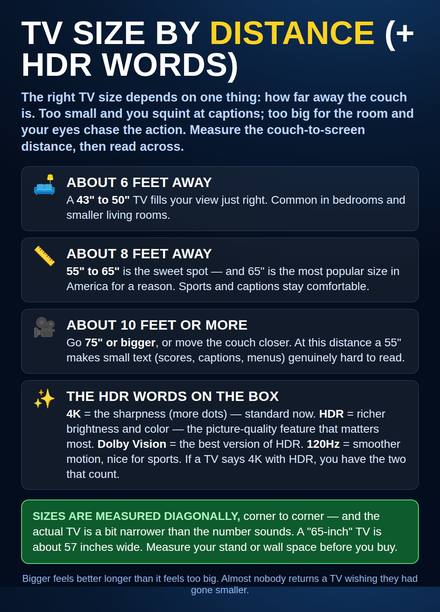 TV Size by Distance (+ HDR Words)Match the TV to your couch distance, and decode 4K, HDR, Dolby Vision, and 120Hz in plain words.
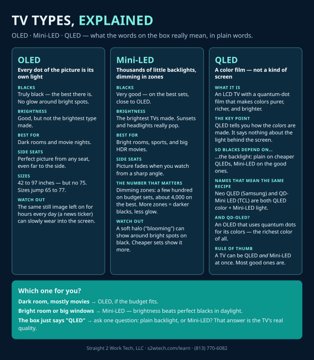 TV Types Explained: OLED, Mini-LED & QLEDWhat the words on the box really mean: OLED's perfect blacks, Mini-LED's dimming zones and brightness, and why QLED is a color film, not a screen. Plus today's picks by room and budget.
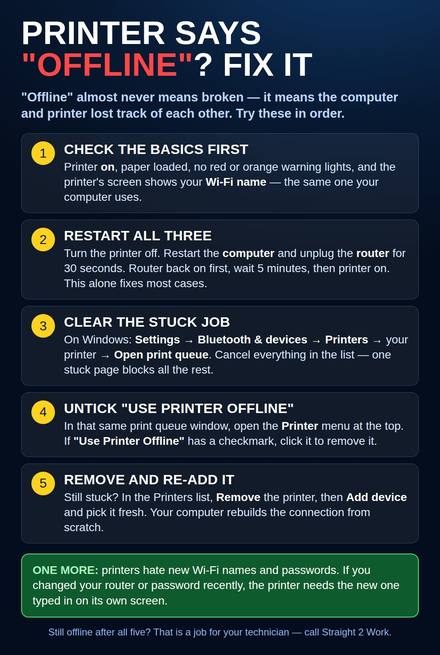 Printer Says "Offline"? Fix ItOffline means the computer and printer lost each other, not that the printer is broken. Five steps in order: check the basics, restart all three, clear the stuck print job, untick Use Printer Offline, then remove and re-add the printer.
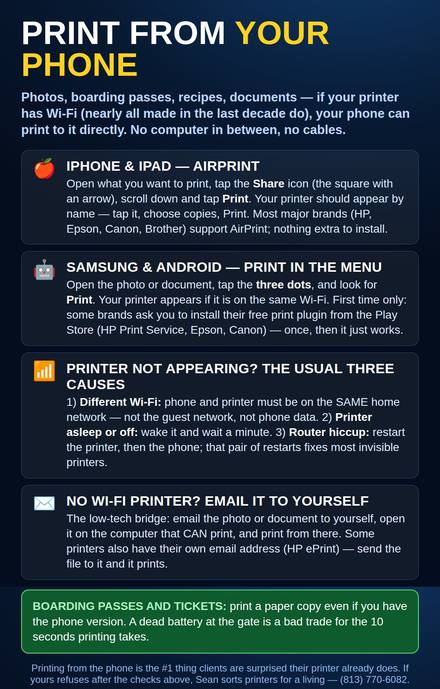 Print From Your PhoneAirPrint on iPhone, Print in the menu on Android, the same-Wi-Fi rule, and the three reasons a printer hides from your phone.
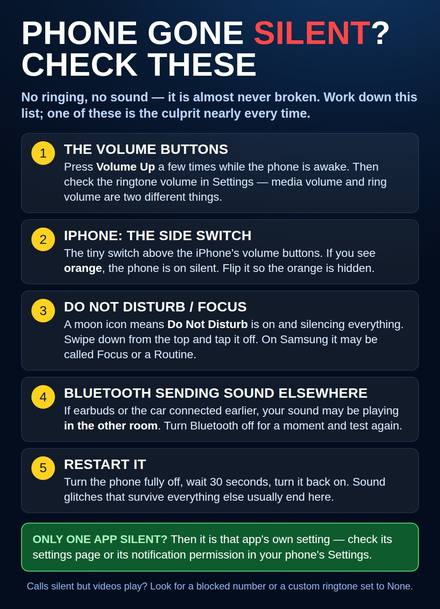 Phone Gone Silent? Check TheseNo ringing is almost never a broken phone. The volume buttons, the iPhone side switch, Do Not Disturb, Bluetooth sending sound to another room, and a restart - in that order.
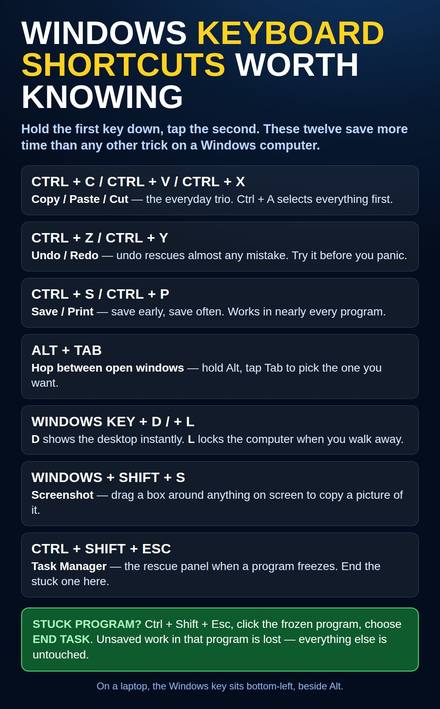 Windows Keyboard Shortcuts Worth KnowingThe twelve shortcuts that save the most time: copy, paste, undo, save, print, hop between windows, lock the computer, screenshot, and the Task Manager rescue for frozen programs.
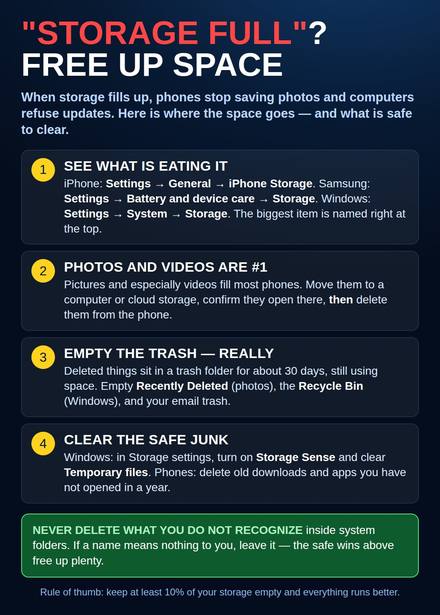 "Storage Full"? Free Up SpaceWhere your space actually goes and what is safe to clear: check the storage screen, move photos and videos, empty the trash for real, and clear temporary junk. Keep 10% free and everything runs better.
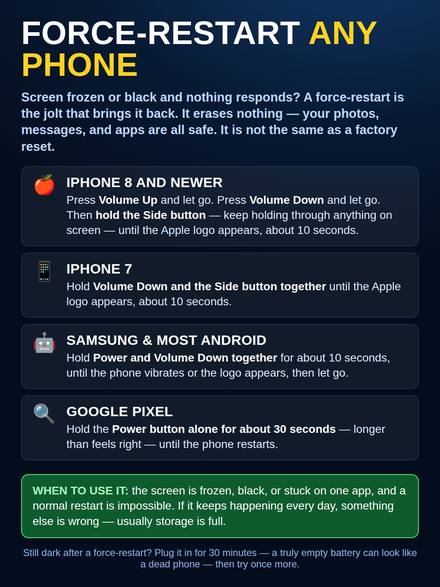 Force-Restart Any PhoneScreen frozen or black and nothing responds? The button jolt for iPhone, Samsung, and Pixel that brings it back - and erases nothing.
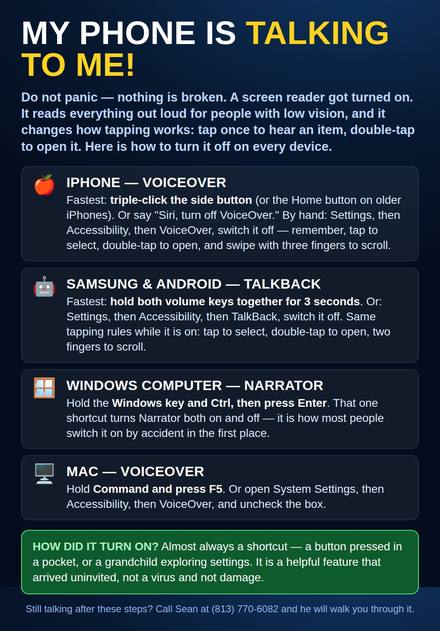 My Phone Is Talking to Me!A screen reader got turned on - VoiceOver, TalkBack, or Narrator. The exact off-switch for iPhone, Samsung, Windows, and Mac, plus how tapping changes while it is on.
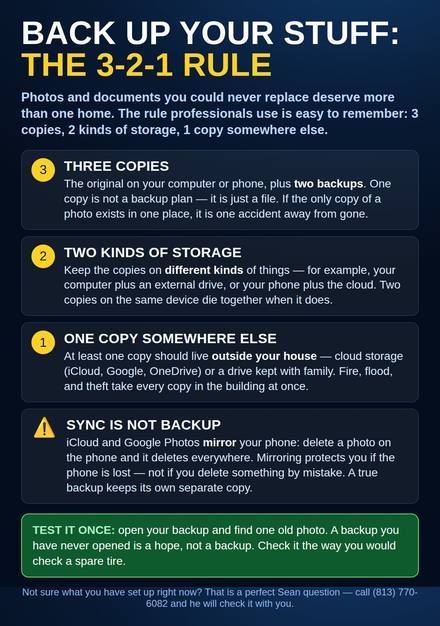 Back Up Your Stuff: The 3-2-1 RuleThree copies, two kinds of storage, one somewhere else - the backup rule professionals use, plus why sync is not backup.
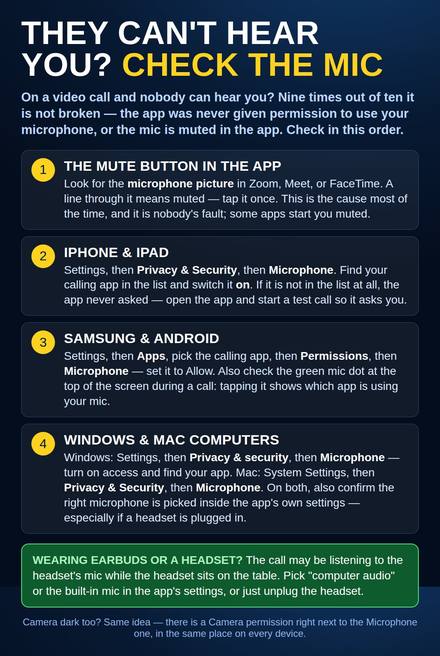 They Can’t Hear You? Check the MicOn a video call and nobody can hear you? The mute button, then the microphone permission on iPhone, Android, Windows, and Mac - in the order to check them.
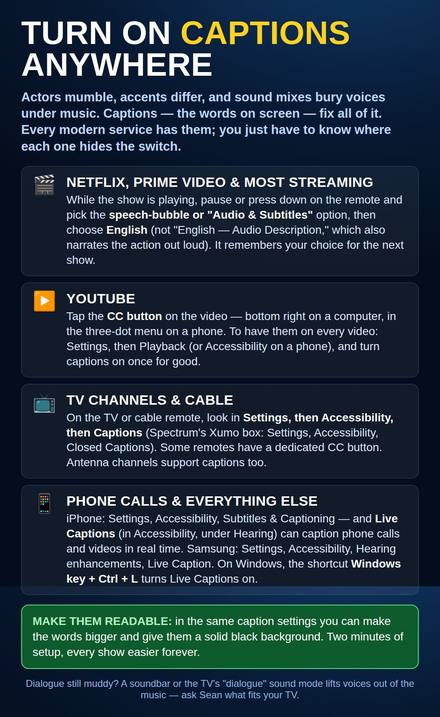 Turn On Captions AnywhereNetflix, YouTube, TV, and live phone calls - where each one hides the captions switch, and how to make the words bigger with a black background.
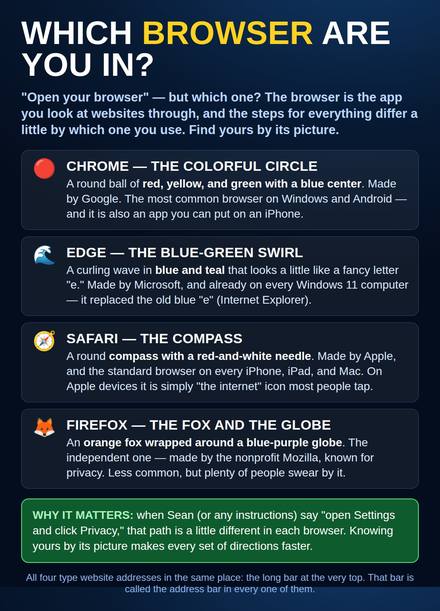 Which Browser Are You In?Chrome, Edge, Safari, and Firefox identified by their pictures - so "open your browser" and every set of directions makes sense.
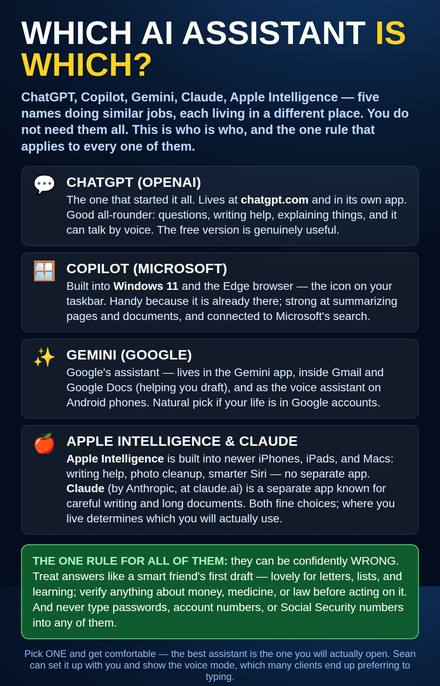 Which AI Assistant Is Which?ChatGPT, Copilot, Gemini, Apple Intelligence, and Claude - where each lives, what each does best, and the one rule for all of them.
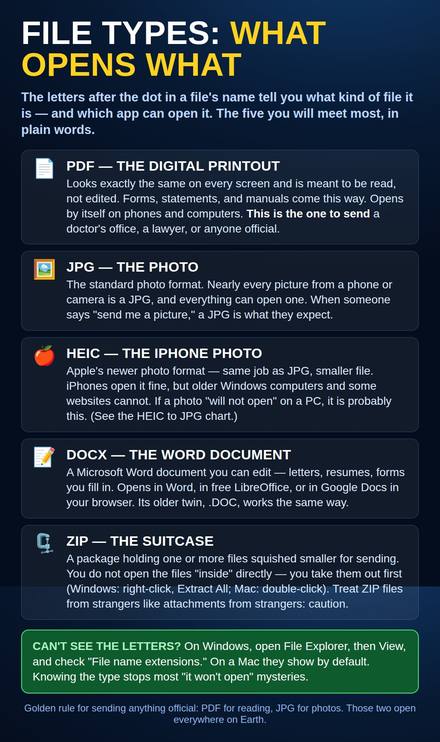 File Types: What Opens WhatPDF, JPG, HEIC, DOCX, ZIP - what each file type is, what opens it, and which one to send a doctor’s office.
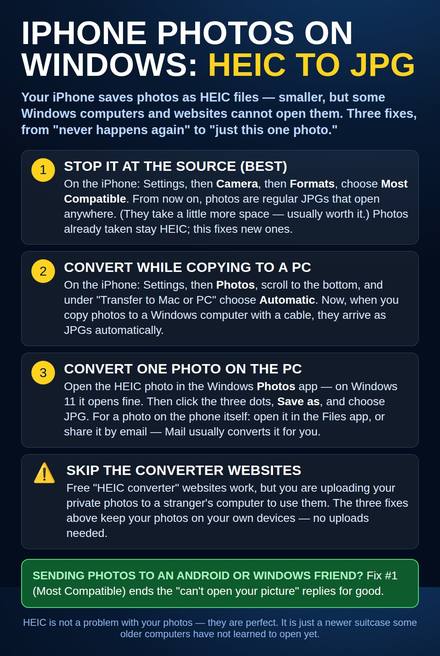 iPhone Photos on Windows: HEIC to JPGYour iPhone photos will not open on a Windows PC? Stop it at the source, convert while copying, or convert one photo - no shady converter websites.
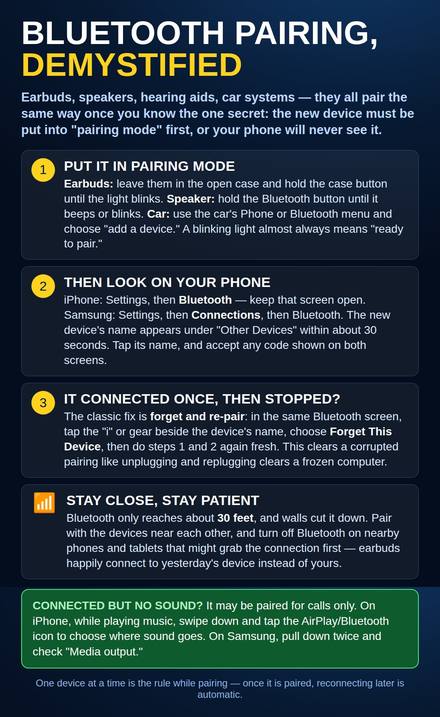 Bluetooth Pairing, DemystifiedPairing mode first, then your phone - plus the forget-and-re-pair fix that cures most "it connected once" problems.
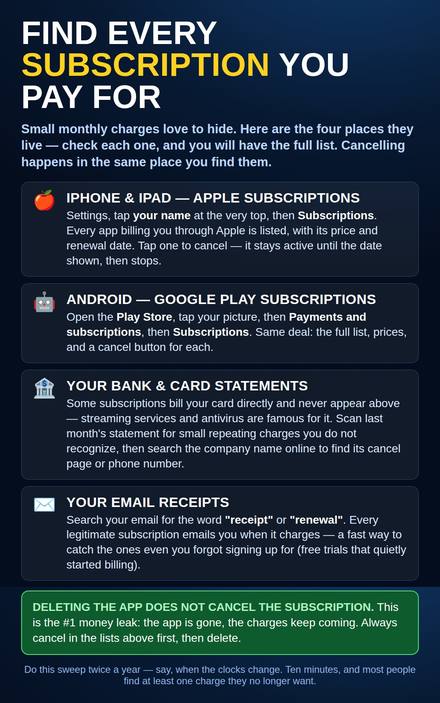 Find Every Subscription You Pay ForThe four places subscriptions hide: Apple, Google Play, your card statement, and your email receipts. Deleting the app never cancels one.
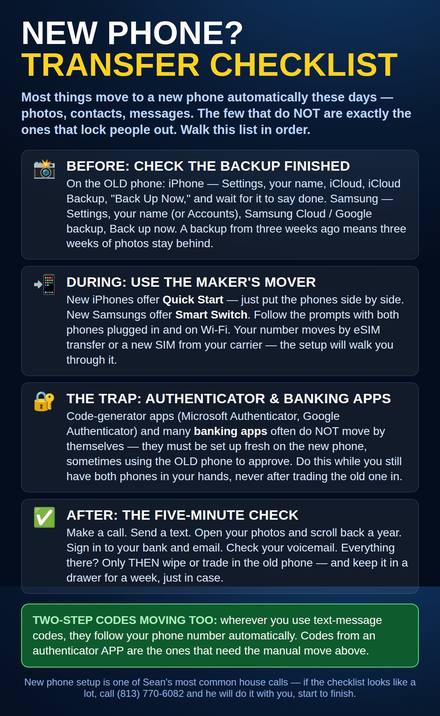 New Phone? Transfer ChecklistBack up first, use Quick Start or Smart Switch, watch the authenticator-app trap, and do the five-minute check before wiping the old phone.
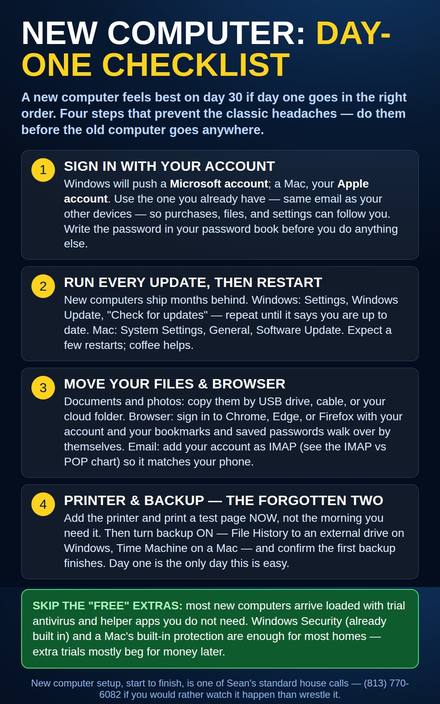 New Computer: Day-One ChecklistYour account, every update, files and browser, then printer and backup - the four day-one steps that prevent the classic headaches.
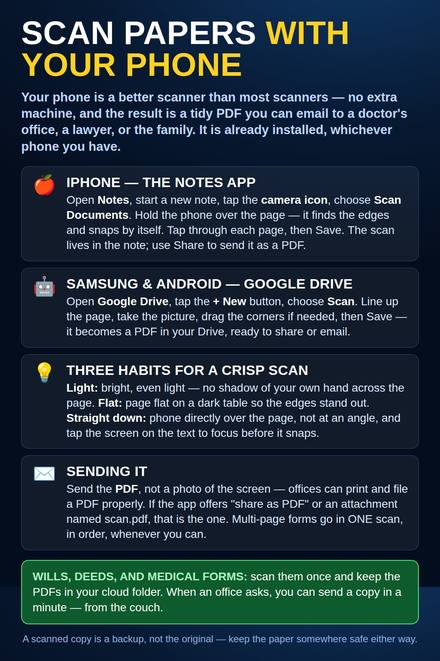 Scan Papers With Your PhoneScan documents to tidy PDFs with Notes on iPhone or Google Drive on Android - plus the three habits for a crisp scan.
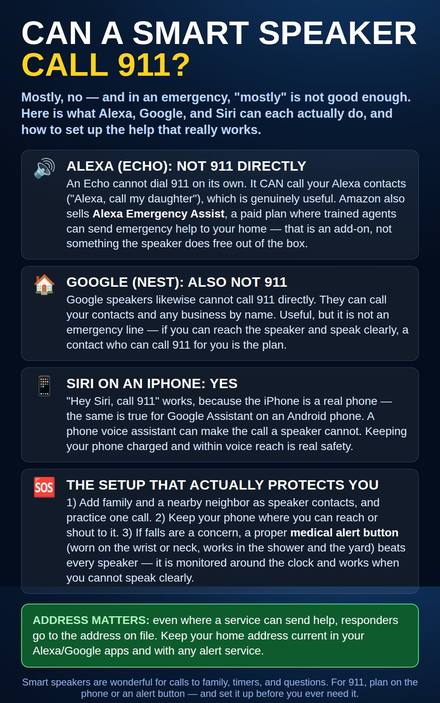 Can a Smart Speaker Call 911?Alexa and Google speakers cannot call 911 directly - what they can do, what Siri on a phone can do, and the setup that actually protects you.
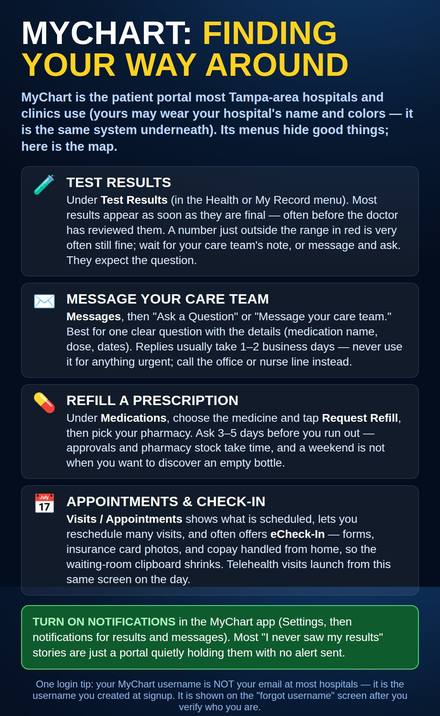 MyChart: Finding Your Way AroundTest results, messaging your care team, prescription refills, and appointments - the map of the patient portal, plus the username trap.
Inside a Computer
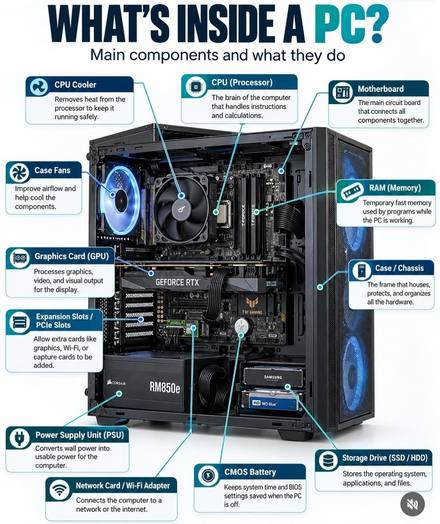 What's Inside a PC?Every main part inside a desktop computer, labeled, with what each part does in plain words.
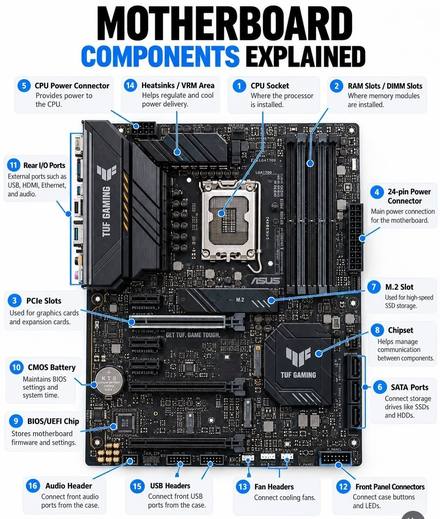 Motherboard Components ExplainedThe big board everything plugs into — every socket, slot, and connector labeled.
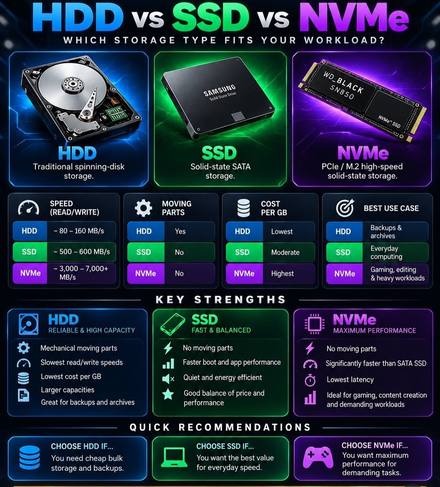 HDD vs SSD vs NVMeThe three kinds of storage drives compared: speed, cost, and which one fits your needs.
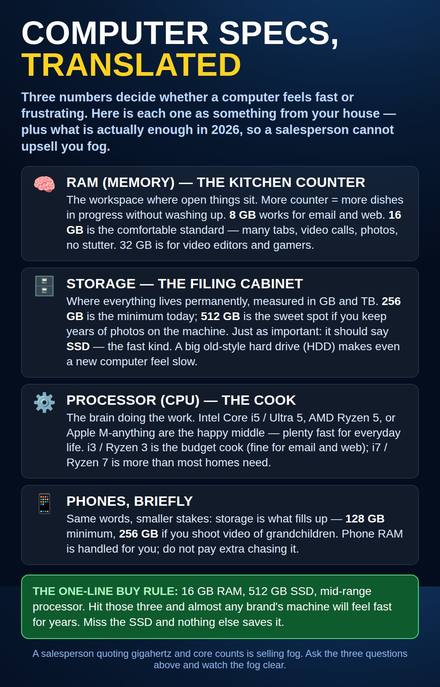 Computer Specs, TranslatedRAM is the kitchen counter, storage is the filing cabinet, the processor is the cook - plus the one-line buy rule for 2026.
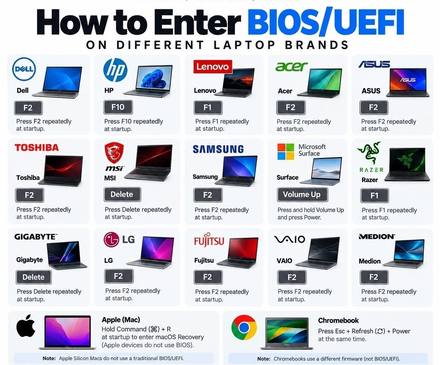 How to Enter BIOS/UEFI by BrandThe exact key to press at startup for Dell, HP, Lenovo, Acer, ASUS, and more.
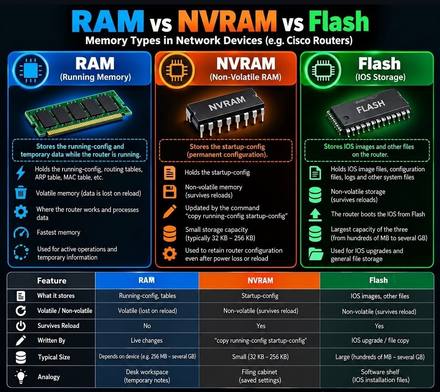 RAM vs NVRAM vs FlashThe three kinds of memory inside routers and network devices, and what each one holds.
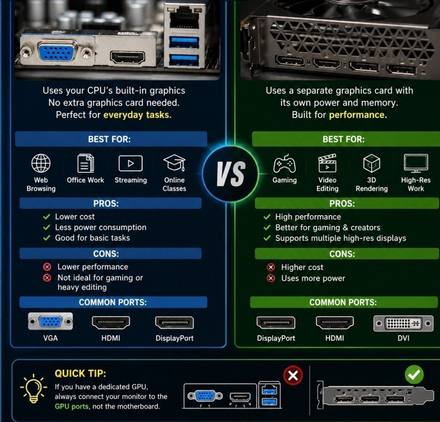 Integrated vs Dedicated GraphicsIntegrated graphics are built into the processor — fine for everyday tasks and cheaper. A dedicated graphics card has its own power and memory for gaming, video editing, and 3D work. Includes the tip: plug the monitor into the graphics card, not the motherboard.
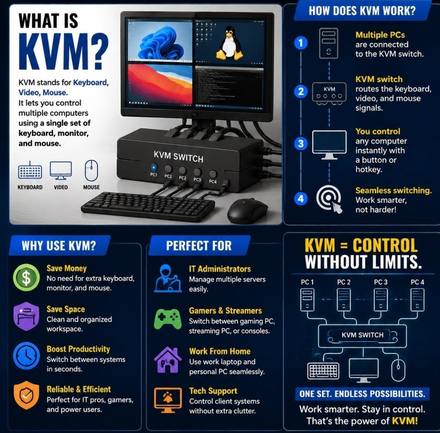 What Is KVM?KVM stands for Keyboard, Video, Mouse. A KVM switch lets one keyboard, monitor, and mouse control several computers — switch between them with a button or a hotkey. Great for work-from-home and tech benches.
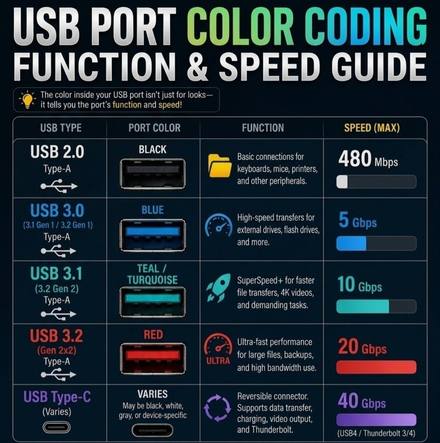 USB Port Colors: Function & Speed GuideThe color inside a USB port tells its speed: black is USB 2.0 (480 Mbps), blue is USB 3.0 (5 Gbps), teal is 10 Gbps, red is 20 Gbps, and USB-C can reach 40 Gbps. Plug drives into the fast ports.
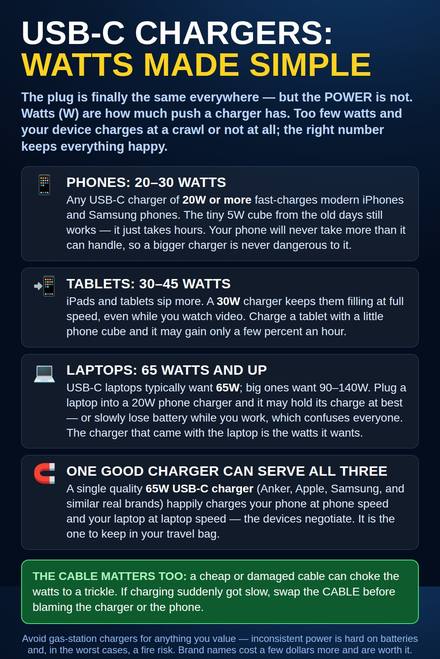 USB-C Chargers: Watts Made SimplePhones 20W, tablets 30-45W, laptops 65W and up - why the same plug charges at different speeds, and why the cable matters too.
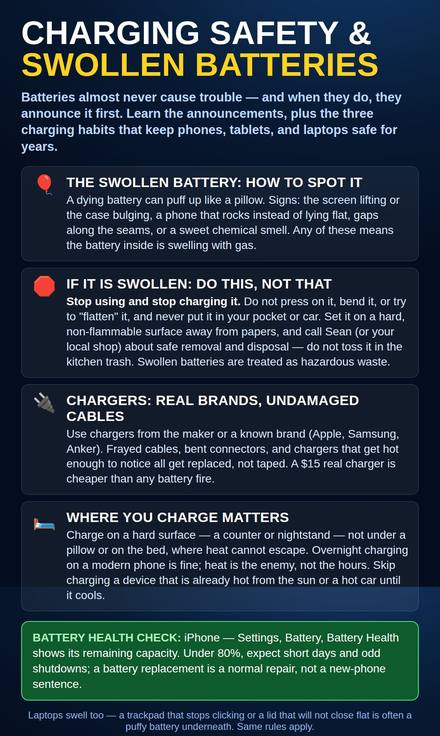 Charging Safety & Swollen BatteriesSpot a puffy battery (screen lifting, rocking phone, sweet smell), what to do and never do, and the charging habits that prevent it.
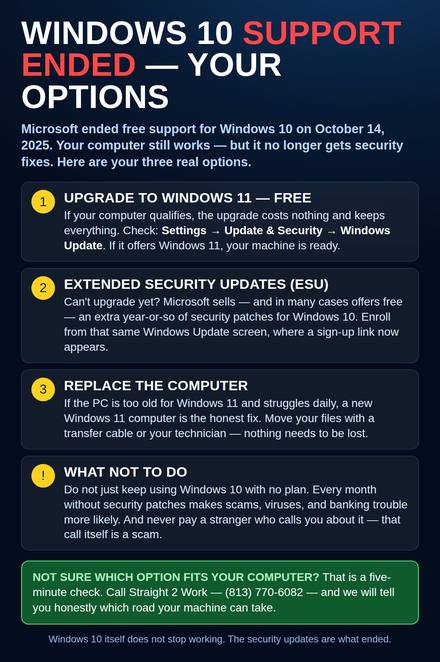 Windows 10 Support Ended - Your OptionsMicrosoft ended Windows 10 support on October 14, 2025. The computer still works but gets no security fixes. Your options: free upgrade to Windows 11, extended security updates, or a new computer.
Home Networks & Internet
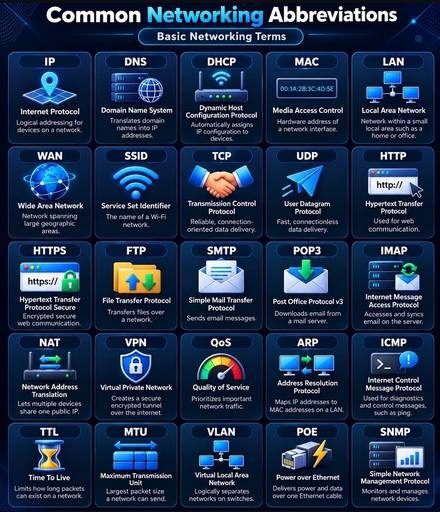 Common Networking AbbreviationsIP, DNS, DHCP, VPN and 20 more networking words, explained in one line each.
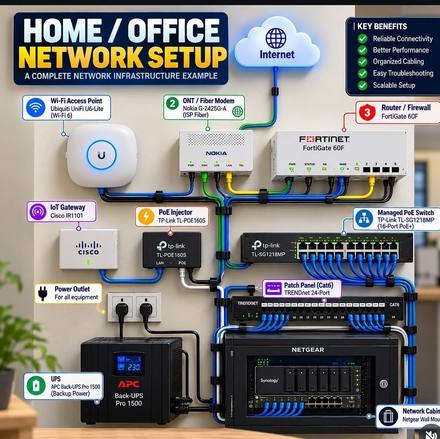 Home / Office Network SetupHow a complete home or office network fits together, from the internet line to every device.
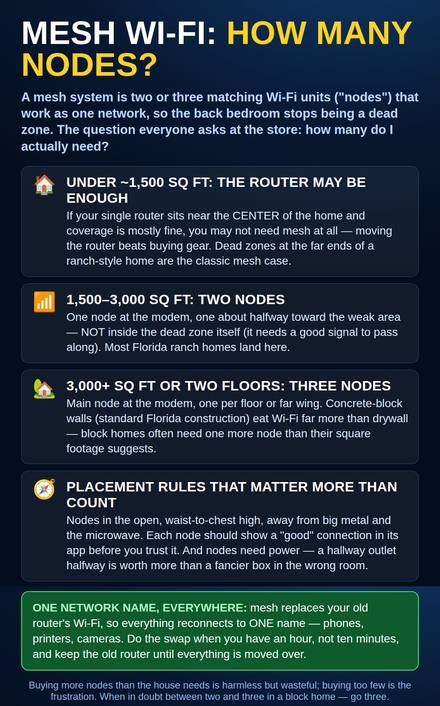 Mesh Wi-Fi: How Many Nodes?Two nodes for most Florida ranch homes, three for block walls and big floor plans - plus the placement rules that matter more than count.
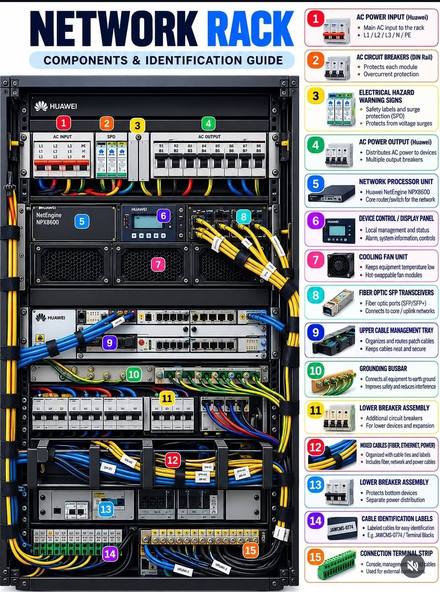 Network Rack ComponentsEvery part of a network rack labeled — power, breakers, switches, fiber, and cabling.
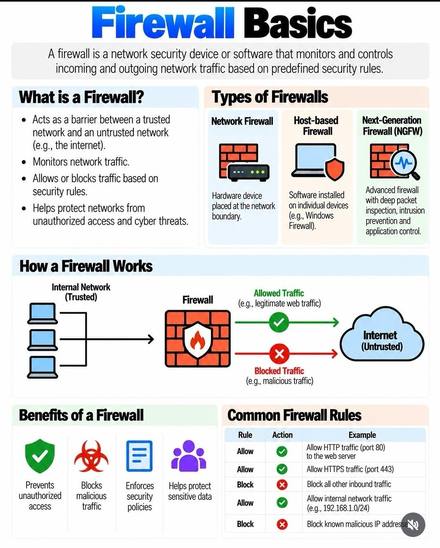 Firewall BasicsWhat a firewall is, the kinds there are, and how it decides what traffic to let through.
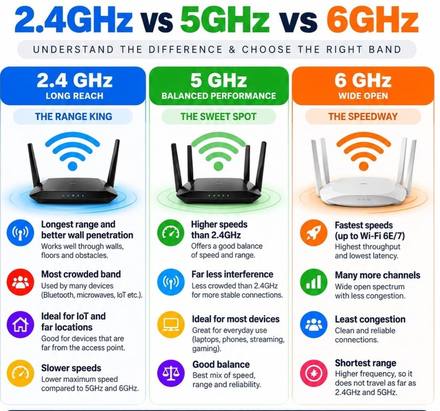 2.4GHz vs 5GHz vs 6GHz Wi-FiThe three Wi-Fi bands compared: range, speed, and which one your devices should use.
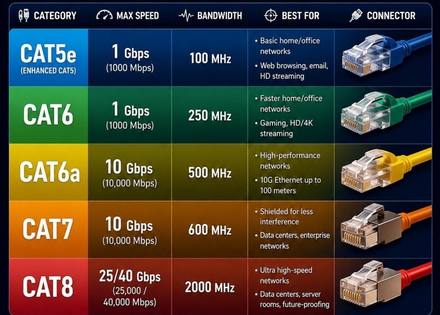 Ethernet Cable Categories: Cat5e to Cat8The network cable types compared: Cat5e and Cat6 run 1 Gbps for homes, Cat6a and Cat7 run 10 Gbps, and Cat8 reaches 25/40 Gbps for server rooms. Speeds, bandwidth, and what each is best for.
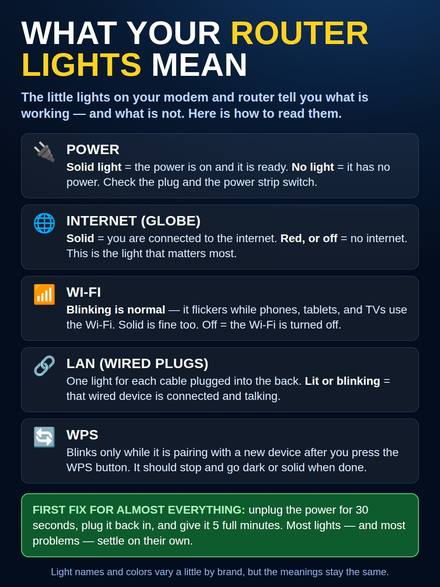 What Your Router Lights MeanPower, internet, Wi-Fi, and wired lights explained in plain words. Blinking usually means it is working — a red internet light is the real warning. First fix for almost everything: unplug 30 seconds.
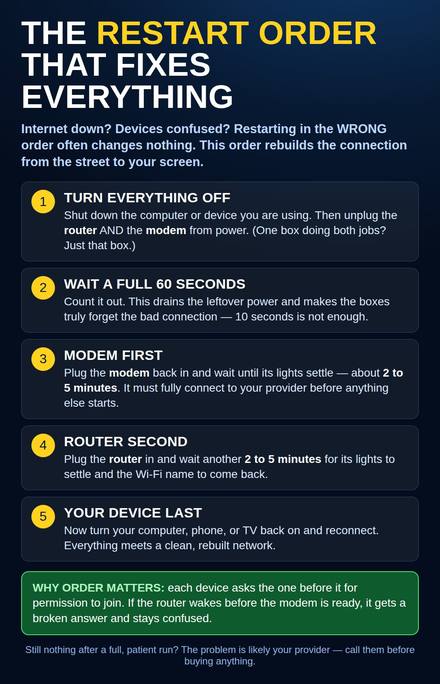 The Restart Order That Fixes EverythingRestarting in the wrong order often changes nothing. Everything off, wait 60 seconds, modem first, router second, your device last - the order rebuilds the connection from the street to your screen.
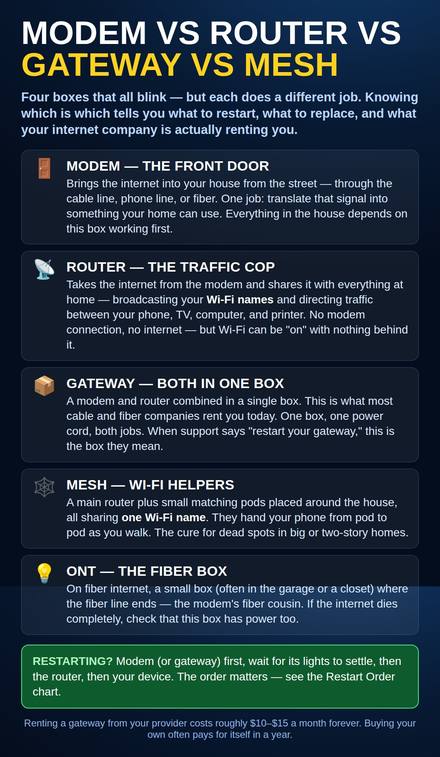 Modem vs Router vs Gateway vs MeshFour blinking boxes, four different jobs: the modem brings internet in, the router spreads it as Wi-Fi, a gateway does both, and mesh pods cure dead spots.
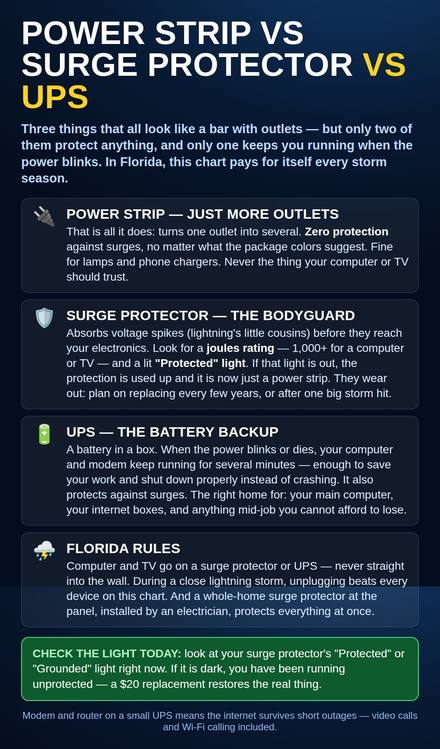 Power Strip vs Surge Protector vs UPSA strip just adds outlets, a surge protector absorbs spikes (check the Protected light), a UPS keeps you running through an outage. Florida rules included.
Electronics & Circuit Boards
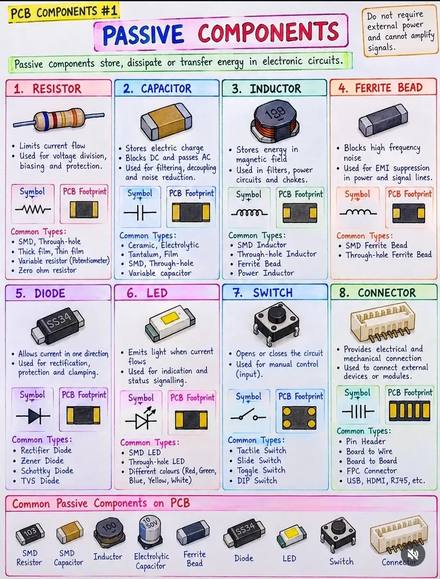 Passive Components (PCB #1)Resistors, capacitors, inductors and more — the basic building blocks on a circuit board.
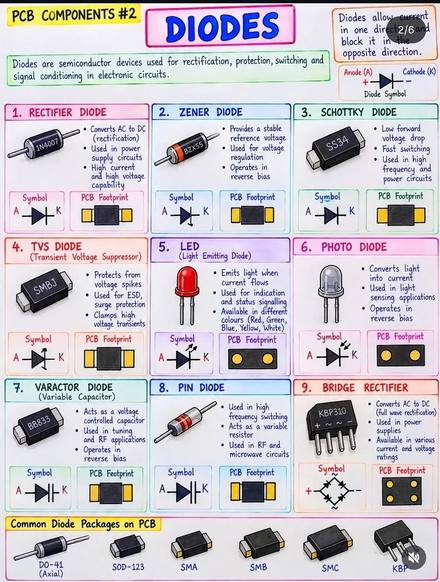 Diodes (PCB #2)The nine kinds of diodes, what each one does, and how to spot them on a board.
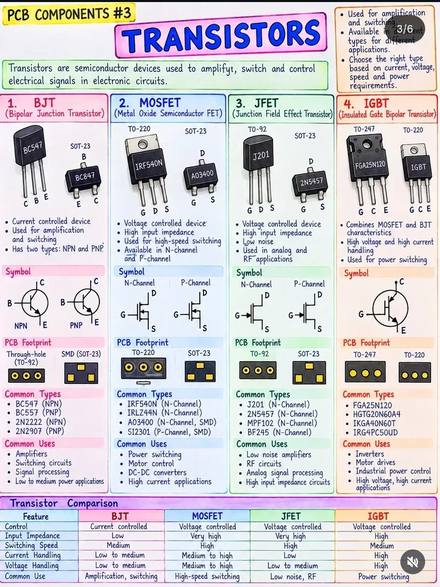 Transistors (PCB #3)BJT, MOSFET, JFET and IGBT transistors compared — what they do and where each is used.
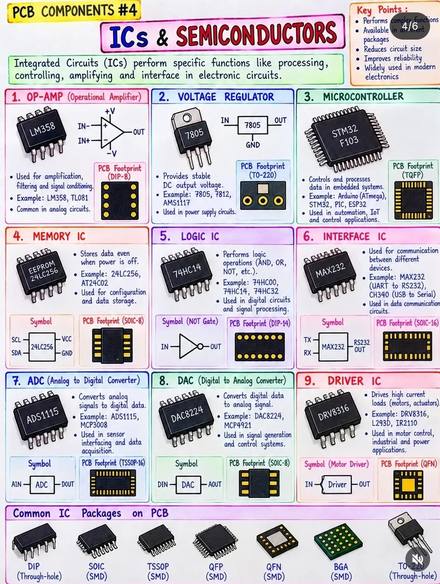 ICs & Semiconductors (PCB #4)Chips explained: op-amps, voltage regulators, microcontrollers, memory, and more.
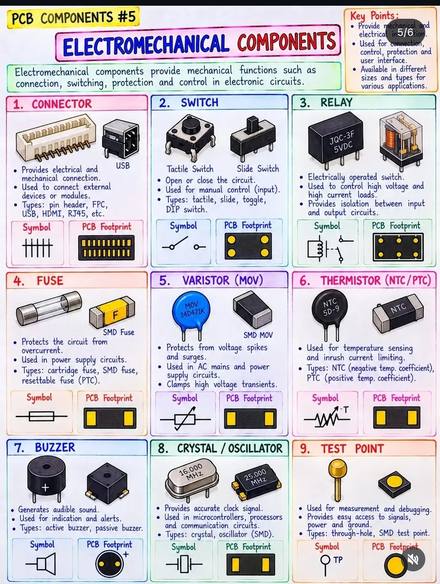 Electromechanical Components (PCB #5)Connectors, switches, relays, fuses and more — the moving and connecting parts on a board.
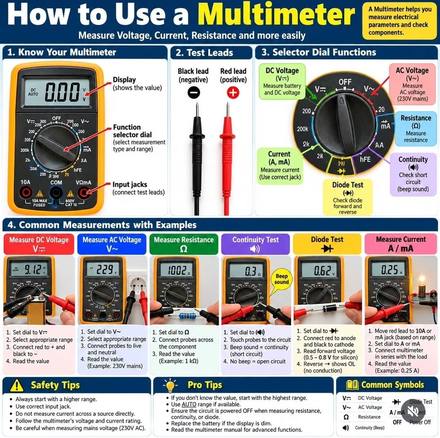 How to Use a MultimeterHow to measure voltage, current, and resistance, test continuity and diodes — with safety tips.
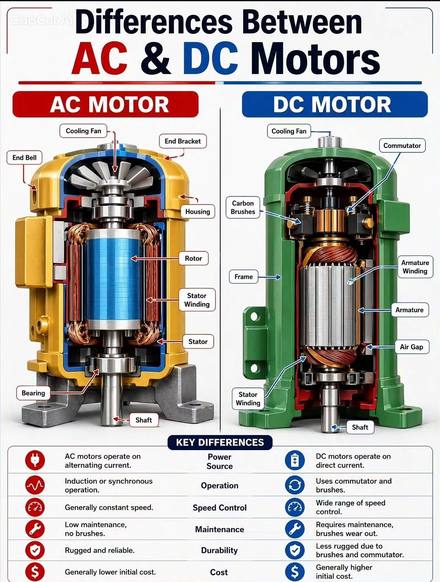 AC & DC Motors ComparedHow AC and DC motors are built inside, and the key differences between them.
Security Cameras
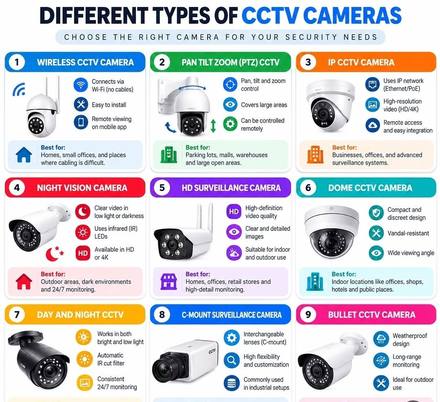 Types of CCTV CamerasThe nine kinds of security cameras and which one fits your home or business.
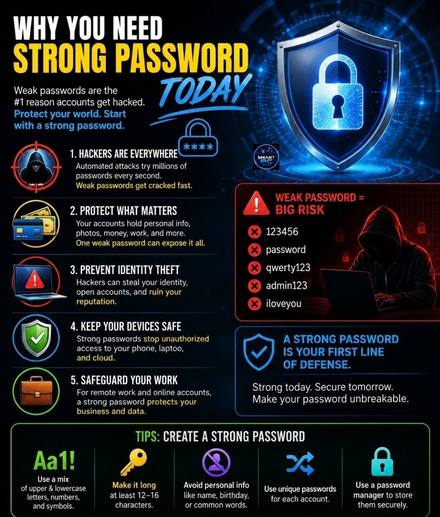 Why You Need a Strong PasswordWeak passwords are the #1 reason accounts get hacked. A strong password is long (12-16 characters), mixes upper and lowercase letters, numbers, and symbols, is different for every account, and is kept safe in a password manager.
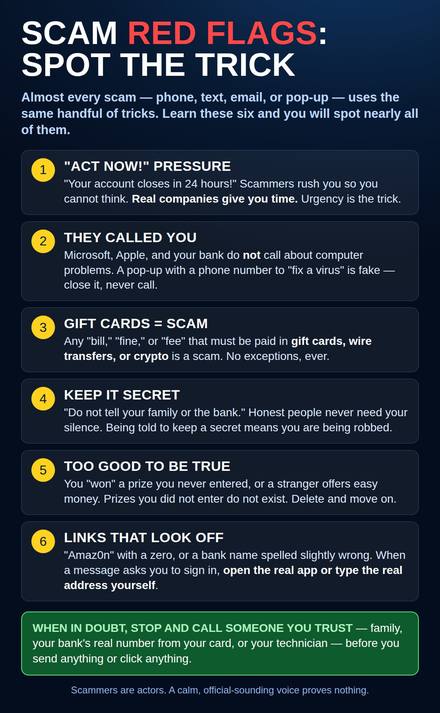 Scam Red Flags: Spot the TrickThe six tricks almost every scam uses: act-now pressure, callers claiming to be Microsoft or your bank, payment by gift cards, being told to keep it secret, prizes you never entered, and links spelled slightly wrong.
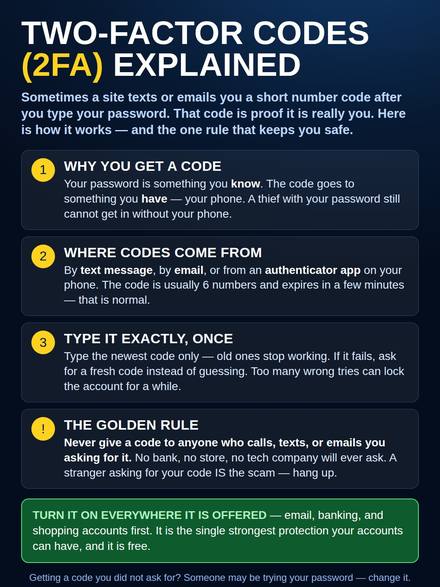 Two-Factor Codes (2FA) ExplainedThe 6-number code a site texts you after your password is proof it is really you. Never give a code to anyone who asks - no real company will ever ask. Turning it on is the strongest free protection your accounts can have.
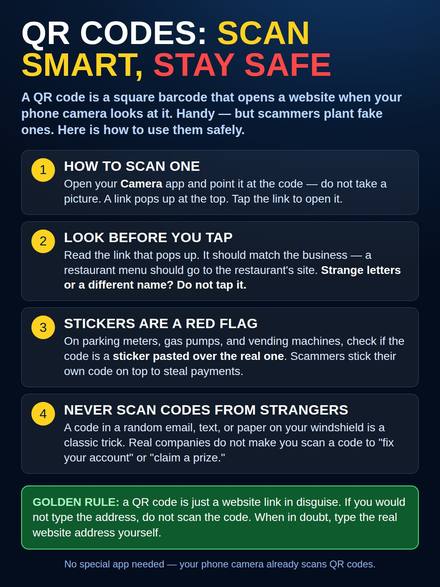 QR Codes: Scan Smart, Stay SafePoint your camera at the code and tap the link that pops up - but read that link first. A sticker pasted over the real code, or a code from a stranger, is a classic scam. A QR code is just a website link in disguise.
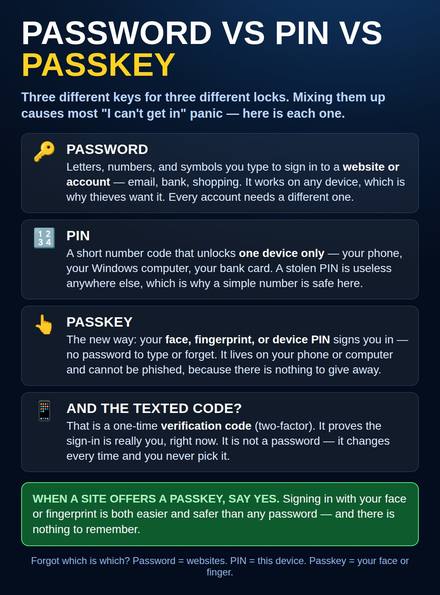 Password vs PIN vs PasskeyThree different keys for three different locks. A password signs in to websites, a PIN unlocks one device only, and a passkey signs you in with your face or fingerprint - nothing to type, forget, or give away.
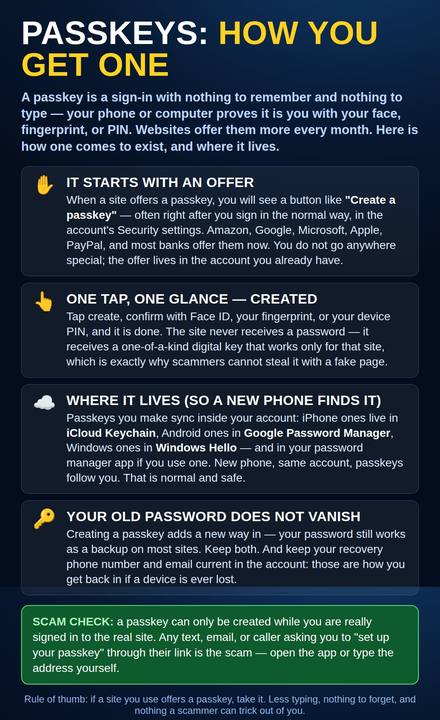 Passkeys: How You Get OneWhere the "create a passkey" offer lives, what happens when you tap it, where passkeys are stored, and the link scam to refuse.
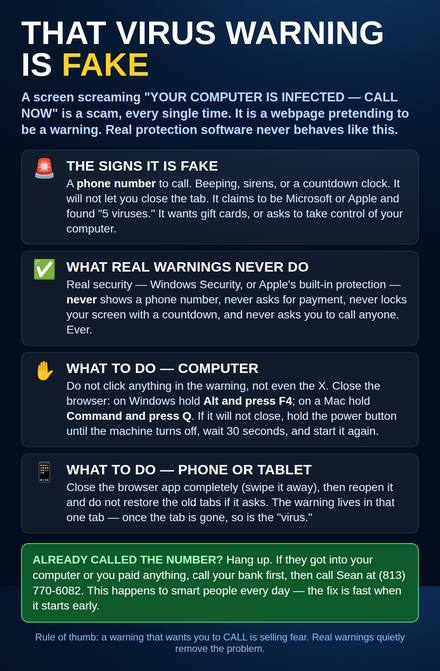 That Virus Warning Is FakeA screen screaming "YOUR COMPUTER IS INFECTED - CALL NOW" is a scam every time. The signs it is fake, what real warnings never do, and how to close it safely.
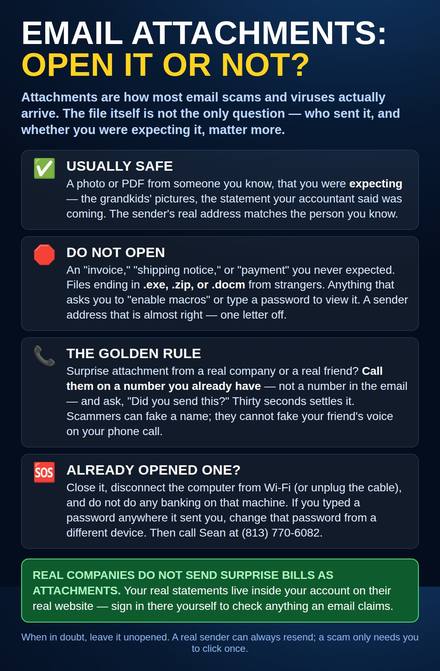 Email Attachments: Open It or Not?Usually safe vs do-not-open, by sender and file type - plus the golden rule: call the sender on a number you already have and ask, "Did you send this?"
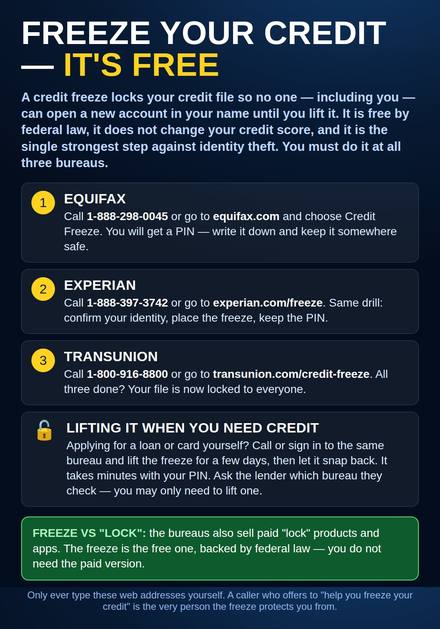 Freeze Your Credit - It’s FreeLock your credit file at all three bureaus so nobody can open accounts in your name. Free by federal law, with the phone number and website for each bureau.
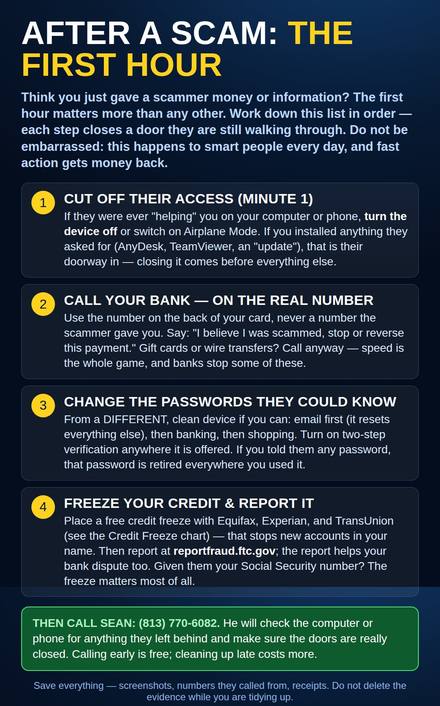 After a Scam: The First HourScammed? Cut their access off, call the bank on the real number, change passwords from a clean device, freeze your credit - in that order, in the first hour.
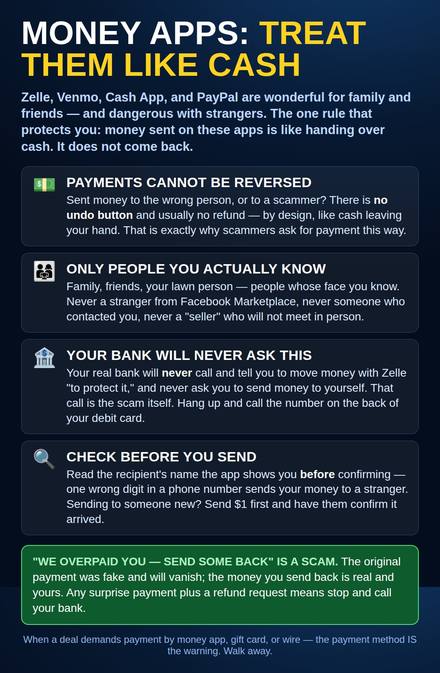 Money Apps: Treat Them Like CashZelle, Venmo, Cash App, and PayPal payments cannot be reversed. Only people you know, the bank-call scam, and the $1 test-send.
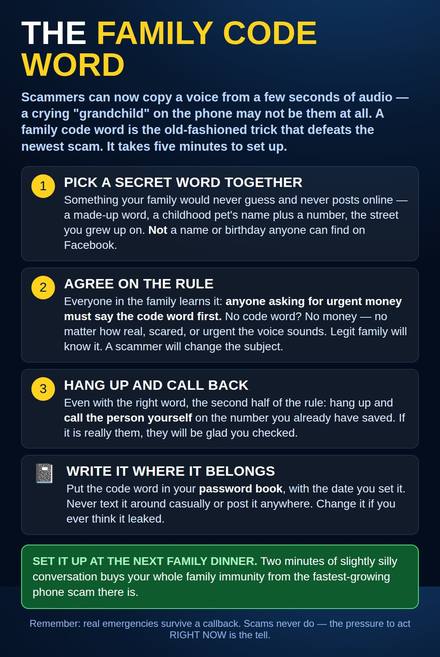 The Family Code WordVoice cloning defeated by an old-fashioned trick: a secret family word that anyone asking for urgent money must say first.
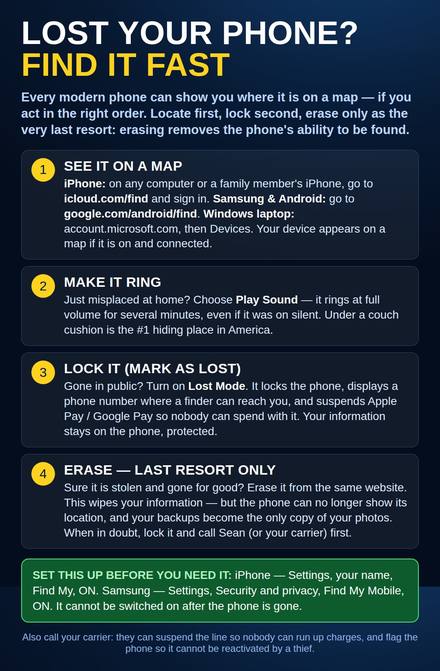 Lost Your Phone? Find It FastLocate first, lock second, erase last - the map, the ring, and Lost Mode for iPhone, Samsung, and Windows laptops.
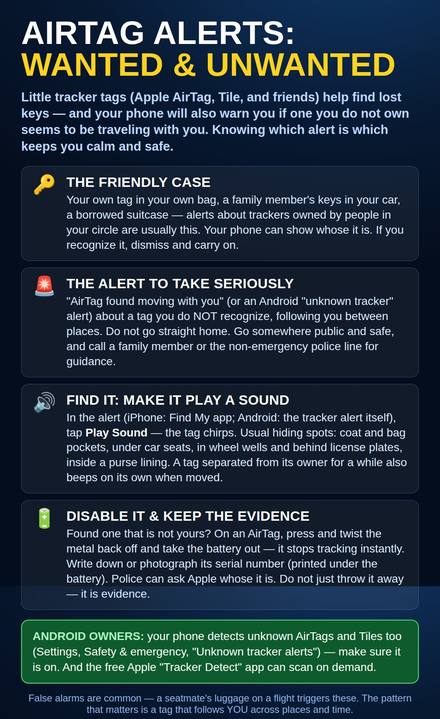 AirTag Alerts: Wanted & UnwantedA tracker following you? Which alerts are friendly, how to make a hidden tag chirp, and how to disable it and keep the evidence.
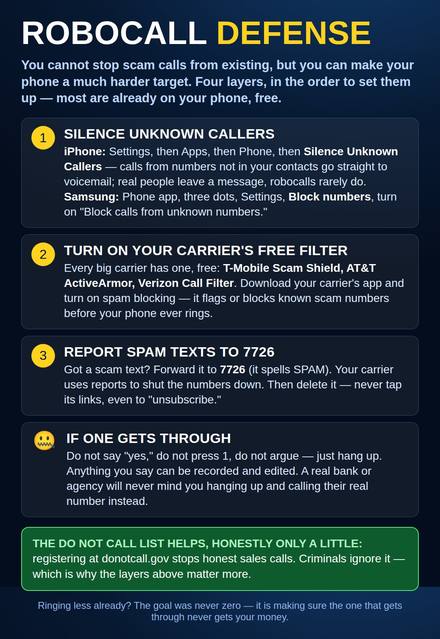 Robocall DefenseSilence unknown callers, your carrier’s free spam filter, forwarding spam texts to 7726, and the hang-up rule.
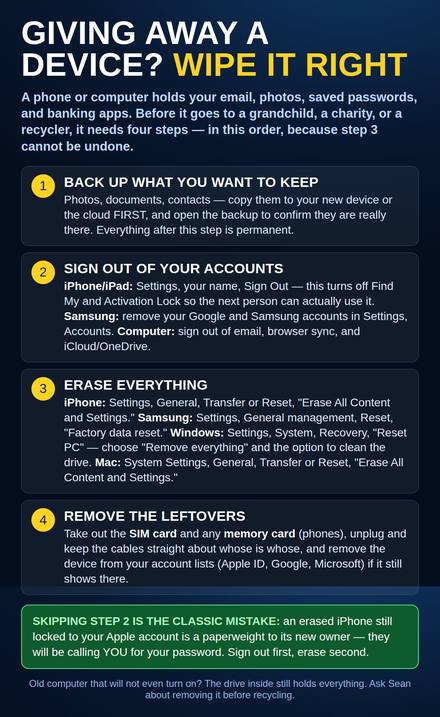 Giving Away a Device? Wipe It RightBack up, sign out, erase, remove the SIM - in that order, so the next owner gets a working device and none of your information.
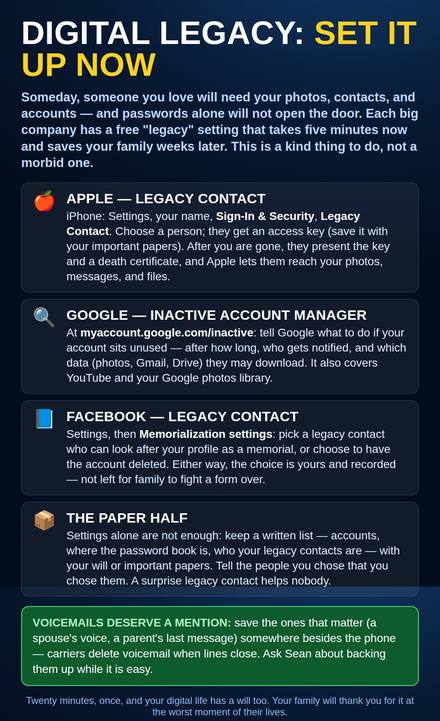 Digital Legacy: Set It Up NowApple Legacy Contact, Google Inactive Account Manager, and Facebook memorial settings - five free minutes now that save your family weeks someday.
The Basics
The Keys With Strange Names, DecodedA keyboard is mostly letters and numbers — and then there is a ring of keys with names like Esc, Caps Lock, and F7 that nobody ever explained.
Free or Paid? What the Free Version Really Gives YouFree versions are real, not trials — they do not expire. They just run out of something: room, time, or quiet. Here is what each free version gives you, the exact limit you will bump into, and what paying actually buys.
Cut, Copy, Paste, and Undo: Four Moves That Work Almost EverywhereThese four moves sit underneath almost everything you will ever do with words and photos: moving a sentence, fixing a paragraph, rescuing a mistake.
Buying Guides
Memory vs Storage: The Two Numbers on Every Computer and PhoneTwo numbers appear on every computer and phone listing, and they are confused more than any others. Memory and storage are both measured in gigabytes, but they do completely different jobs. Here they are, side by side, in plain words.
The Price Tag Is Not the Whole Price: What Gadgets Ask for After You Buy ThemTwo gadgets can sit side by side with the same price and cost very different amounts to own.
How Much Computer Do You Need?Computer ads push the biggest numbers. This chart works the other way — start with what you actually do, and it shows how much memory and storage that job really takes.
Screen Words Decoded: HD, 4K, OLED, and the RestTV and phone boxes are covered in capital letters that all sound important. Most of them describe one of two things: how fine the picture is, or how the screen makes its light. Here is every common word, translated.
Delivery Words, DecodedYou bought something online, and now a tracking page is talking at you in a foreign language: Label created. Exception. Out for delivery.
Streaming
Streaming Services at a GlanceEvery service wants a monthly payment, and nobody needs all of them. This chart shows what each one is known for, so you can pick one or two and rotate the rest.
Live TV Without Cable: Your Options ComparedCutting the cable does not have to mean losing live TV. These are the honest ways to keep watching the news, the sports, and your regular channels — and what each one really costs you.
Watch Without Internet: Download Shows Before You GoOn a plane, in an RV, or in a hospital waiting room, the internet is weak or simply not there. Downloading saves a show onto your phone or tablet ahead of time, so it plays anywhere.
Smart TV Systems, Side by SideEvery smart TV runs on one of these systems — it is the "brain" behind the home screen, the apps, and the remote. Not sure which one you have?
How Much Internet Does Streaming Use? Data in Plain WordsStreaming a show is your internet carrying the picture while you watch — and sharper pictures are heavier to carry.
Streaming Words, DecodedStreaming services talk in code: buffering, 4K, on demand, profiles, autoplay. This chart translates the words you will actually meet on the screen — what each one means, in plain words, and the small honest catch behind it.
Sound
Hearing the TV Clearly: Your OptionsIf the TV sounds muffled or everyone keeps asking "what did they say?", this chart lays out the four honest ways to hear it better — from free to a few hundred dollars.
Which Speaker Do You Actually Need?Four kinds of speakers fill most homes. They are not better and worse — they are built for different jobs. Here is the honest difference between them.
Speaker Box Words, in Plain Words: Watts, Decibels, and Channel NumbersSpeaker and soundbar boxes are covered in numbers that sound impressive and explain nothing. Here are the words you will actually meet on the box, what each one really means, and how much weight to give it when you shop.
Sound Words, Decoded: The Words on the Sound MenuOur chart Speaker Box Words decodes the numbers printed on the box. These are the other words — the ones hiding in your TV's sound menu and on the back of the soundbar — each in one plain sentence, plus what it means for you.
Phones
Cell Phone Plans Made for SeniorsSome phone plans are built for people who want a simple phone, a real human on the help line, and no surprises on the bill. This chart compares the honest options.
Phone Plans in Plain WordsPrepaid. Postpaid. Unlimited. Phone plans are sold in a language of their own, and the words decide what you pay and how well your phone works.
Your Phone Wants an Update: Which Messages Are Real?Phones show a lot of update messages, and scammers copy them. This chart sorts the real ones from the fakes, and says what to do with each.
Phone Screen Settings, DecodedYour phone's screen has a page or two of settings with names like True Tone, Auto-Lock, and Refresh Rate — and behind those names sit the fixes for the most common screen complaints there are: too dim outside, too yellow at night, asleep before you finish reading, words too small.
What Your Phone’s Top Bar Is Telling YouThe top edge of your phone's screen is a row of tiny symbols and short words — your phone talking in shorthand. This chart translates every one you are likely to meet: what it means, and whether it asks you to do anything.
Tablets & E-readers
Fire Tablets ComparedAmazon’s Fire tablets are the budget way to read, watch shows, and video-call the family. Three sizes, one simple rule: the bigger the screen, the easier everything is to see.
The iPads in Plain WordsApple sells four iPads, and the names tell you almost nothing. Here is what each one really is, side by side, in the order of what they cost.
Tablet Words, DecodedEvery tablet box and store page speaks the same handful of words — 128 GB, Wi-Fi + Cellular, microSD, stylus support — and those words quietly decide what the tablet can hold, where it can get online, and what it will cost you every month afterward.
Kindle, Apple Books, Libby, and Google Play Books: Where Your Books LiveA book you "own" really lives inside one app, under one account — and the four big reading homes play by different rules.
Tablet or E-Reader: Which One Fits You?Tablets and e-readers look alike on the store shelf, but they do very different jobs. This chart lines them up by the things people actually use them for.
Watches & Wearables
Watches That Can Get You HelpSome watches can call for help if you fall and can't get up. This chart shows which ones do it on their own, which phone each one needs, and what it costs to keep that protection on.
What Your Watch Measures — and What It Can’tA smartwatch watches your body all day, and the numbers can be genuinely useful. They are best read as trends — here is what each one really tells you, and where the watch stops and a doctor starts.
Apple Watch or Galaxy Watch?This choice is mostly already made for you — by your phone. Each watch only works with its own family of phones, so start there.
Which Watch Features Need Your Phone NearbyYour watch does a surprising amount on its own — and quietly borrows your phone for the rest.
Watch Faces and Complications, in Plain Words"Complication" is an old watchmaker's word, and it does not mean a problem. It means any little extra a watch shows besides the time.
Watch Words, Decoded: GPS, Cellular, and Case SizesThe words on the box and the store page, one at a time — what each one really means, and what it means for the person buying.
Computers — Windows
Scary Windows Messages, in Plain WordsWindows talks in alarms. Here are the messages people call Sean about most — what each one really means, and the calm thing to do. One row of this chart is a scam wearing a warning's clothes — and it is the most important row here.
Windows Update Words, DecodedWindows Update speaks in code — feature, cumulative, optional, KB — and each word carries a different answer to the one question that matters: do I have to do anything?
OneDrive's Little Icons: What the Clouds and Checks MeanOpen the OneDrive folder on a Windows computer and every file wears a tiny badge — a blue cloud, a green check, once in a while a red cross.
Computers — Mac & Chromebook
Mac Keys in Plain WordsMac keyboards use little symbols and names that confuse everyone at first — even people switching after twenty years on Windows. This chart translates each one, including its Windows twin.
Mac or Chromebook: Which Fits You?Both get you to email, Facebook, photos, and the web. The real differences are the price, which programs they can run, and how much fuss they take. Here is the honest comparison.
iCloud in Plain Words: What Lives WhereiCloud is Apple’s storage cupboard on the internet, tied to your Apple Account. Everything in it draws from one shared pool of space — and every Apple Account gets 5 GB free .
Apps & App Stores
Bought by Mistake? How Refunds Work in the App Store and Google PlayIt happens in seconds: a grandchild taps Buy, you tap the wrong app, or a subscription renews the day after you meant to cancel it.
App Permissions, in Plain WordsEvery app you install will, sooner or later, ask to use a part of your phone: where you are, your camera, your address book.
Free App, Paid App, In-App Purchase: Three Ways Apps Charge YouThe word “free” on an app can mean three very different things. One way never costs a penny, one costs once, and one can charge you a little at a time, over and over, from inside an app that was “free” to download.
Wi-Fi & Internet
WEP, WPA, WPA2, WPA3: Your Router's Security Settings in Plain WordsWhen a router asks which security type to use, it is asking how strong the lock on your Wi-Fi should be. Four generations of locks exist — one is broken, one is a patch, and two are genuinely good.
How Much Internet Speed Do You Actually Need?Internet companies sell speed the way truck companies sell horsepower — more than most people will ever use. This chart shows what everyday activities actually take, in megabits per second (Mbps — the unit internet speed is measured in).
Your Email Address, Your Email App, and Your Email Account: Three Different Things“I changed my email” can mean three very different changes — and only one of them is a real move. This chart separates the three things people mix up: the address, the app, and the account.
An Email Address, Taken ApartEvery email address is two halves joined by an @: a mailbox name, and the service that holds the mailbox. Read separately, the halves tell you useful things — including when an address is a fake wearing a real company's clothes.
The Words on Your Email Screen, DecodedOpen any inbox and the screen is full of small words nobody ever explained: Thread, CC, BCC, Reply All, Draft. This chart decodes the words about writing and answering — who gets a copy, who can see whom, and where an unsent message waits.
Where Did That Email Go? Your Folders, DecodedAlmost no email is ever truly lost. It gets filed — quietly — into places whose names do not explain themselves. This chart decodes each one: what lands there, how long it stays, and the one habit that keeps it harmless.
Flags, Stars, Snooze, and Pins: Marking Mail Without Deleting ItEvery mail app hands you little marks — a star here, a flag there, a clock, a pin — and never explains them. They do three different jobs: marks that say "this needs me," marks that say "not today," and one mark the app sticks on by itself.
Video Calls
FaceTime, Zoom, Messenger, Meet, or WhatsApp: Which Video App?Five video-call apps, side by side: what each one runs on, what the other person needs, what it costs, and how many family members fit on one call.
Phone, Tablet, or Computer: Which Screen for Your Video Call?The same call can happen on any screen you own — FaceTime, Zoom, Meet, Messenger, and WhatsApp all run on phones, tablets, and computers alike.
See and Hear Better on Video CallsCaptions, bigger faces, and louder sound: the settings that make video calls easier on the eyes and ears, all in one place.
Before You Join: The Five-Minute Video Call CheckMost “can you hear me?” moments are not bad luck — they are small things nobody checked while there was still time.
Video Call Words Decoded: The Buttons and Views on Your Call ScreenEvery video call covers your screen with little pictures and words nobody explained: mute, pin, gallery, waiting room.
Video Call Trouble? Match the Symptom to the FixMost video-call trouble is one of six small things: a muted microphone, a covered camera, a weak signal. Find your problem in the left column and try the first fix before anyone hangs up in frustration.
Photos
Save, Share, Print, Back Up: Four Different Jobs for a PhotoFour everyday words that sound like the same job and are not. A photo can be kept, shared, printed, and backed up — and each one leaves it somewhere different, with different risks.
Photo Words, DecodedYour phone’s photo app speaks its own dialect: album, backup, burst, thumbnail, the cloud. This chart translates the words you will actually meet on the screen — what each one means, in plain words, and the small honest catch behind it.
Six Ways to Get Photos Off Your PhonePhotos that live only on a phone are photos at risk. Here are the normal ways to move them somewhere safer — or get them to the people who keep asking for them.
Printing Your Photos: At Home, at the Store, or by MailThree normal ways to turn a phone photo into a paper one. Which is best depends on how many you have and how soon you want them.
How Big Can You Print That Photo? Sizes and Megapixels in Plain WordsA photo is a grid of tiny dots, and printing spreads those dots across paper. Plenty of dots, and a big print stays sharp; too few, and it goes soft.
Cameras & Doorbells
Ring, Blink, or Arlo?These are the three camera brands Sean sets up for clients. This chart shows the one difference that surprises people most — what you can watch later if you never pay a monthly plan.
With a Plan vs Without: Ring, Blink, and ArloEvery one of these cameras works with no monthly plan at all — but it does less. Here is what each brand gives you free, what its plan adds, and the one thing worth knowing before you decide.
Camera Power: Battery, Plug-In, or Solar?How a camera gets its power decides how much attention it will ask from you. Ring, Blink, and Arlo all sell all three kinds — here they are, side by side.
Smart Home Gadgets
Smart Gadgets: Worth It, or Skip It?Dozens of gadgets promise a smart home, and only a handful earn their keep in most houses. Here is the honest sorting, from setting these up in real homes.
Reading a Light Bulb Box: Watts Are GoneBulb boxes used to be sorted by watts — how much power the bulb eats. Now the number that matters is lumens — how much light the bulb makes. This chart translates the old bulb you know into the new words on the box.
Works With Alexa? Works With Google? What the Labels MeanSmart gadgets wear badges like team jerseys, and the badge tells you which voice assistant can control them. Buy everything on one team, and they all play together.
When the Internet Goes Down: What Still Works in a Smart HomeThe internet will quit someday — a storm, a cut cable, a company outage. It does not take the whole house with it.
Smart Home Words, DecodedEvery smart gadget box, app, and instruction sheet uses the same handful of words — and uses two of them as if they were the same word when they are not.
Voice Assistants
Alexa, Google, or Siri: Which Voice Assistant?All three answer questions, play music, and make calls out loud. The right one mostly depends on the phone and accounts you already have.
A Speaker With a Screen or Without? What the Screen AddsEvery voice speaker answers out loud — the talking, the music, and the timers are identical. A screen changes only the jobs where seeing helps. Here is what the screen really adds, and the two honest catches at the bottom.
Smart Speaker Words, DecodedYour speaker's settings — and your family — keep using words like Skill, Household, and Drop In as if everyone were born knowing them.
Three Assistants, Three Accents: What Alexa, Google, and Siri Call the Same ThingsOne job, three name tags.
Social Media
The Big Social Apps, Side by SideSix apps your family and neighbors keep mentioning, in one place. This chart shows what each one is really for, so you can pick the ones that fit your life and skip the rest.
What Is in Your Facebook Feed? Six Kinds of PostsYour Facebook feed is a mix of six different things: friends, groups, pages, ads, suggestions, and shares. Here is how to tell them apart at a glance.
Facebook, Messenger, and WhatsApp — Who Sees WhatAll three are owned by the same company, Meta — but they behave very differently. Facebook is a notice board whose audience you set.
Like, Share, Follow, Block: What the Buttons Actually DoEight buttons you see on Facebook and other social apps, explained in plain words: what each one does, and who can see that you tapped it.
Passwords & Security
Six Ways to Prove It's YouBanks and websites keep asking you to prove you are really you. These are the six ways they do it — what each one means in plain words, and how much protection each one really gives.
Sign-In Methods Compared: What Each One Protects AgainstEvery way of signing in stops some tricks and waves others through.
“Sign In With Google” and “Sign In With Apple”: What Those Buttons Really DoPlenty of apps and websites now offer two big buttons instead of a sign-up form: Sign in with Google, or Sign in with Apple.
Password Managers ComparedA password manager remembers all your passwords so you only have to remember one. This chart compares the honest choices — including the paper notebook many people already use.
Passwords Saved in Your Browser vs. a Password Manager: What Is the DifferenceYour web browser already offers to remember every password, and a password manager app offers to do the same job.
Money & Banking
Bank App Words: Pending, Posted, and Available BalanceYour bank app shows three different money numbers, and they rarely match — which makes honest people nervous for no reason. Each word has one plain meaning. Here they are, plus the other words that cause the most worry.
Deposit a Check With Your Phone: Mobile Deposit in Plain WordsMobile deposit means your bank's app photographs a paper check and deposits it — no trip, no envelope. The steps are easy; the rules around them are where people get surprised.
A Paper Check, Decoded: Every Number and Line ExplainedA paper check looks simple, but it carries a surprising amount of information — including the two numbers you need to set up direct deposit, and the two numbers you must never share carelessly.
Health
Which Patient Portal Does Your Doctor Use?Four names cover almost every doctor's office. Your office uses one of them — its name is printed on your visit paperwork, and the app on your phone has the same name.
Lab-Result Words, DecodedA lab report is written in shorthand: CBC, A1C, LDL, eGFR. This chart translates the names you will actually meet on a report — what each test measures, in plain words, and what is worth knowing about it.
Pharmacy Counter Words, DecodedThe words that trip people up at the pharmacy counter are rarely about medicine — they are about paperwork and payment.
Your Phone's Health App: What It Can DoEvery smartphone arrives with a health app already on it, free. Here is what the three big ones actually do, in plain words.
Blood Pressure Numbers, in Plain WordsA blood pressure reading is two numbers — like 120 over 80. These are the American Heart Association's own categories for what the numbers mean, plus how to take a home reading worth trusting.
A Checkup, One Page of Questions: What to AskA checkup is short, and the question you meant to ask usually comes back to you in the parking lot. This page fixes that: questions grouped by subject, ready to think through before you go and take with you.
Maps & Rides
Google Maps vs Apple Maps: Which One Is on Your Phone?Both give spoken, turn-by-turn directions, and both are free. The honest difference is which phone you have — one of them is already installed on it.
Your Map App's Driving Screen, DecodedWhile you drive, your map app crowds a lot onto one small screen — two different time numbers, a mileage, colored roads, and the odd pop-up.
Route Settings in Plain Words: Tolls, Highways, Ferries, and VoiceAll three map apps offer the same handful of route settings — and every one of them keeps them in a different drawer. This chart is the finder: what each setting does, and exactly where it lives in Google Maps, Apple Maps, and Waze.
Map Words, Decoded: Pins, Stops, and ViewsYour map app has a second vocabulary beyond the driving screen — the words for marking places, adding stops, and changing how the map looks .
Three Ways to Book a RideYou do not have to drive, and you do not always need an app. Here are the three normal ways to get a car to come to you, and what each one asks of you.
Uber vs Lyft: What Is Actually Different?They do the same job: a car comes to you, you follow it on your phone, and the card saved in the app pays. Here are the honest differences.
Printers
Printer Error Messages, in Plain WordsPrinters report nearly every problem in the same few alarming phrases — and most of them mean something small. Find the message yours is showing, read what it really means, and do the calm thing.
Inkjet, Laser, or Tank: Which Printer Fits the Way You PrintPrinters come in three kinds, and the right one depends less on the printer than on your habits — how often you print, and whether it is letters or photos. Find your habit in the middle column first. The printer follows from it.
Ink and Toner in Plain Words: XL Cartridges, Page Yields, and Ink PlansCartridge boxes speak in code — XL, page yields, ink plans. None of it is complicated once it is translated. Read the row that matches the words on your box.
Paper, Decoded: Sizes, Weights, and Which Side Faces UpThe printer is only half of printing — the paper has its own quiet language: size names, a weight number on the wrapper, and a printing side that is not always the obvious one.
Power & Batteries
Chargers and Cables, in Plain WordsChargers used to come in the box. Now the brick is a separate purchase, and the drawer at home is full of plugs that almost match.
Power Out? A Surge? What Protects Your TechIn Florida, storms knock the power out and send spikes through the lines. This chart shows what each kind of plug-in box actually does — because they are not the same thing, no matter what the box at the store says.
Charging Away From Home: Cars, Planes, and Other People's PlugsAt home, charging is simple: your brick, your wall, done. Away from home the plugs change character — some are generous, some barely trickle, and one of them (the airplane) comes with rules that have real teeth.
Charging in Another Country: Plugs, Adapters, and the One Label to CheckYour phone charger will almost certainly work on the other side of the world — the charger itself was built for it.
Batteries Around Your House: Which One Goes WhereEvery house has a drawer with loose batteries in it, and every battery change starts with the same small question: which one does this gadget take?