Making text bigger
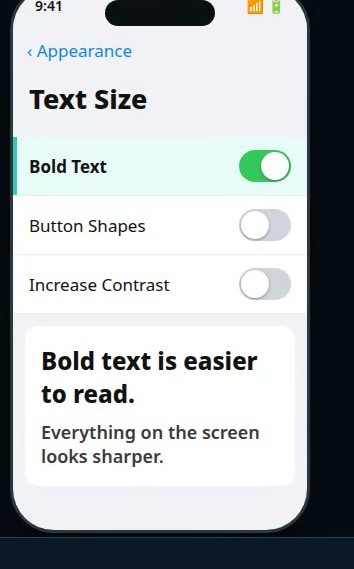
If you are squinting at your phone or computer, the device can fix that. Every modern device has a text-size setting — bigger letters, no new glasses required, and nothing else changes.
Open Settings, then Appearance, then Text Size — drag the slider until the sample text looks comfortable. Turn on Bold Text on the same screen for extra clarity. On older versions (iOS 26 or earlier), it is Settings → Display & Brightness → Text Size. For even bigger text, go to Settings → Accessibility → Display & Text Size → Larger Text and drag that slider too. An iPad uses these same iPhone steps.
Open Settings, then Display, then Font size and style. The slider grows the text everywhere — messages, menus, and email. Turn on Bold font on the same screen for extra clarity.
Open Settings, then Display, then Font size — on newer Pixel phones the same page is called Display size and text. Drag the slider until the sample text looks comfortable. Most other Android phones keep the same setting in the same place: Settings → Display → Font size.
Open Settings, then Accessibility, then Text size. The slider previews as you drag, and Apply makes it stick.
Click the Apple menu (top-left corner), open System Settings, then Accessibility, then Display — drag the Text size slider. To make everything on the screen bigger instead, go to System Settings → Displays and choose Larger Text.
Need even bigger, just for a moment?
- Magnification gesture. On iPhone, double-tap with three fingers to zoom the screen (turn it on first under Settings → Accessibility → Zoom). On Samsung, the same lives under Settings → Accessibility → Visibility enhancements → Magnification.
- Too big now? Just drag the same slider back down — it is only a display setting.
🎬 Watch it: Make text bigger on Windows
📊 See the chart: Text Too Small to Read? Make Text Bigger
Straight 2 Work Tech, LLC — patient, plain-words tech help.
(813) 770-6082