Bluetooth
Bluetooth is a short-range invisible link between your phone and nearby gadgets — no internet, no wires — and it does three handy jobs: connecting earbuds and headphones, sending photos between nearby phones, and linking your phone to your car for calls and music. You introduce the two devices once (this is called pairing); after that they find each other and reconnect by themselves. Here is each job, step by step.
Part 1: Earbuds and headphones
First choose a pair you will like, then pair it with your phone — each step is below.
Choosing a pair
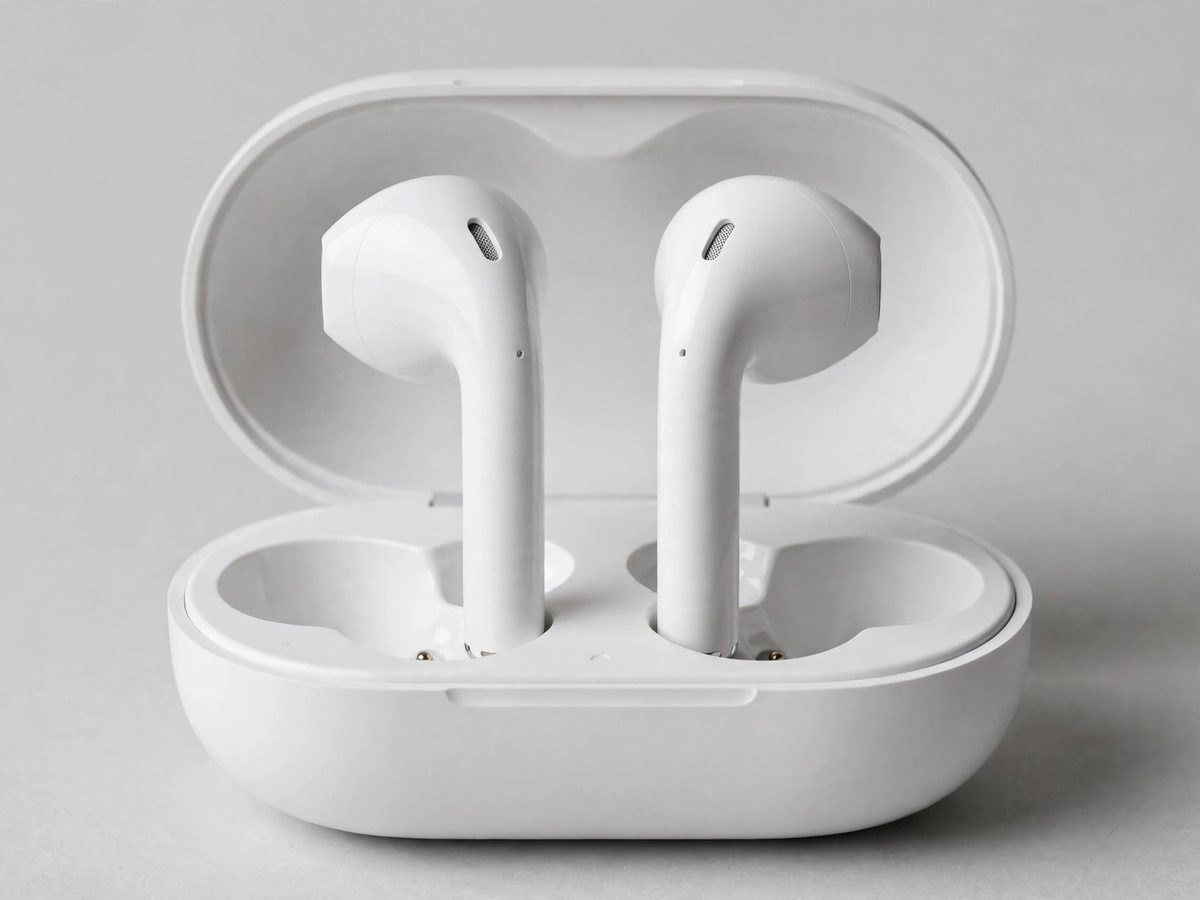
Wireless earbuds are the tiny speakers that sit in your ears. Headphones are the bigger ones that cup your whole ear. There is no wire to your phone — they connect by Bluetooth. Four brand names come up again and again: Apple AirPods, Samsung Galaxy Buds, SoundPEATS, and Beats.
What actually matters:
- Fit. Earbuds come in two styles: ones that rest lightly in your ear (like most AirPods) and ones with soft silicone tips that seal the ear (like AirPods Pro and most Samsung buds). The sealed kind blocks more outside sound and usually sounds fuller, but some people find them uncomfortable. Over-ear headphones avoid the ear-canal question entirely.
- Battery. Earbuds play about 4 to 10 hours, then you drop them back in their little charging case, which carries several more charges. Over-ear headphones play 20 hours or more on one charge.
- Noise cancelling. It listens to the world around you and quietly cancels it out — lawn mowers, airplane hum, restaurant chatter. Lovely for travel and noisy rooms. The pricier models do it best.
- Controls. Most earbuds pause when you tap them and answer calls with a tap. If tapping tiny earbuds sounds fiddly, headphones have real buttons you can feel.
The brands, simply:
- Apple AirPods — $129 to $549. Best if you have an iPhone. AirPods 5 ($129) with noise cancelling built in; AirPods Pro 3 ($249) with silicone tips and the strongest noise cancelling; AirPods Max 2 ($549), big over-ear headphones. Open the case near an iPhone and they pair in one tap, then hop between your iPhone, iPad, and Mac on their own.
- Samsung Galaxy Buds — about $50 to $249. Best if you have a Samsung or other Android phone. Galaxy Buds Core (about $50, the starter pair); Buds3 FE ($149, a strong mid-range pick with good noise cancelling); Buds4 ($179, open-fit style like AirPods); Buds4 Pro ($249, the flagship). They pair instantly with Samsung phones.
- Google Pixel Buds — about $99 to $229. Best if you have a Google Pixel phone. Pixel Buds A-Series (about $99, the simple, comfortable pair); Pixel Buds Pro 2 ($229, the flagship, with strong noise cancelling). They pair in one tap with Pixel phones, and also work with other Android phones and with iPhones through ordinary Bluetooth pairing.
- SoundPEATS — about $40 to $60. The budget pick that still sounds good. The Air4 Pro (about $55) and the H3 (about $40) have real noise cancelling and clear call quality for the price. They work with any phone, iPhone or Android. You give up the instant-pairing magic, but for everyday listening they are hard to beat for the money.
- Beats by Dre — $80 to $350. Bold sound, works with both phones. Beats is owned by Apple, so it pairs easily with iPhones and works fully with Android too — the only brand here that treats both phones as first-class. Solo Buds ($80, the simple starter); Studio Buds+ ($170, compact with noise cancelling); Powerbeats Pro 2 ($250, with ear hooks that keep them in during walks and exercise); Solo 4 ($200, on-ear with very long battery); Studio Pro (about $300, over-ear with strong noise cancelling). Beats are famous for extra bass, which makes music feel lively.
Prices move around a lot — sales and holidays shift them constantly. The prices above are what these cost in late 2026. Check before you buy.
Which one fits you?
- You have an iPhone — AirPods, especially the Pro 3. Beats is the runner-up and works great too.
- You have a Samsung or other Android phone — Galaxy Buds, especially the Buds3 FE or Buds4 Pro. Beats also works fully with Android.
- You have a Google Pixel phone — Pixel Buds, especially the Pro 2. Galaxy Buds and Beats work with a Pixel too.
- You want to spend as little as possible — SoundPEATS. The H3 or Air4 Pro give you noise cancelling for the price of a dinner out.
- You walk or exercise with them — Powerbeats Pro 2, with ear hooks that refuse to fall out.
- Earbuds bother your ears — skip earbuds entirely and get over-ear headphones: Beats Studio Pro or AirPods Max 2.
A gentle word about volume: earbuds sit very close to your ears, so it is easy to turn them up louder than you realize. A good rule: if someone standing near you can hear your music, it is too loud.
Want help choosing the right pair before you buy, or is pairing simply not working? Call Sean at (813) 770-6082.
Pairing them with your phone
Pairing just means introducing your earbuds to your phone. You only do it once. After that, the earbuds connect by themselves every time you take them out of their case.
On an iPhone
1Open Settings, then tap Bluetooth.
2Make sure Bluetooth is switched on. Your phone is now visible to nearby gadgets.
3Put the earbuds in pairing mode. For AirPods: open the case lid. On older AirPods, hold the round button on the back until the little light flashes white. On AirPods 4, AirPods 5, and AirPods Pro 3, there is no button — double-tap the front of the case (below the little light) until the light flashes white. For other brands: hold the power or pairing button until its light flashes.
4On your phone, under Other Devices, tap your earbuds’ name.
5The earbuds move up to My Devices and say Connected. Done — they will connect by themselves from now on.
On a Samsung phone
1Open Settings, then tap Connections.
2Tap Bluetooth, and make sure it is switched on.
3Put the earbuds in pairing mode — open the case and hold the pairing button until the light flashes. (Galaxy Buds pair the moment you open the case near the phone.)
4Tap your earbuds’ name in the list, then tap Pair.
5It says Connected for calls and audio. Done — they will connect by themselves from now on.
On a Google Pixel phone — Bluetooth lives in a different drawer than on a Samsung, but pairing works the same way:
- Open Settings, tap Connected devices, then tap Pair new device.
- Put the earbuds in pairing mode. For Pixel Buds, just open the case near the phone — a pairing card pops up on the screen by itself; tap it. For other brands, open the case and hold the pairing button until the light flashes.
- Tap your earbuds’ name in the list. When it says Connected, you are done — they will reconnect by themselves from now on.
If they won’t pair:
- Charge the earbuds first — a low battery stops pairing.
- Put the earbuds back in pairing mode. The light must be flashing; if it is not, they are not discoverable.
- Turn Bluetooth off, wait a few seconds, and turn it back on. This fixes most stubborn cases.
- Start fresh: tap the little i (iPhone) or gear (Samsung) next to the earbuds’ name, choose Forget This Device, then pair again from step 1.
A word about hearing aids: many modern hearing aids connect to a phone by Bluetooth, but they pair in a different place — not in the ordinary Bluetooth list. On an iPhone: Settings → Accessibility → Hearing Devices. On Android: Settings → Accessibility → Hearing devices (the exact name varies a little by phone). Pair them there, and your calls and music can play straight into your aids.
Earbuds paired? Next: sending a photo to a nearby phone — no internet needed.
Part 2: Sending a photo or file
Bluetooth can send a photo from one phone to another phone nearby — handy when there is no internet and no cable. Both phones need Bluetooth turned on — on iPhone: Settings > Bluetooth; on Samsung: Settings > Connections > Bluetooth — and they need to be close together.
On a Samsung or other Android phone
iPhones do not send files over plain Bluetooth. Instead they use AirDrop: it finds nearby Apple devices with Bluetooth, then sends the file over Wi-Fi. It feels just as easy.
On an iPhone, with AirDrop
Photos sent? Next: linking your phone to your car for calls and music.
Part 3: Your car — calls and music through the speakers
When your phone is paired with your car, calls and music play through the car's speakers. You answer with a button on the steering wheel and never pick up the phone. Here is how it works for every major brand.
On an iPhone
1Open the Settings app, then tap Bluetooth.
2Make sure the Bluetooth switch is green (on). Your iPhone is now looking for the car.
3When your car’s name appears under Other Devices, tap it.
4Check the code matches the one on your car’s screen, then tap Pair.
5Connected! Your car is now saved under My Devices, so it reconnects on its own.
6If the car asks for your contacts, tap Allow so it can show who is calling.
On a Samsung phone
1Open Settings, then tap Connections.
2Tap Bluetooth. If the switch is off, tap it to turn it on.
3Wait for your car’s name under Available devices, then tap it.
4Check the code matches the one on your car’s screen, then tap Pair.
5Paired! Your car stays under Paired devices and connects by itself next time.
The steps that work in almost every car
- Park the car and turn it on. Pairing usually will not work while driving.
- On your phone, go to Settings > Bluetooth and turn Bluetooth on.
- On the car's screen, find Phone or Bluetooth, then choose Add Device or Add Phone.
- On your phone, tap your car's name when it appears in the list.
- A code appears on both screens. If the codes match, tap Pair on both.
- Say yes when the phone asks to share contacts — that lets you call people by name.
Once paired, your phone connects by itself every time you start the car.
Where to look, by brand
Every brand names its screen a little differently. Below is what each brand's screen looks like, plus the menu words to look for.
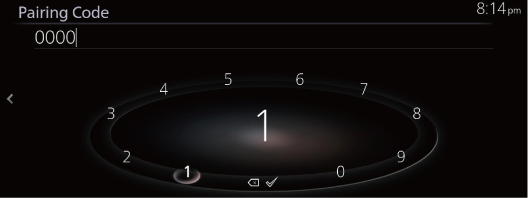
- Start the car. On the center screen, tap Settings, then Bluetooth.
- Tap Pair New Device (some cars say Bluetooth Search), then Continue.
- On your phone, open Settings > Bluetooth, turn Bluetooth on, and tap Mazda in the list.
- A code appears on the car’s screen. Check that it matches the code on your phone.
- Confirm on both. If the car asks, say yes to sharing your contacts.
To remove an old phone: On the car, go to Settings > Bluetooth > Delete Paired Device, tap the old phone, then tap Delete. On your phone, open Bluetooth settings and forget Mazda.
Good to know: Mazda holds only 5 to 7 phones, depending on the model year. If the list is full, delete an old one first. If pairing fails, delete the entry on both sides and start over.
- Start the car and leave it in Park. Pairing will not work in accessory mode.
- On the touchscreen, tap the Phone corner, then Add Phone.
- On your phone’s Bluetooth list, tap your Ford.
- A six-digit number appears on both screens. If the numbers match, confirm on both.
- Say yes if the car asks to share your contacts.
On SYNC 4: tap the Phone icon, then Add a Phone — or Settings > Connectivity > Bluetooth > Add a Bluetooth Device — then match the number the same way.
To remove an old phone: SYNC 4: Phone tab > Phone List, tap the phone, tap the trash can, tap Yes. SYNC 3: Settings > Bluetooth > View Devices, tap the phone, tap Delete. Then forget the car on your phone.
Older Fords: Press the voice button on the steering wheel and say “pair phone.” Follow the voice prompts.
Lincoln uses the same SYNC system, so these steps match.
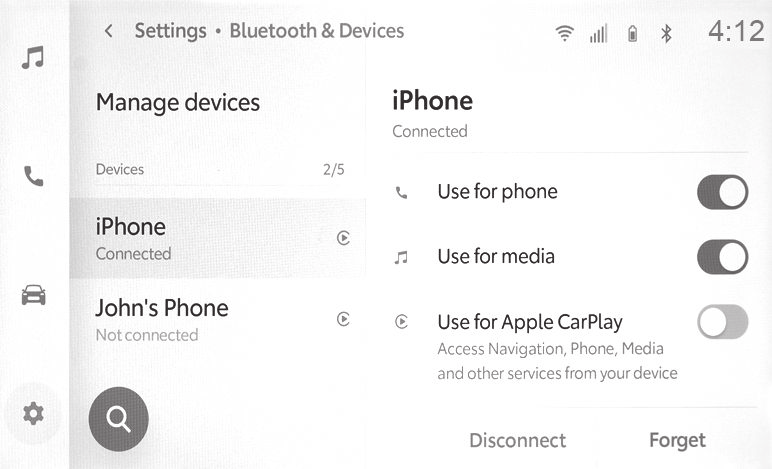
- Tap the gear (settings) icon on the car’s screen.
- Tap Bluetooth & Devices.
- Tap Search for devices (if a phone is already listed, tap Add another device first).
- On your phone, open Settings > Bluetooth and keep that page open. Tap your Toyota when it appears.
- A code appears on both screens. If they match, tap OK.
- Answer the extra questions — contacts, and CarPlay or Android Auto.
To remove an old phone: Tap the gear icon > Bluetooth & Devices, tap the old phone, tap Forget, then Forget again.
Good to know: Toyota holds 5 phones, and you cannot add one while the car is moving.
- Tap the gear (Settings) icon on the main menu.
- Tap Bluetooth & Devices, then Search for Devices (some screens say Add another device), then OK.
- Tap your phone in the list. Check the code matches on both screens, then confirm.
To remove an old phone: Tap the gear Settings > Bluetooth & devices, tap the old phone, tap Forget.
Good to know: Lexus holds 5 phones. Deleting a phone also deletes the contacts it copied to the car.
- Turn the car on and leave it in Park. On your phone: Settings > Bluetooth, turned on.
- On the car’s screen, tap the Phone icon, then Add Phone (or Pair Device).
- On your phone, tap your Chevy in the list.
- A code appears on both screens. If they match, tap Pair on the car and accept on your phone.
- Say yes to sharing contacts if you want to call people by name.
Voice shortcut: Press the push-to-talk button and say “pair my phone.”
To remove an old phone: On the car, open Bluetooth Settings, tap the device name, tap Delete. Then forget the car on your phone.
Cadillac, GMC, and Buick use this same system. Pairing will not work while the car is moving.
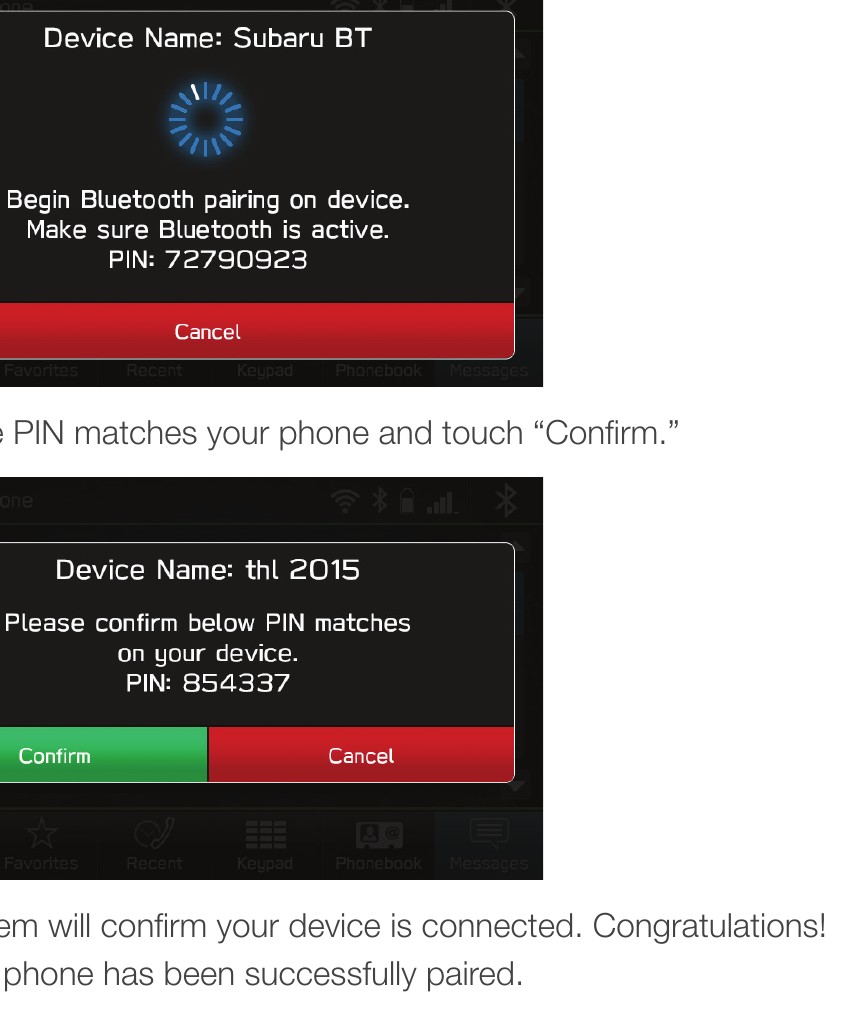
- On the car’s screen, tap Phone. If no phone is paired yet, the car asks “Would you like to add one now?” — tap Yes.
- Tap Manage Devices, then Add.
- The car shows its name and a PIN on the screen.
- On your phone, open Settings > Bluetooth, turn it on, and tap the Subaru.
- Check the PIN matches on both screens, then confirm on both.
- Answer the extra questions on your phone — contacts, and CarPlay or Android Auto.
To remove an old phone: Tap Manage Devices > Delete, then tap the old phone. Also forget the car on your phone.
Good to know: Pair only while parked.
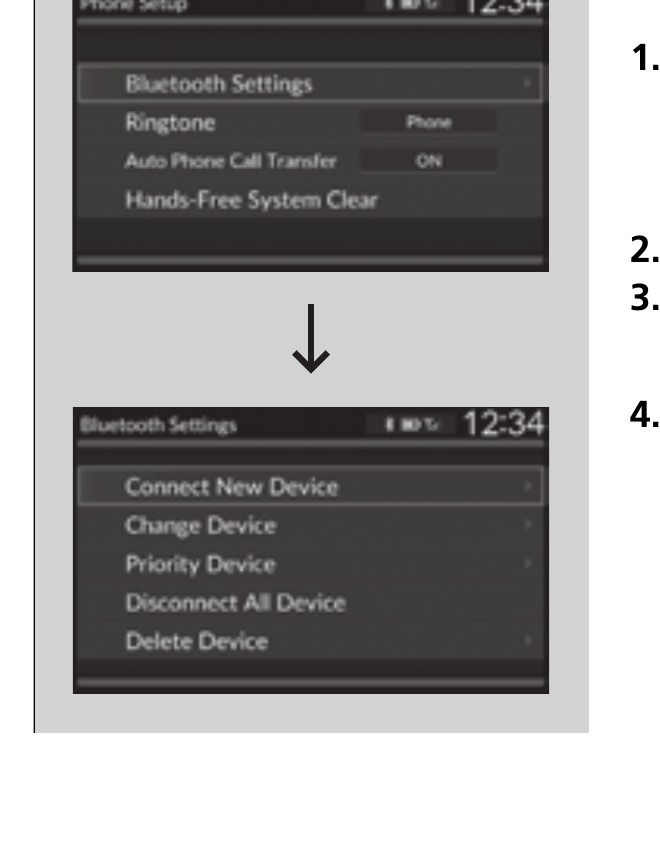
- Park the car. Press the PHONE button on the dashboard.
- If the car asks about connecting a phone, choose No. Then tap Settings, then Bluetooth Settings, then Connect New Device. The car now waits for your phone.
- On your phone: Settings > Bluetooth, turned on, tap the Honda.
- A code appears on the car’s screen. Check it matches your phone, then confirm on both.
To remove an old phone: Press the PHONE button > Settings > Bluetooth Settings > Delete Device, tap the old phone, tap Yes.
Good to know: If CarPlay or Android Auto is connected, the Bluetooth add button can be grayed out — disconnect it first, then pair.
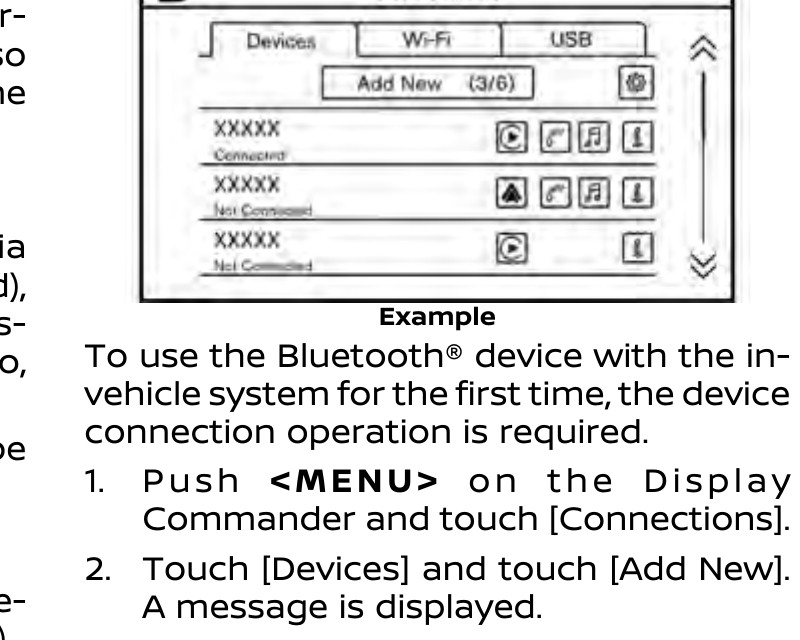
- Press the MENU button on the car’s controls. Tap Connections, then Devices, then Add New.
- On your phone: Settings > Bluetooth, turned on, tap MY-CAR (or whatever name the car shows).
- A code appears on the car screen. Check it matches your phone, accept on your phone, then tap OK on the car.
- Say yes to the extra pop-ups about contacts and messages.
To remove an old phone: Tap MENU > Connections > Devices, tap the little info icon next to the old phone, tap Delete, then Yes.
Good to know: The car remembers 6 phones — delete one before adding another.
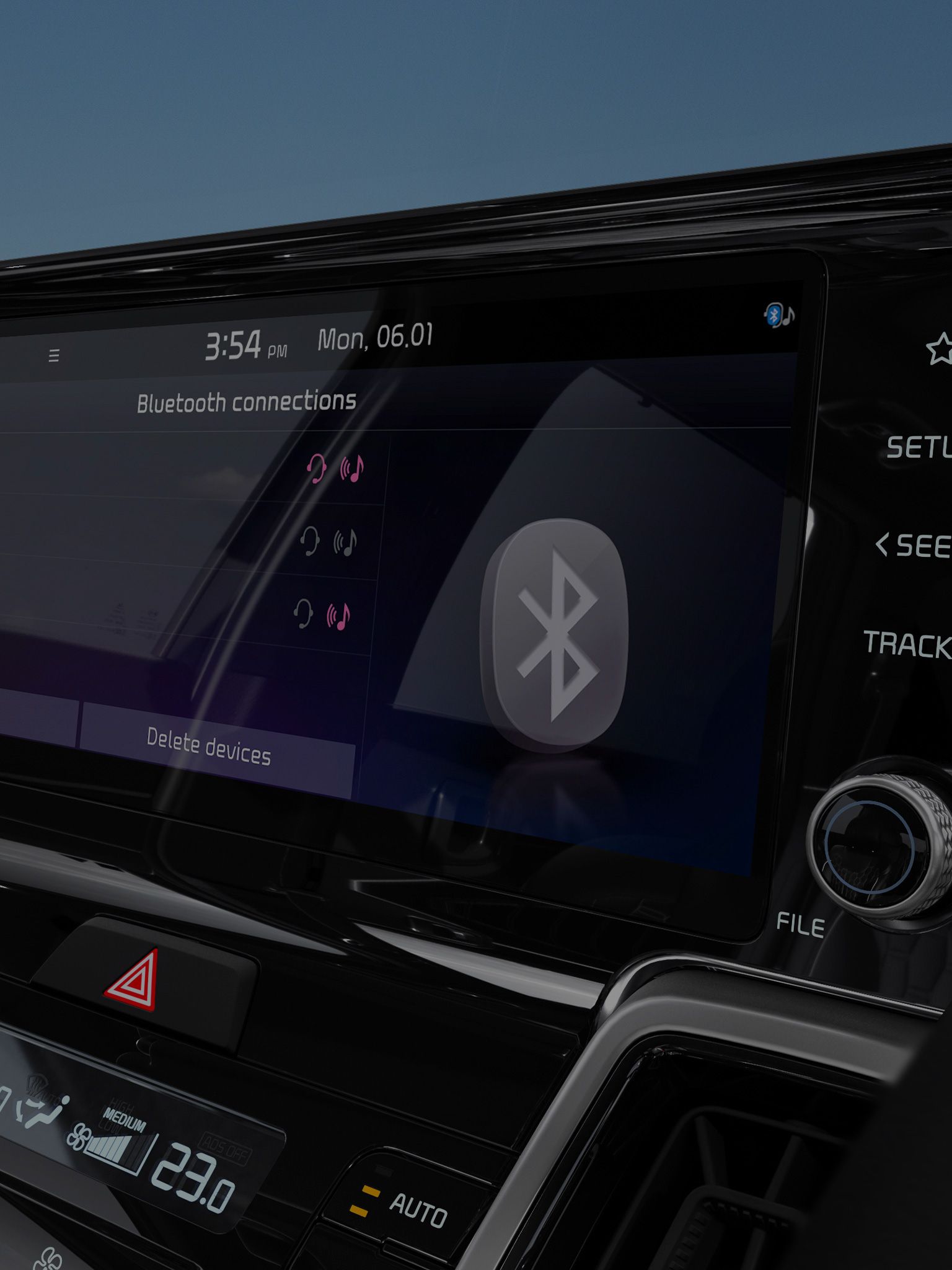
- On the car’s screen, tap Home > All Menus > Setup > Device Connections > Bluetooth > Bluetooth Connections > Add New.
- On your phone: Settings > Bluetooth, turned on, tap the car’s name.
- A code appears on the car screen. Check it matches your phone, then confirm on both.
Shortcut: The call/answer button on the steering wheel can open the phone menu and offer to pair.
To remove an old phone: Same path to Bluetooth Connections, tap Delete Devices, tap the old phone (you can pick more than one), tap Delete, then Yes.
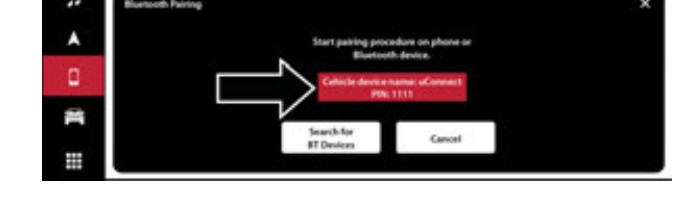
- Park. Turn the ignition to ACC or ON.
- Tap Phone on the bottom menu bar. If no phone is paired, tap Yes when it asks. Otherwise: Phone > Device Manager > Add Device.
- On your phone: Settings > Bluetooth, turned on, tap Uconnect.
- A code appears on both screens. Check they match, tap Yes on the car and Pair on your phone.
- Say yes to sharing contacts if you want hands-free calls and texts.
To remove an old phone: Tap Phone > Device Manager, tap the old phone, choose Delete Device.
Good to know: If pairing fails, delete the phone from the car AND forget Uconnect on your phone, then start over.
Apple CarPlay and Android Auto, in plain words
- Apple CarPlay puts your iPhone's apps on the car's screen — maps, music, calls, and messages — with big buttons and Siri reading your texts aloud. iPhones only.
- Android Auto is the same idea for Samsung and other Android phones — maps, music, calls, and messages on the car's screen, read aloud by Gemini, Google's voice helper (it replaced Google Assistant in 2026). Android phones only.
- Wired means you plug the phone in with a USB cable. It is the most reliable way, and it charges the phone at the same time. Use the USB port meant for the phone (often the one closest to the driver).
- Wireless means no cable — the phone connects over Bluetooth and Wi-Fi. Not every car offers it, and it uses the phone's battery faster. Your phone connects by itself once it is set up.
- Not every car has CarPlay or Android Auto. If your car is older, Bluetooth pairing (above) still gives you calls and music through the speakers.
When it does not work
- Won't pair: make sure Bluetooth is on, the car is parked, and your phone is near the screen. Restart the phone, then try again. If the car's list is full of old phones, delete one you no longer use.
- Paired, but no sound: check that the car's source is set to Bluetooth (not FM or USB), and turn the phone's volume up.
- Keeps disconnecting: keep the phone inside the car with you — not in the trunk or a metal box. Make sure your phone's software is up to date.
- CarPlay or Android Auto won't start: try a different USB cable and the car's phone USB port. Make sure CarPlay is allowed on your iPhone (Settings > General > CarPlay) and Siri is on. On Android, Android Auto is built into most phones made since 2020.
When to call Sean
- Your car does not show up on your phone at all.
- Pairing keeps failing even after restarting both.
- You want CarPlay or Android Auto set up and working before you drive.
- Your car's manual uses different menu names than the ones above.
Call/answer button Shortcut: The call/answer button on the steering wheel can open the phone menu and offer to pair.
The little i The little "i" in a circle next to your earbuds' name in Bluetooth settings — tap it, then Forget This Device, to pair fresh.
One AirPod not working Put both AirPods back in the case for 30 seconds, then try again — that fixes most one-sided dropouts. Check the silent one's speaker mesh for wax and wipe it gently. If one still won't charge, the case's contacts for that side may need cleaning.
Noise cancellation on AirPods Pro AirPods Pro can hush the world — press and hold either stem to switch between Noise Cancellation (quiet) and Transparency (hear around you). (You can add Off in the AirPods' settings.) Noise Cancellation is wonderful on planes; Transparency is safer for walks so you hear traffic.
Find My AirPods (lost earbuds) Open the Find My app — your AirPods show on the map at their last known spot, and you can play a loud chirp to hunt them down (one at a time). It works best when the buds are out of the case. If the case itself is lost with them inside, the map is your only clue.
AirPods battery / how long they last AirPods play about 5–6 hours per charge (AirPods Pro 3 lasts up to 8 hours), and the case holds several more charges — just drop them in to top up. Open the case near your iPhone to see both batteries pop up on screen. If old AirPods die in an hour, their batteries are worn out.
Cleaning AirPods Wipe AirPods with a soft dry cloth — never run them under water. Pick wax from the speaker mesh gently with a dry cotton swab or soft brush. Clean them weekly; wax buildup is the top reason an AirPod goes quiet.
📖 Lesson that goes with this one: The Phone in the Car: Mounts, Voice, and the Honest Rules
Straight 2 Work Tech, LLC — patient, plain-words tech help.
(813) 770-6082