Instacart: Set It Up and Use It
Instacart is the grocery service where a shopper walks a real store with your list and brings the bags to your door. Our Grocery Delivery lesson teaches the shape of grocery delivery using Instacart as its example. This page is the Instacart-only companion: setting up your account step by step, then the everyday parts — building a list, choosing your store, following your shopper, pickup, the Instacart+ membership, and reporting a problem. One part is deliberately light here: replacement choices. The deep teaching on those lives in the Grocery Delivery lesson, and this page points you there instead of repeating it.
Words to know first
- Shopper: the person who takes your list into the store, picks each item, and usually delivers it too.
- Store page: each store has its own page inside Instacart, with its own shelves. One order comes from one store.
- Delivery window: the stretch of time you pick for the bags to arrive — say, between 2 and 4 this afternoon.
- Instacart+: the paid membership, covered below.
Setting up, step by step
Setup starts on the home page, pictured below, so it looks familiar when you meet it.
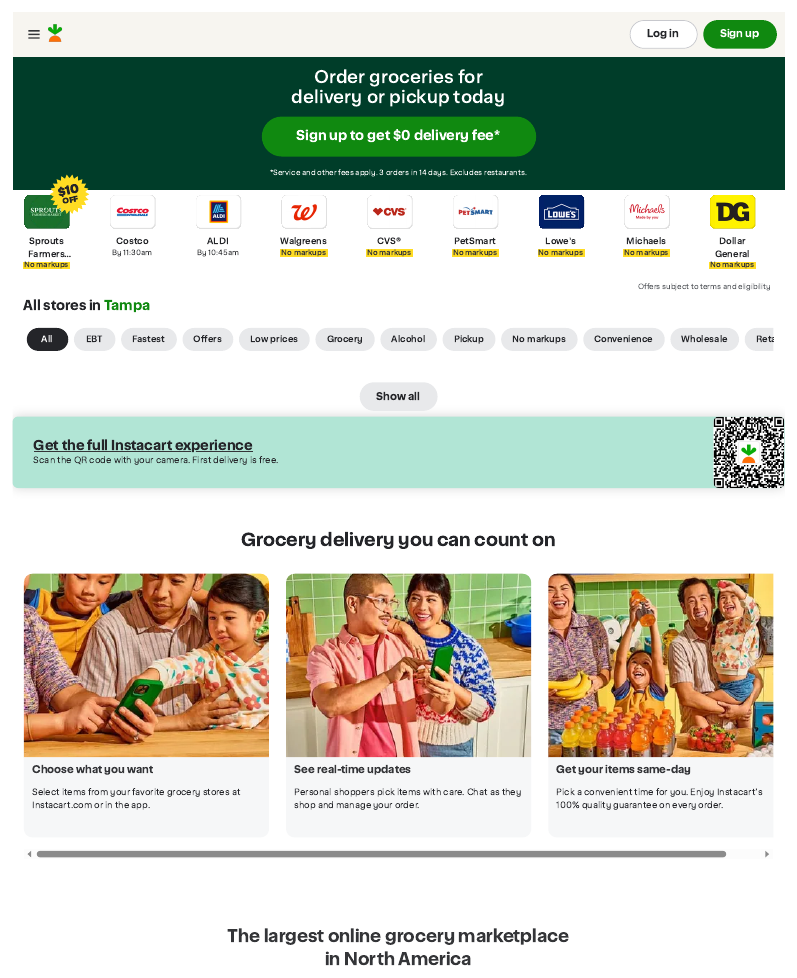
- Get the app, or open the website. The Instacart app is in the App Store (iPhone) or Play Store (Android). On a computer, go to instacart.com. The same account works in both places — set it up once, use it anywhere.
- Create your account. Tap Sign Up. What you'll see: a sign-up box asking for your email address. Type it, tap Continue, and Instacart walks you on from there. Rather not start with email? The same box offers Continue with Google, Continue with Facebook, or Phone.
- Tell it where you live. Enter your ZIP code or your home address. Instacart answers with the stores that serve your address. What you'll see: a row of store names — your grocery store, and often pharmacies and other shops too. Tap yours to open its shelves.
- Add a payment card. A credit or debit card, added to your account. Having the account costs nothing; the card is charged only when you place an order.
- Pick your store. Tap a store to open its page and start shopping. One order comes from one store — a second store means a second order, with its own fees, so most people put the whole list into one store when they can.
- You are ready. Everything after this is ordinary shopping, covered next.
What the sign-up box looks like: it opens over the home page, headed by an offer about your first orders. One space asks for your email address; under it sit Continue, and the Google, Facebook, and Phone choices. That is the whole first step — everything else comes after Continue.
Building a list, day to day
- Search, or walk the aisles. Type what you want in the search box, or browse the store's departments the way you would walk the real store. Tap the plus on an item to add it; set how many.
- Your past orders are saved. Instacart keeps what you have ordered before, so last week's list can become this week's starting point — reorder the whole order, or pick just the regulars.
- Add a note where it matters. Many items let you leave a short instruction for the shopper — greener bananas, the firm avocados. Plain words; a person reads them.
Replacement choices — the light version
- When you add an item, you can leave a replacement choice — what the shopper should do if that item is out of stock. The three choices, in brief: replace it with the closest match, replace it with a specific item you name, or refund the item instead of swapping it.
- That is all this page says about them, on purpose. Which items deserve which choice, and how approving swaps works while the shopper is in the store, is the heart of our Grocery Delivery lesson. Read it once and this part is yours.
Delivery windows and instructions
- At checkout, choose when. Delivery can be as soon as possible, or in a window you pick for later in the day. What you'll see: a list of windows — stretches of time — with the soonest at the top.
- Delivery instructions live with the order: gate or building code, which door, where to set the bags down. Instacart lets you set delivery instructions in advance, and they are saved for next time. Write them the way the Grocery Delivery lesson teaches — like directions for a kind stranger in the dark.
- Pickup is the other door. Where a store offers it, choose pickup at checkout and a time instead. The app tells you when the order is ready. Our Curbside Pickup lesson walks through collecting an order at the store.
Following your shopper
- Once the order is placed, the app shows the shopping happening. What you'll see: your list filling in as items are found, and the order's page updating as the shopper works through the store.
- You can chat with your shopper while they shop and while they deliver — Instacart says so itself. If an item is out of stock, the shopper messages you in the app; a quick answer keeps the order moving, and your standing replacement choices rule when you do not answer.
- When the shopping is done, the shopper heads to you, and the app follows the trip. Have your phone nearby until the bags arrive.
Instacart+: the membership
- Instacart+ is the paid membership — a monthly or yearly fee. Members pay no delivery fee on eligible orders over a minimum amount, and pay lower service fees than non-members.
- The advice is the same as everywhere in Learn: order a few times first and learn your habit. A membership bought for a habit you do not have saves nothing; for a weekly order, it can pay for itself in the fees it removes.
When something is wrong
- Open the order. In the app or on the website, go to Your Orders and tap the order itself. Problems are reported on the order, not on a general page.
- Tap Get Help on that order and pick the problem that fits. Instacart's own list: missing, incorrect, expired, damaged or spoiled items, poor replacements, and late orders.
- Say plainly what happened. The usual answers are a refund to your card or a credit toward the next order.
- Report it the same day. Fresh reports are the ones that get fixed; the receipt in the app shows exactly what arrived and what was swapped.
For the restaurant side of delivery, see Food Delivery and its own companion, Uber Eats: Set It Up and Use It. All five delivery apps together are in Ride & Delivery Apps, and the everyday set side by side in Everyday Life Apps at a Glance.
Words in this lesson
- Your Orders: the app's record of everything you have ordered — where receipts live, and where problems are reported.
- Get Help: the button on an order that opens problem reporting for that order.
- Credit: money that lives in your Instacart account and comes off a future order.
Straight 2 Work Tech, LLC — patient, plain-words tech help.
(813) 770-6082