Printer Says "Offline"? Fix It
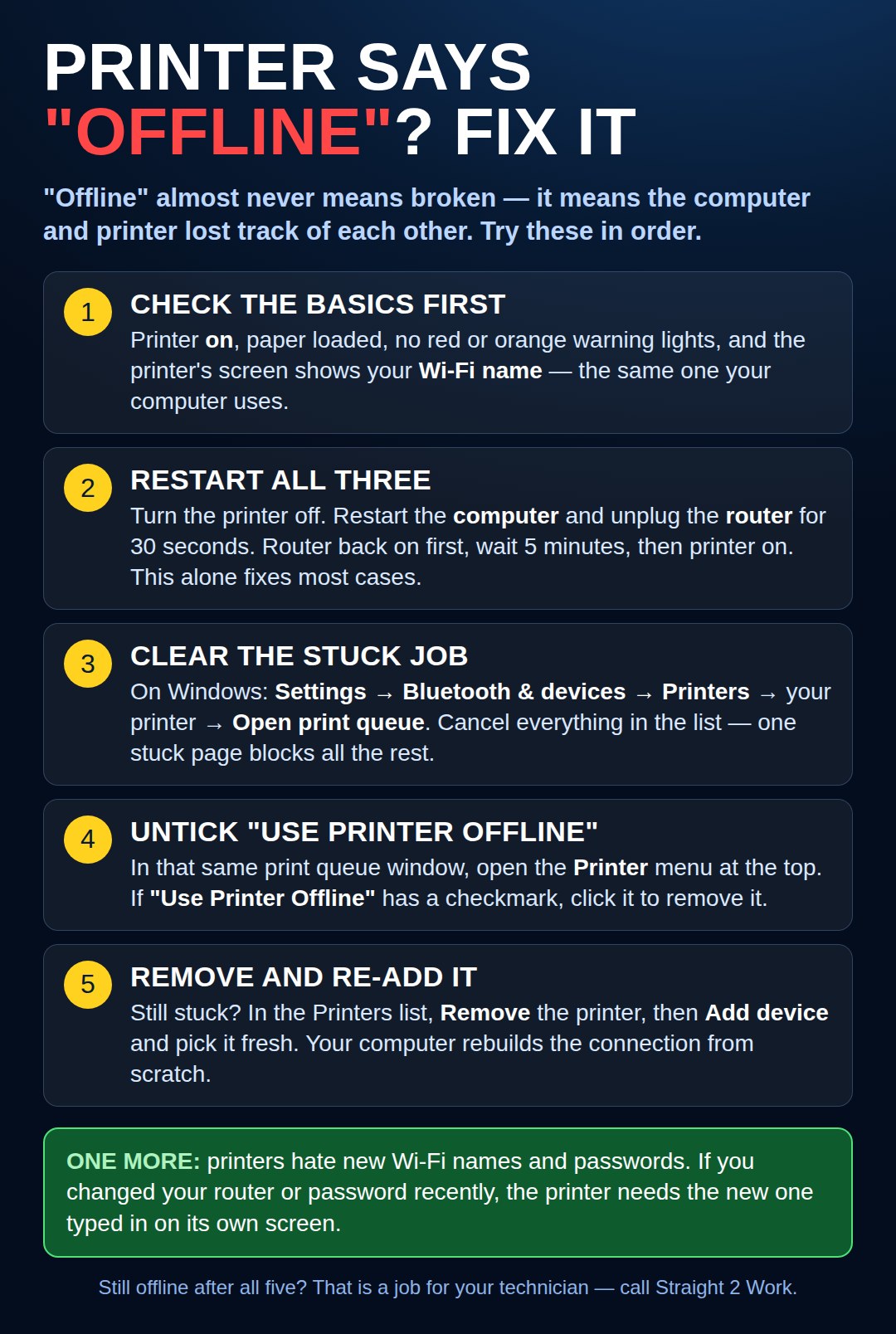
Offline means the computer and printer lost each other, not that the printer is broken. Five steps in order: check the basics, restart all three, clear the stuck print job, untick Use Printer Offline, then remove and re-add the printer.
On a Mac? Steps 3, 4, and 5 Live in a Different Place
The picture above follows a Windows computer. On a Mac, steps 1 and 2 are just the same — check the basics, then restart the printer, the Wi-Fi box, and the computer. The rest of the fix lives here instead:
See the stuck print job (step 3): open System Settings, then Printers & Scanners. Click your printer, then the Printer Queue button. Any job sitting there can be cleared with the small X beside it. On an older Mac the same doors are called System Preferences → Printers & Scanners → Open Print Queue.
Step 4 does not exist on a Mac: there is no “Use Printer Offline” tick to untick — that trap is Windows-only, so skip it entirely.
Remove and re-add (step 5): in that same Printers & Scanners screen, select the printer and choose Remove Printer, then add it back with Add Printer. The Mac finds it fresh, and that clears most “offline” messages.
Need a hand with this in person? Call (813) 770-6082 — Straight 2 Work Tech, LLC, Sun City Center, Florida.