Windows 11 Basics
Windows 11 is the system that runs your computer. It opens your programs, connects to your Wi-Fi, and keeps everything organized. If you used Windows 10, the biggest visible change is small: the Start button moved from the bottom-left corner to the center of the taskbar. Everything else will feel familiar once you know where to look.
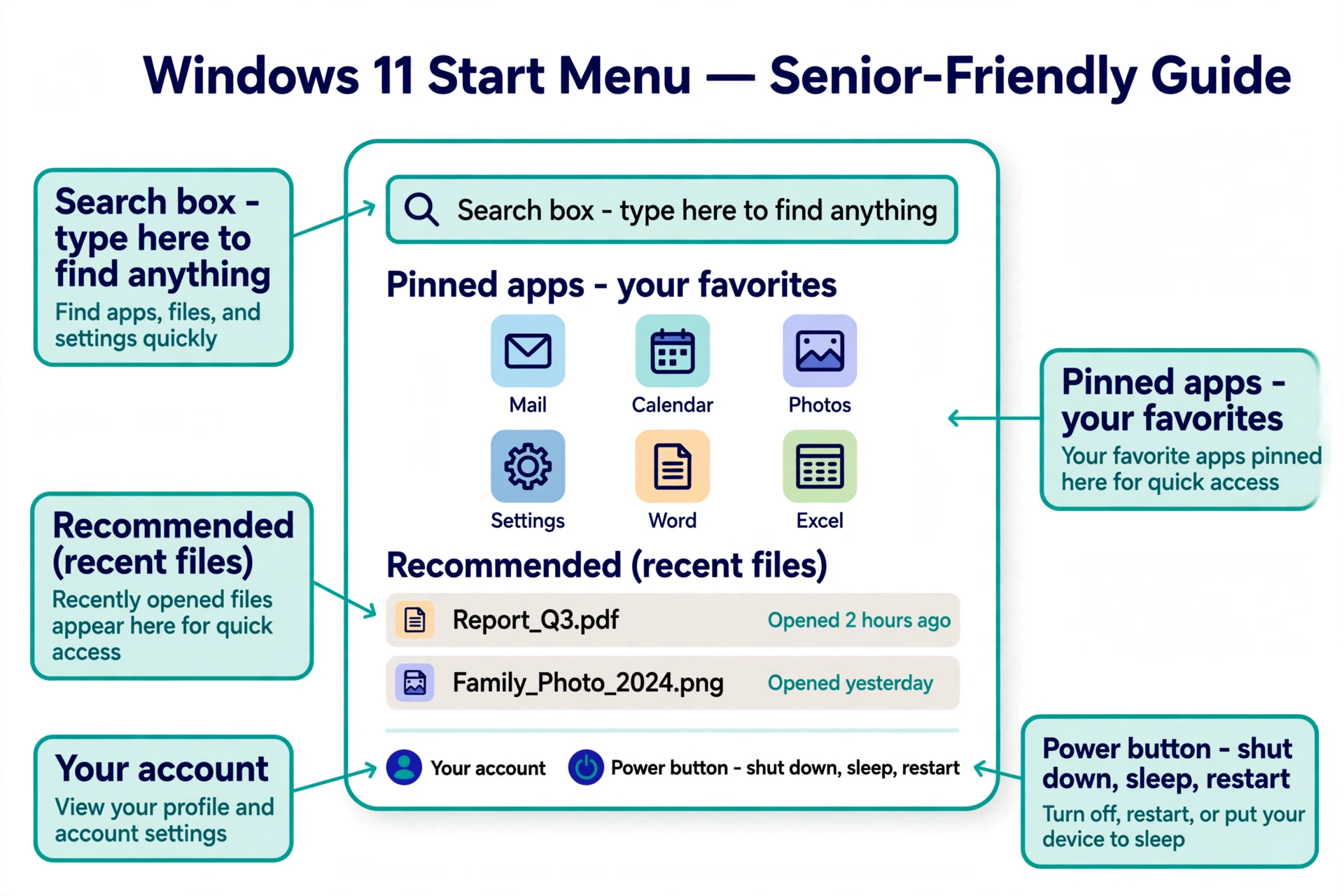
The Start menu, up close
Click the Start button — the blue four-pane window icon in the center of the taskbar — and the Start menu opens. Here is what is inside:
- Search box (top): type anything here — an app name, a file, a setting — and Windows finds it.
- Pinned apps: your favorites, one click away.
- Recommended: files you opened recently, so you can jump right back in.
- Power button (bottom right): this is where you shut down, sleep, or restart.
- Your account (bottom left): your name and sign-in options.
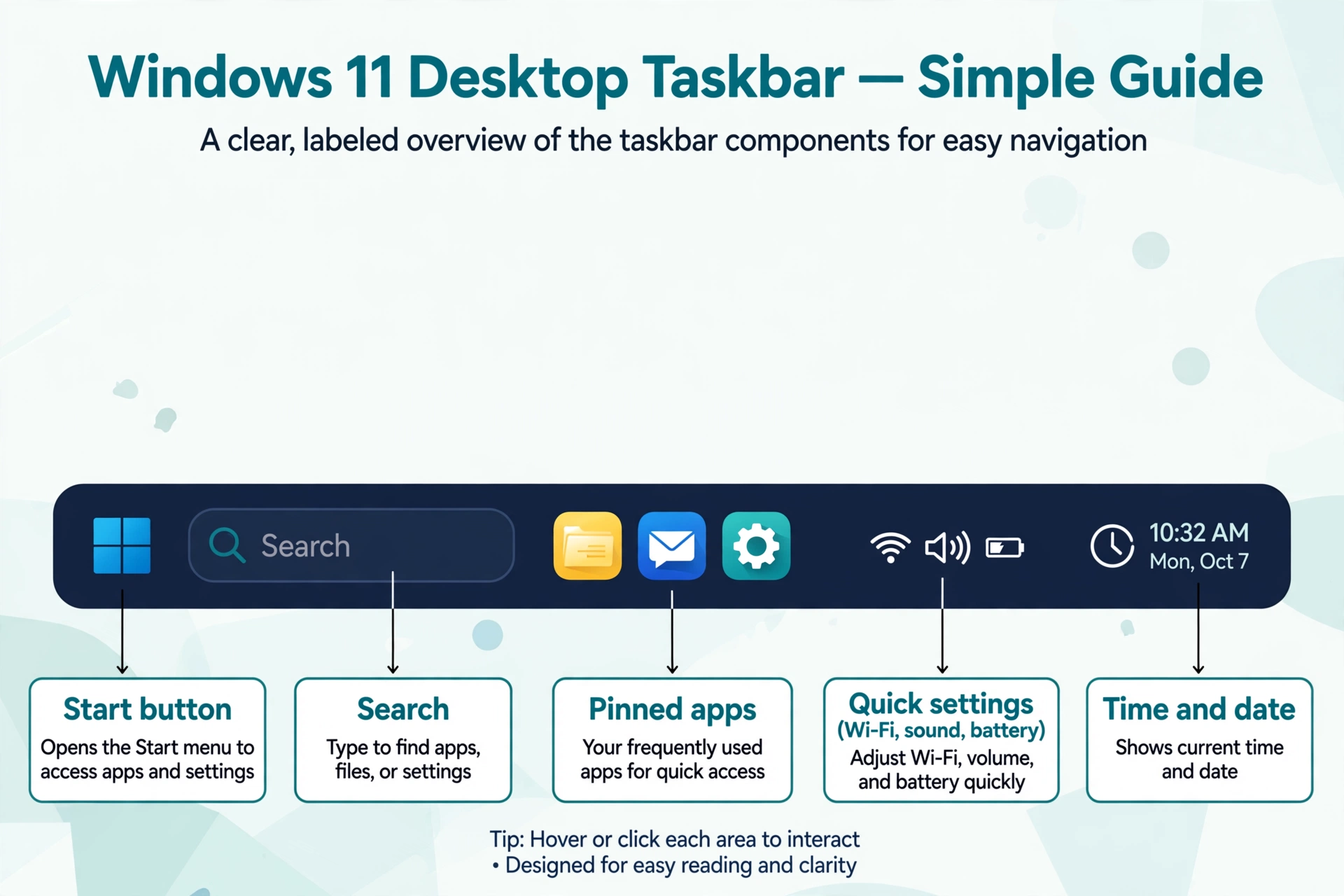
The taskbar: your always-there strip
The taskbar is the strip across the bottom of the screen. It never goes away, so it is the handiest place on your computer.
- Start button — opens the Start menu (center of the strip).
- Pinned apps — the programs you use most, one click to open.
- Wi-Fi, sound, and battery icons (near the clock) — click these to open Quick Settings: turn Wi-Fi on or off, change the volume, check the battery.
- Time and date — always visible at the far right.
Miss the old left-corner Start button?
- You can move it back: open Settings, go to Personalization, then Taskbar, then Taskbar behaviors, and change Taskbar alignment to Left.
Settings is where the controls live
Almost everything you will ever adjust — Wi-Fi, text size, updates, sound — lives in the Settings app. It is the gear icon, usually pinned in your Start menu. (The older Control Panel still exists, but you can safely ignore it — Settings is the modern one.)
Connecting to Wi-Fi
- Click the Wi-Fi, sound, and battery icons near the clock at the bottom right. A small panel opens.
- Click the arrow next to Wi-Fi to see the list of nearby networks.
- Click your network's name, then click Connect.
- Type the Wi-Fi password and click Next. You are online.
Making text bigger
If words on the screen feel too small, you do not need new glasses — just bigger text:
- Open Start, then Settings.
- On the left, click Accessibility, then Text size.
- Drag the slider until the sample sentence looks comfortable, then click Apply.
To make everything bigger — icons and apps too — go to Settings, then System, then Display, and raise the Scale setting. For more on reading comfortably, see our Bigger Text guide.
Opening apps and pinning favorites
- Open an app: click Start and click the app — or just start typing its name in the search box.
- Keep it handy: right-click any app and choose Pin to taskbar to keep it on the bottom strip, or Pin to Start to keep it in the Start menu.
Shutting down: sleep vs shut down vs restart
Click Start, then the power button at the bottom right of the menu. You get three choices:
- Sleep — a quick nap. The computer wakes up in seconds. Fine to use every night.
- Shut down — fully off. Use it when you will not touch the computer for a few days.
- Restart — turns off and comes right back on. This fixes most little glitches — try a restart first whenever something acts strange.
Windows Update: do not fear the update
Every so often Windows installs updates — fixes that keep your computer safe and running well. Your files stay exactly where they are.
- Open Start, then Settings.
- Click Windows Update (near the bottom of the left sidebar).
- Click Check for updates and install whatever it offers. If it asks to restart, let it — that is normal.
For working with your files — copying, folders, and flash drives — see our File Explorer guide.
When to call Sean instead
- Wi-Fi that will not connect no matter what you try.
- An update that fails, loops, or leaves the computer stuck.
- The screen looks wrong after changing text size or display settings.
- Anything asking for a password or permission you do not understand.
An OS (operating system) is the main software on your device. Windows is the OS on most PCs, macOS on a Mac, and Android or iOS on phones. It is the boss that runs everything else.
To boot up means to start your computer from fully off. It takes a minute or two while everything loads — that waiting is normal, not a problem.
A glitch is a small, temporary hiccup — the screen freezes for a second or a button does not respond. Do not worry: closing the app and opening it again, or restarting the device, clears most glitches.
Start menu The Start menu is how you find everything on a Windows computer — click the Windows icon at the bottom-left (or bottom-center on Windows 11) and a menu pops up with your apps. You can also just start typing the name of what you want, like "printer," and Windows will find it for you.
Right-click on Windows Right-clicking means clicking the right-hand mouse button — it opens a little menu of extra choices for whatever you clicked on. If your mouse has only one button or you're on a laptop touchpad, tap with two fingers at once to right-click. Try it on a file: right-click it and you'll see Copy, Delete, and Rename.
Screensaver A screensaver is the moving picture show your computer plays when you haven't touched it for a while — flying photos, patterns, that sort of thing. Years ago they protected old screens; today they're mostly just for fun. Your computer will fall asleep on its own timer whether you use one or not.
Personalization You can move it back: open Settings, go to Personalization, then Taskbar, then Taskbar behaviors, and change Taskbar alignment to Left.
Pin to Start Keep it handy: right-click any app and choose Pin to taskbar to keep it on the bottom strip, or Pin to Start to keep it in the Start menu.
Pin to taskbar Keep it handy: right-click any app and choose Pin to taskbar to keep it on the bottom strip, or Pin to Start to keep it in the Start menu.
Sleep Sleep is a quick nap for your computer — the screen goes dark and it wakes up in seconds. Fine to use every night. (Shut down turns it fully off.)
Windows Update Windows Update keeps your computer safe with fixes from Microsoft. Your computer usually installs them on its own — you can also check by opening Settings, then Windows Update.
System tray (notification area) The system tray is the cluster of small icons at the bottom-right of your screen, next to the clock. It shows programs running quietly in the background, like your antivirus or cloud backup. Click the little up-arrow to see the ones that are hidden.
Volume icon / adjusting sound Click the little speaker icon at the bottom-right of your screen, by the clock, and drag the slider up. If there's an X on the speaker, click it to unmute. If you still hear nothing, right-click the speaker and choose "Open volume mixer" to check each program's volume.
Wi-Fi icon on PC Click the Wi-Fi symbol at the bottom-right of your screen, next to the clock — it looks like a little fan. A list of nearby networks appears; click yours and type the password. Once it says "Connected," you're online.
Calendar and clock The clock at the bottom-right of your screen always shows the time and date. Click it once and a little calendar pops up. If the time is wrong, right-click the clock, choose "Adjust date and time," and turn on "Set time automatically."
Show desktop button To jump straight to your desktop, click the thin strip at the very bottom-right corner of your screen, past the clock — every open window minimizes at once. Click it again and your windows come back. The keyboard shortcut is the Windows key + D.
Virtual desktops Virtual desktops give you extra screens to spread your work across — email on one, a web page on another. Press the Windows key + Tab to see Task View, then click "New desktop" at the top. Switch between them anytime with Windows key + Ctrl + the left or right arrow.
Snap windows side by side To put two windows side by side, drag one window's title bar all the way to the left edge of the screen until it snaps into half the screen, then do the same on the right with the other window. Or click a window and press the Windows key + the left or right arrow.
Widgets panel (Windows 11) The Widgets panel is the little weather box on the left side of the Windows 11 taskbar — click it and a panel slides out with weather, news, and calendar. If it annoys you, right-click the taskbar, choose "Taskbar settings," and turn Widgets off.
Search on the taskbar The search box on the taskbar is the fastest way to find anything — click it (or just press the Windows key) and start typing the program's name. Windows searches your programs, files, and settings all at once. Press Enter to open the top result.
Battery icon (laptop) The battery icon at the bottom-right of a laptop screen shows how much charge is left — hover over it with your mouse to see the percentage. If it says "plugged in" you're charging; unplug and the percentage will start dropping as you use it.
Action Center / Quick Settings Quick Settings is the little panel you get by clicking the Wi-Fi, speaker, or battery icons at the bottom-right. It holds on/off switches for Wi-Fi, Bluetooth, airplane mode, and brightness. Your app notifications pile up in the panel you get by clicking the date and time.
Lock screen vs desktop The lock screen is the pretty picture Windows shows when you first turn the computer on or wake it up — press any key or click, then type your password or PIN to reach your desktop. Your computer locks itself after a while to keep others out; that's normal and safe.
User account / switching users Each person can have their own account on one computer, with their own desktop and files. Click the Start button, then click your little profile picture at the bottom-left, and choose "Switch user" to let someone else log in without closing your stuff.
Opening Settings Click the Start button, then click the little gear icon just above it — that's Settings. Or press the Windows key + I on your keyboard, which works from anywhere. Settings is where you change just about everything on your computer.
Changing the wallpaper Right-click an empty spot on your desktop and choose Personalize, then click Background. Pick one of Windows' pictures or click "Browse photos" to use one of your own. Your own photos make the nicest backgrounds.
Display settings and text size Right-click the desktop and choose "Display settings." To make everything bigger, raise the "Scale" percentage — 125% is comfortable for most eyes. The "Display resolution" should stay at the recommended setting; changing it usually makes things blurry, not bigger.
Night light on PC Night light warms your screen's colors in the evening so it's easier on your eyes. Open Settings, go to System, then Display, and turn on Night light. Click its settings to have it turn on automatically at sunset.
Uninstalling programs Open Settings, go to Apps, then "Installed apps." Click the three dots next to the program you don't want and choose Uninstall. Never uninstall something unless you know what it is — when in doubt, ask Sean first.
Bluetooth on PC Open Settings, go to Bluetooth & devices, and make sure Bluetooth is turned on. Click "Add device," put your speaker or headphones in pairing mode (usually holding its power button), and click it when its name appears. It should connect within a few seconds.
Printers in Settings Open Settings, go to Bluetooth & devices, then "Printers & scanners." Click "Add device" and Windows will look for printers nearby — click yours when it appears. If it doesn't appear, make sure the printer is on and connected to the same Wi-Fi as your computer.
Sound settings on PC Right-click the speaker icon by the clock and choose "Sound settings" to pick which speakers and microphone Windows uses. If your sound comes from the wrong place — like the monitor instead of your speakers — this is where you fix it. Test each device with the Test button.
Date, time, and language Open Settings, go to "Time & language." Under "Date & time," turn on "Set time automatically" and pick your time zone. Under "Language," you can add another keyboard language — handy if you sometimes type in Spanish.
Accounts and sign-in options Open Settings, go to Accounts, then "Sign-in options." A PIN is the simplest way to log in — four digits instead of a long password. If your computer has a fingerprint reader or camera, you can set up Windows Hello here too, so you just touch or glance to sign in.
Recovery and reset If your computer is truly beyond fixing, Settings has a fresh start: go to System, then Recovery, and choose "Reset this PC." Pick "Keep my files" to save your documents, or "Remove everything" for a completely clean slate.
Notepad Notepad is Windows' simplest writing program — plain text, no formatting, no fuss. Press the Windows key, type "notepad," and press Enter. It's perfect for quick notes, lists, or jotting down a password hint (not the password itself).
Paint Paint is Windows' simple drawing program — press the Windows key, type "paint," and press Enter. You can sketch, crop photos, and add text to pictures. It's basic, but for quick edits it's faster than anything fancy.
Calculator Press the Windows key, type "calculator," and press Enter — it even has a scientific mode under its menu for trickier math. You can also pin it to the taskbar if you use it a lot: right-click its icon and choose "Pin to taskbar."
Sticky Notes Sticky Notes are little yellow notes that live on your desktop — press the Windows key, type "sticky notes," and press Enter. Type anything and it saves automatically, even if you close it. Great for phone numbers and reminders you need at a glance.
Voice Recorder / Sound Recorder Press the Windows key, type "sound recorder," and press Enter, then click the big microphone button to start recording. Click stop when you're done and the recording saves automatically. Handy for recording a reminder to yourself or a phone call's details.
Media Player / playing videos Double-clicking a video or music file usually opens Windows' Media Player automatically. If a video won't play, it's often in an unusual format — the free VLC program from videolan.org plays just about everything. (Only download it from that official site.)
Photos app on Windows Double-click any photo and Windows' Photos app opens it. Use the arrow keys to flip through a folder of pictures, and the pencil icon to crop or rotate. Your pictures live in the Pictures folder, which you'll find on the left side of File Explorer.
Clock, alarms, and timers Press the Windows key, type "clock," and press Enter — the Clock app has alarms, timers, and a stopwatch. Set an alarm the night before and your computer will chime even with the lid closed (as long as it's plugged in and not fully shut down).
Uninstalling a Store app Click Start, find the app in the list, right-click it, and choose Uninstall. That's all there is to it — Store apps come off cleanly without leaving junk behind. If Uninstall is grayed out, it's a built-in Windows piece you shouldn't remove.
Computer is slow First restart it — a computer that's been on for weeks gets sluggish. Then check storage: open Settings, System, Storage, and see if the drive is nearly full. Too many programs starting with Windows also slow things down — that's the next entry.
Programs starting with Windows (startup apps) Too many programs launching at startup makes everything slow. Press Ctrl + Shift + Esc to open Task Manager, click the "Startup apps" tab, and turn off anything you don't need immediately — your programs still work fine when you open them yourself.
Program not responding / frozen "Not responding" means a program got stuck — give it a minute, since it sometimes recovers. If it doesn't, press Ctrl + Shift + Esc, find the program in Task Manager, click it, and choose "End task." You'll lose unsaved work in that program, but the rest of your computer is fine.
Task Manager Task Manager shows every program running on your computer and lets you close the stuck ones — press Ctrl + Shift + Esc to open it. The Processes tab lists what's running; if something is frozen, click it and choose "End task." The Performance tab shows if your computer is working too hard.
Restarting vs shutting down vs sleep Restart closes everything and starts fresh — do this when things act up; it fixes most glitches. Shut down turns the computer fully off for the night. Sleep just naps it with everything still open, ready in seconds.
Blue screen of death A blue screen means Windows hit a serious error and restarted itself to stay safe — scary, but usually not fatal. If it happens once, carry on; if it keeps happening, note what you were doing each time and call Sean. Never call a phone number shown on a blue screen — real Windows never shows one.
Computer won't turn on Check the power cord is firmly plugged in at both ends — wall and computer. On a laptop, try a different outlet and look for the charging light. Hold the power button down for a full 15 seconds, release, then press it once normally.
Loud fan / computer hot A loud fan usually means the computer is hot or dusty. Make sure the vents aren't blocked — lift a laptop off blankets and pillows. Shut it down, let it cool, and blow dust out of the vents with short bursts of canned air.
Disk Cleanup Press the Windows key, type "disk cleanup," and press Enter. Check the boxes for Temporary files, Recycle Bin, and Thumbnails, then click OK — Windows safely deletes gigabytes of junk it collected. Do this every few months to keep things tidy.
Computer beeps on startup Beeps during startup are the computer's way of reporting a hardware problem — count them, because the pattern means something (three beeps often means memory trouble).
Screen is black but computer is on If you hear the computer but see nothing, check the monitor's power light and cable first — it may just be off or unplugged. Press the Windows key + Ctrl + Shift + B to restart the graphics; the screen blinks when it works. If that fails, try a different cable or monitor before assuming the worst.
Mouse or keyboard stopped working For a wireless mouse or keyboard, check the batteries first — dead batteries are the cause nine times out of ten. Then unplug the little USB receiver, wait five seconds, and plug it back into a different port. For a wired one, just try a different USB port.
🎬 Watch it: Checking for Windows updates
🎬 Watch it: Having Windows read the screen aloud (Narrator)
🎬 Watch it: Magnifying your Windows screen
🎬 Watch it: Make text bigger on Windows
🎬 Watch it: Making text bigger (Windows 11)
🎬 Watch it: Copy and paste with no keys — right-click on Windows
🎬 Watch it: Copying with Ctrl+C (Windows)
🎬 Watch it: Pasting with Ctrl+V (Windows)
🎬 Watch it: Selecting words before you copy (Windows)
📊 See the chart: 10 Windows Repair Commands
📊 See the chart: Never Power Off During a Windows Update
📊 See the chart: Windows 10 Support Ended - Your Options
📊 See the chart: Scary Windows Messages, in Plain Words
📊 See the chart: Windows Update Words, Decoded
📊 See the chart: Windows Keyboard Shortcuts Worth Knowing
Straight 2 Work Tech, LLC — patient, plain-words tech help.
(813) 770-6082