Components

These are parts and terms you see most often when looking at a computer, phone, tablet, or smart TV.

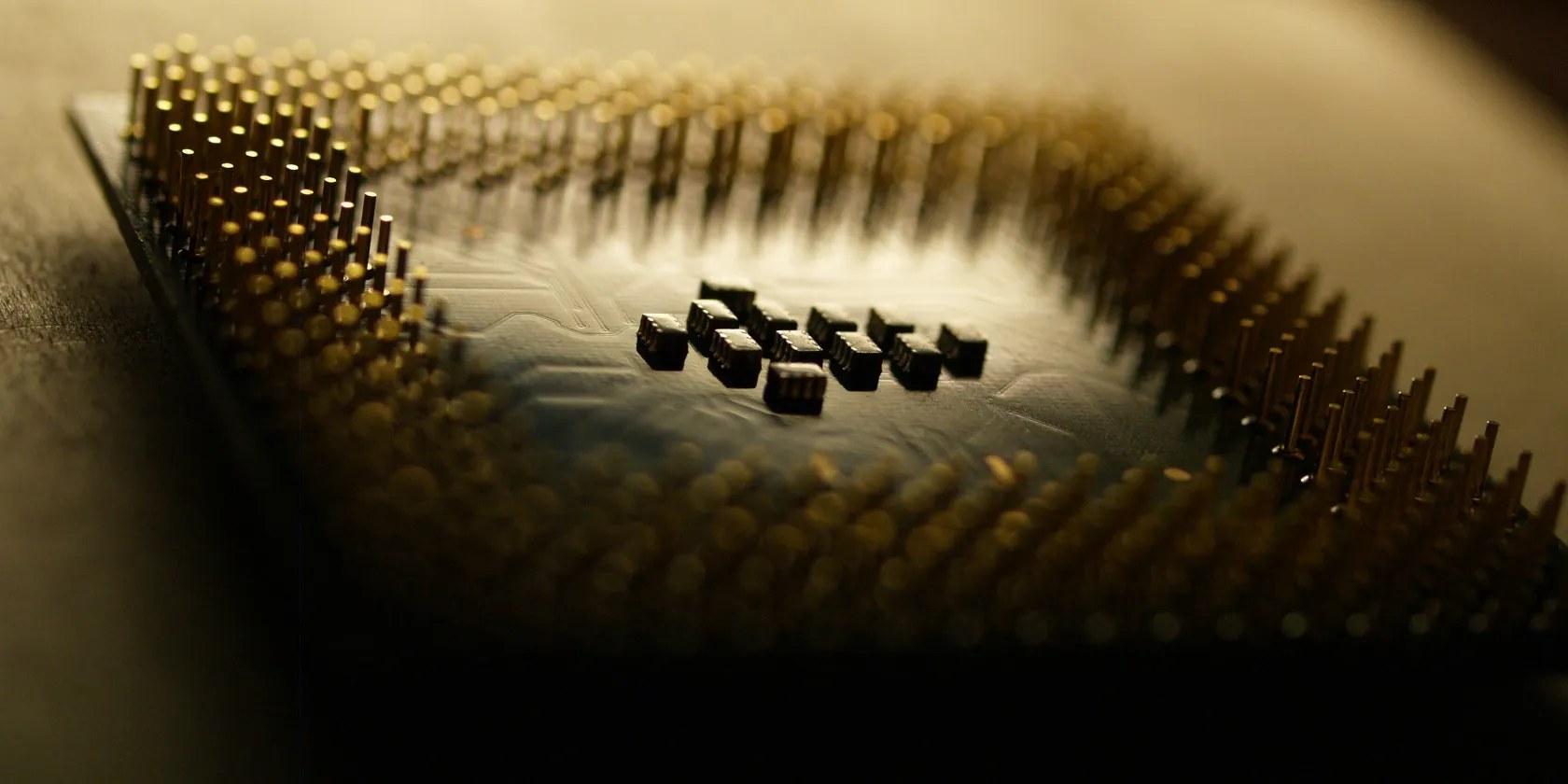
Close-up of a computer processor chip

Photo: Pstrahl, Wikimedia Commons, CC BY-SA 4.0

Processor or chip The brain

It handles the work and affects how quickly everything responds.

Chip names, decoded:

  • Intel i3, i5, i7, i9 — the bigger the number, the faster.
  • Intel Core Ultra 5, 7, 9 — Intel’s new name for the same class of chips (2024 and newer); same idea, bigger number = faster.
  • Intel Celeron, Pentium — Intel retired these names in 2023; today's budget laptops are labeled "Intel Processor" instead. Either way they are cheaper and slower; will feel sluggish. Worth avoiding if you can.
  • AMD Ryzen 3, 5, 7, 9 — same idea as Intel’s i3, i5, i7, i9.
  • AMD Athlon — their budget line; same warning as Celeron.
  • Qualcomm Snapdragon X — in newer Windows laptops; fine for everyday use with great battery life. Uses ARM architecture, so a few older programs and accessories won’t run — check before you buy.
  • Apple M1, M2, M3, M4, M5 — higher number means newer and faster; any of them is plenty.

Rough speed comparison: how much faster each chip is than a basic budget chip. Longer bar = faster.

Speeds are approximate, based on PassMark speed tests of typical laptop models. Your exact model and year will vary, but the order stays about the same.

For everyday use (email, photos, video calls, browsing), an i5, a Ryzen 5, or any Apple M chip is plenty.

More detail in our laptop guide

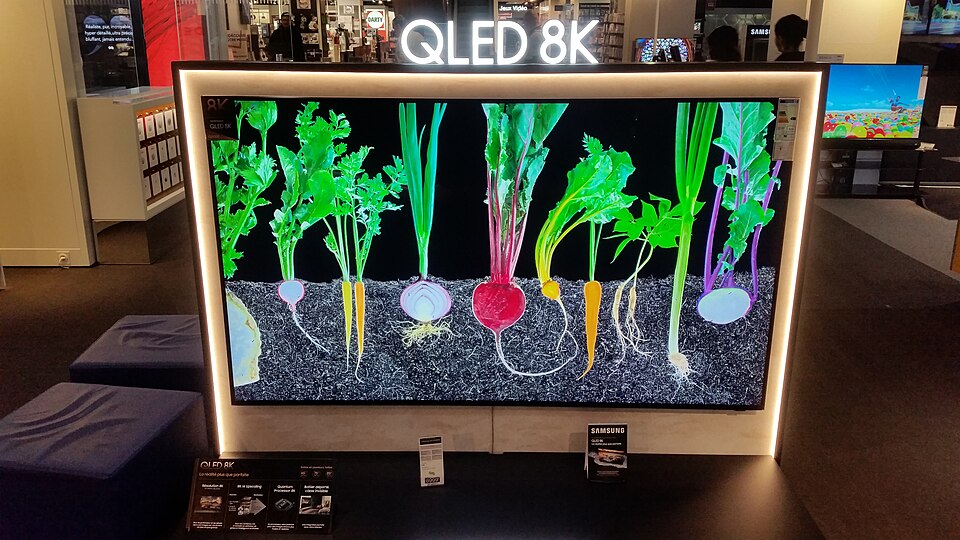
A QLED TV on display, showing a bright, colorful picture

Screens — TVs and monitors

Screen types — good, brighter, and best.

  • LED — the common, affordable kind in most TVs and monitors. Good.
  • QLED — a brighter LED — great for sunny rooms. Brighter.
  • OLED — the richest picture with the deepest blacks, and costs the most. Best.
A computer monitor on a desk

Photo: YeraC, Wikimedia Commons, public domain

Television or monitor?

  • A television is made for watching shows and movies from across the room.
  • A monitor is made for computer work up close — words and text look sharper, which makes reading easier on your eyes.

More information about televisions

More information about monitors

Related: what refresh rate (60Hz vs 120Hz) means — explained on our TV guide page.

Ports and USB-C

Think of ports as the places where things plug in. Here are the ones on modern computers.

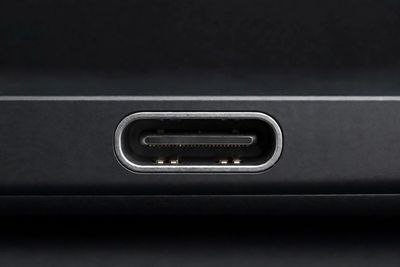
Close-up photo of a USB-C portUSB-C — the small rounded oval on newer devices. Plugs in either way, charges much faster, and moves photos and files much faster. One cable can often handle charging, accessories, and even a monitor.

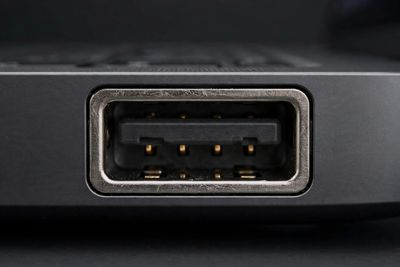
Close-up photo of a USB-A portUSB-A — the classic flat rectangle. Still on most computers for flash drives, printers, and mice.

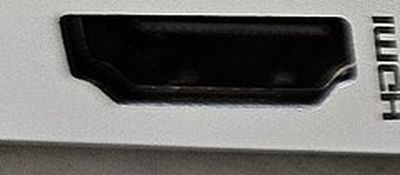
Close-up photo of an HDMI portHDMI — the wide plug that connects a computer to a TV or monitor.

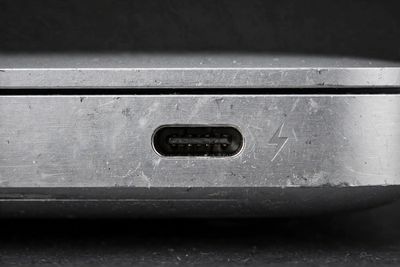
Close-up photo of a Thunderbolt port with lightning bolt symbolThunderbolt — looks exactly like USB-C but faster. Common on Macs and nicer Windows laptops; great for docking stations.

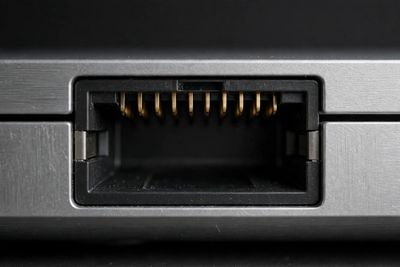
Close-up photo of an Ethernet network jackEthernet — the wide phone-jack-looking plug for wired internet. Faster and steadier than Wi-Fi when you can plug in.

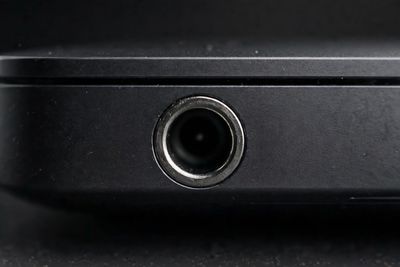
Close-up photo of a headphone jackHeadphone jack — the small round hole for wired earbuds or speakers.

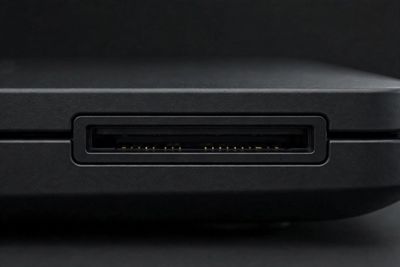
Close-up photo of an SD card slotSD card slot — a thin slot on many laptops for camera memory cards; the easy way to move photos.

Buying cables or a charger? Choose USB-C
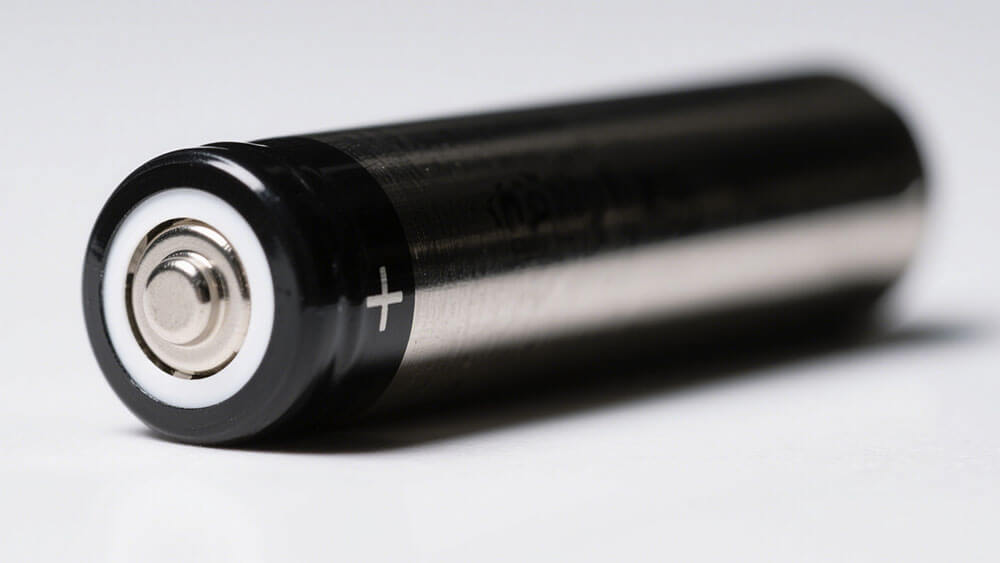
A smartphone battery

Battery Power and charging

Think of it as a rechargeable flashlight. Every phone, tablet, and laptop runs on a lithium battery.

Two things to know: battery life is how long one charge lasts (aim for 10+ hours on a laptop); a battery cycle is one full 100% charge used up. Batteries wear a little with every cycle, and heat wears them fastest. If your old device dies at 40%, the battery is worn — a new battery is often cheaper than a new device.

Keep devices cool — heat is the #1 battery killer
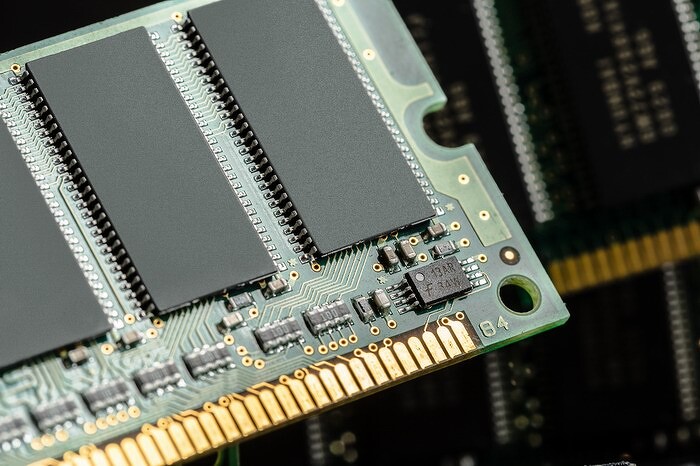
A computer memory stick

Memory or RAM The workspace

Think of it as your desk. A larger desk gives you more room to keep several things open at once.

Why it matters to you: More memory helps when you use many programs or browser pages together.

Good target: 16GB on a computer · 8GB on a tablet

DDR4 vs DDR5: two generations of memory. DDR5 is newer and faster; DDR4 is older but still fine. They don’t mix — a DDR4 computer can’t use DDR5 memory.

More detail in our desktop guide

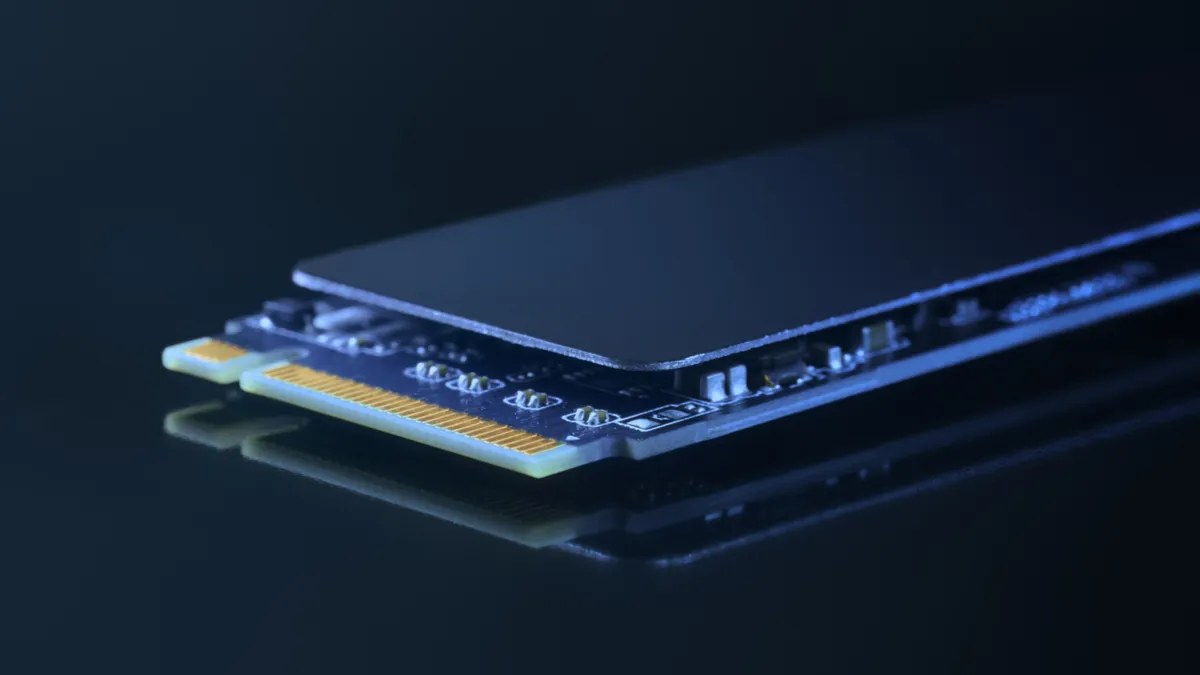
A solid-state storage drive

Storage The filing cabinet

Think of it as a filing cabinet. This is where your photos, documents, programs, and videos stay.

Types of storage drives:

  • Old hard drive (HDD) — has spinning disks inside. Pro: cheapest way to get lots of room. Con: slow, and easier to break if bumped or dropped.
  • Solid state drive (SSD) — no moving parts, like a giant USB stick. Pro: much faster — computer starts in seconds and programs open quickly; tougher, too. Con: costs more per gigabyte.
  • M.2 NVMe drive — a newer, smaller SSD that plugs straight into the board. Pro: the fastest kind in most new computers. Con: costs the most.

Bottom line: when you buy a computer today, get one with an SSD — a spinning hard drive will feel slow.

Plenty for most people: 256GB to 512GB

More detail in our laptop guide

A home Wi-Fi router

Wi-Fi The wireless connection

Think of it as an invisible cord to the internet. It connects your device without a cable.

Why it matters to you: A newer Wi-Fi version can give you a stronger, smoother connection when your home internet supports it.

Wi-Fi 6 or Wi-Fi 6E is current and fine

Wi-Fi 7 is the newest version — nice to have, but nothing you need yet.

Mesh Wi-Fi is a set of small boxes that spread your Wi-Fi evenly through a big house, so every room gets a strong signal.

More about Wi-Fi, and restarting your boxes

Operating system

Think of it as the device’s way of working. It controls the menus, programs, and everyday feel.

WindowsRuns on most brands of computers — Dell, HP, Lenovo, Acer, Asus, and more. The widest choice of programs, and the most common system in homes and offices.
macOSRuns only on Apple Mac computers. Works closely with iPhone and iPad — your photos, messages, and calls flow between them.
iPadOS and iOSRun Apple’s iPads and iPhones. Simple, touch-friendly menus, and apps come only from Apple’s App Store, which keeps things safer.
AndroidRuns most non-Apple phones and tablets, including Samsung and Google Pixel. More choice of devices and prices; apps come from the Google Play Store.
LinuxA free system used mostly for servers and by techs — not something most people ever need.
ChromeOSRuns on Chromebooks — simple, affordable laptops where everything happens in the Chrome browser. A good fit if you do everything online.

Why it matters to you: The best choice is often the one that feels familiar and works well with the devices you already use.

PC vs Mac — more detail

The CPU is the brain of your computer. A faster CPU means programs open quicker and everything feels snappier. You will see names like Intel or AMD when you shop — either is fine for everyday use.

RAM (random access memory) is your computer's short-term memory. More RAM lets you keep more apps and browser tabs open at once without slowing down. Eight gigabytes is plenty for most people.

The motherboard is the big flat board inside your computer that everything plugs into. You never need to touch it — just know the name in case a repair person mentions it.

A disk drive is where your files live even when the power is off. Most new computers use a fast, silent kind called an SSD with no moving parts inside.

A byte is a tiny piece of computer storage. About a thousand bytes makes a megabyte (MB) — one photo is usually 2 to 5 megabytes. A thousand megabytes makes a gigabyte (GB).

📊 See the chart: Motherboard Components Explained

Straight 2 Work Tech, LLC — patient, plain-words tech help.
(813) 770-6082